
To recover deleted videos from an SD card, stop using the card straight away, connect it to a Windows PC through a card reader, and scan it with read-only recovery software that can find MP4, MOV and MTS files. Preview what it finds, then restore the clips to a different drive, never back to the card itself. If you act before new footage is recorded over the old, most deleted or quick-formatted clips come back intact.
This guide is for creators who wiped a card before the shoot was safely copied, whether by deleting clips in camera, formatting the card for the next session or pulling it out mid-transfer. It covers what really happens when a file is deleted, the steps that give you the best chance, and the cases where software cannot help.
What actually happens when you delete or format a card?
When a camera or computer deletes a file, it normally does not erase the video data. It marks the space as free in the card's file table (usually FAT32 or exFAT on camera cards) and forgets the file's name and location. The footage sits there until something new is written over it.
A quick format, which is what most cameras do when you choose "Format", works the same way: it writes a fresh, empty file table and leaves the old data in place. A full format in Windows is different, because it writes zeros across the whole card, and after that there is nothing left to recover. Some cameras also offer a "low-level" or full format option that wipes the card in a similar way.
The one rule that matters most: every photo or clip you shoot on the card after the deletion can land on top of the footage you want back. Take the card out of the camera and put it somewhere safe until you are ready to scan.
What should you do before you try to recover deleted videos?
- Stop shooting on the card. Do not record "just one test clip" to check it still works.
- Do not format it again or run repair prompts. If Windows asks "You need to format the disk before you can use it", click Cancel. Formatting a card that shows as RAW or unreadable can make recovery harder.
- Use a card reader, not the camera's USB cable. Recovery tools need to read the card as a drive. Many cameras, and modern phones, do not present their storage as a normal drive over USB.
- Have somewhere else to put the files. You need free space on another drive, ideally an external disk, at least as large as the footage you expect to get back.
- Write down what you lost. Rough dates, camera model and file type (MP4, MOV, MTS or RAW stills) make it far quicker to filter the results.
Quick scan or deep scan: which do you need?
Recovery software generally works in two passes.
| Scan type | How it works | Best for | What you get back |
|---|---|---|---|
| Quick scan | Reads the card's own file records for entries marked as deleted | Clips deleted recently, in camera or on the PC | Original file names and folders, usually fast |
| Deep scan | Reads the whole card and recognises files by their contents | Formatted cards, RAW cards, older deletions | Files found by type, often renamed, slower |
Start with a quick scan. If the clips you need are not there, or the card has been formatted, run a deep scan. Because a deep scan identifies files by their internal structure rather than by name, the results may carry generic or date-based names, so filtering by type and size is how you find the takes you want.
How do I recover MP4 and MOV files step by step?
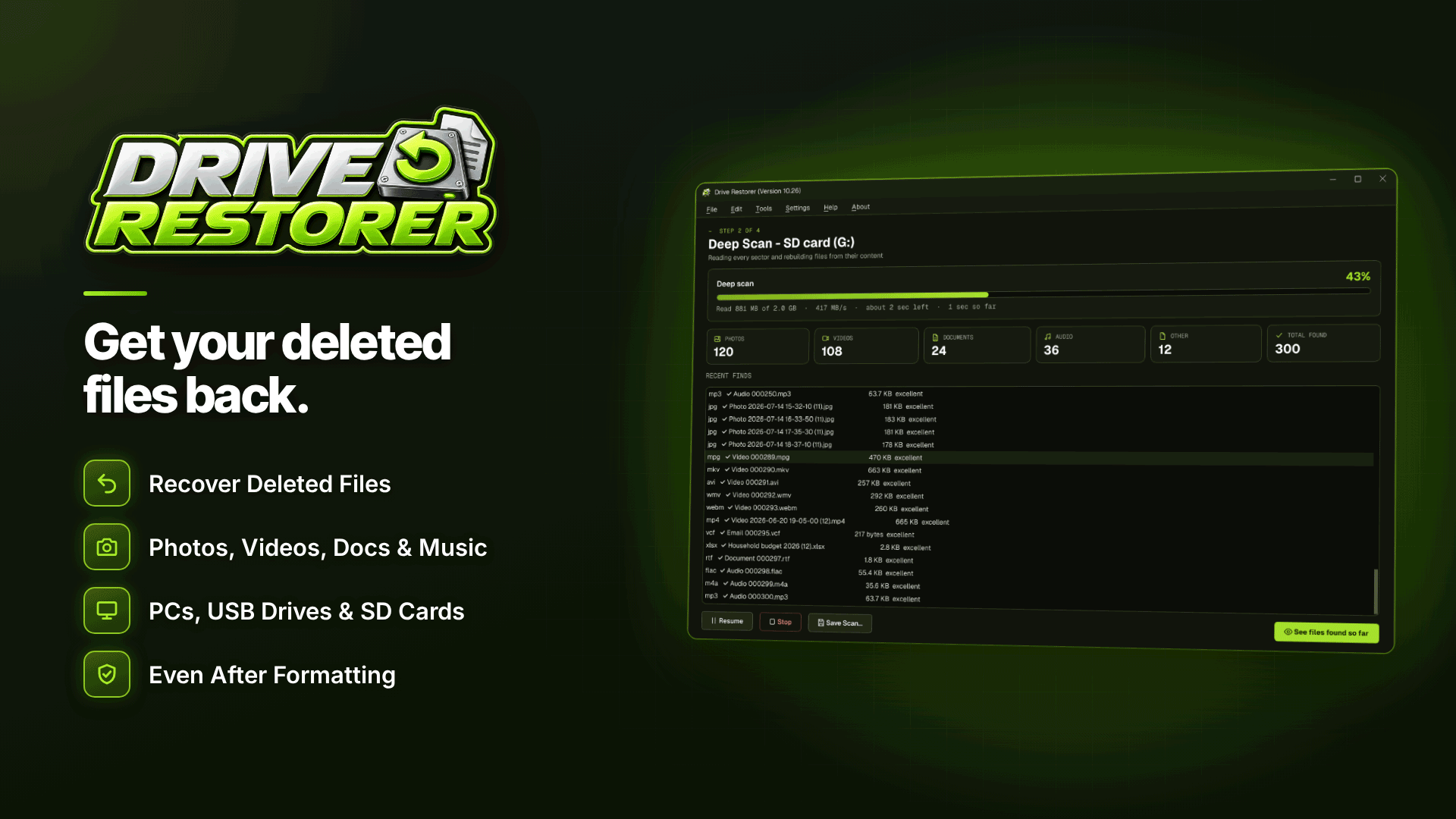
Here is how the workflow looks in Drive Restorer, a Windows 10 and 11 recovery tool that scans drives read-only and supports SD and camera cards through a card reader.
- Connect the card and choose it as the drive to scan. The software needs administrator rights to read the card directly. It reads NTFS, FAT12/16/32 and exFAT, which covers practically every camera card.
- Run the quick scan. It uses the card's own records to find deleted files with their original names and folders, which for a camera usually means the DCIM folder structure.
- Run a deep scan if needed. When records are gone after a format, the deep scan finds files by their contents and names them from their data, for example a photo's capture date. A long deep scan can be paused, saved and resumed later from Recent Scans, which helps with large cards.
- Filter the results. Narrow down by file type (MP4, MOV, AVI, WMV, MKV, MTS, M2TS or TS), size and date. A 40-second clip from a 4K camera will be much larger than a stray thumbnail, so a size filter cuts out a lot of noise.
- Preview before you restore. Play the video, view photos including camera RAW from Canon, Nikon, Sony, Fujifilm, Olympus and Panasonic bodies, and check the recovery chance rating: Excellent, Good, Partly overwritten or Overwritten.
- Restore to a different drive. The tool never writes to the scanned card. It restores to another drive, keeps names, folders and dates where they were found, and saves a recovery report so you know what came back.
Treat the recovery chance rating as your triage list. Restore everything rated Excellent or Good first, then decide whether partly overwritten clips are worth keeping for usable sections.
Can I recover deleted RAW photos from the same card?
Yes, in the same scan. Many creators shoot stills and video on one card, and the same rules apply: as long as the space has not been reused, RAW files are as recoverable as JPEGs. Preview matters even more here, because a deep scan may return several versions of a shot and you want the full-resolution RAW, not just the small embedded JPEG preview.
When will recovery not work?
Being realistic saves time and stress. Software cannot help in these situations:
- The footage has been overwritten. If you kept shooting after the deletion, some clips will be marked Overwritten or Partly overwritten and may not return whole.
- The card was fully formatted or wiped. A full format that writes zeros leaves nothing to find.
- The footage is on a phone. Modern phones do not appear as scannable drives, so card-recovery tools cannot read their internal storage. Check the phone's own "recently deleted" album and any cloud sync instead.
- The clip was cut off by power loss. If the battery died while recording, the file may be found but will not play because the camera never finished writing it. That needs a separate video repair tool; see our guide on fixing a video cut off when the battery died.
- The card is physically damaged. Cracked cards, bent contacts or cards that are not detected at all may need a professional recovery lab. If the card is detected but throws read errors, image it first (see below).
How do I fix a corrupted SD card without losing data?
If the card shows as RAW, asks to be formatted or freezes when opened, do not format it to "fix" it. Instead, take a drive image first: Drive Restorer can copy a failing card to an image file, skipping and listing unreadable areas, and then scan the image instead of the card. That way the fragile card is read once, and every later scan works from the copy. Only once your footage is safely restored should you reformat the card, and if it was misbehaving, retire it rather than trusting it with another shoot.
How can you stop this happening again?
- Copy before you format. Make "offload, check, then format" a fixed routine at the end of every shoot.
- Keep two copies before wiping a card. One on your editing drive and one on a backup drive. Our guide to a backup strategy for content creators sets out a simple plan.
- Rotate cards. Swap to a fresh card rather than formatting the one you just used, so yesterday's shoot survives until it is backed up.
- Buy reliable cards and readers. Our creator equipment starter kit covers the basics.
- Protect what you recover. Once clips are back, store originals privately and add marks before publishing; see how to watermark content without ruining it.
Frequently asked questions
Can I recover videos from a formatted SD card?
Usually, if it was a quick format, which is what most cameras do. The old file table is replaced but the video data stays until it is overwritten, so a deep scan can find the clips by their contents. A full format that writes zeros cannot be undone.
Why will my recovered video not play?
Either part of it was overwritten before you scanned, or the camera never finished writing the file, typically because the battery or card was pulled mid-recording. Check the recovery chance rating first; an unfinished clip needs a video repair tool rather than another scan.
Should I restore files back to the same SD card?
No. Writing restored files to the card you are recovering from can overwrite the very clips you are still trying to get back. Always restore to a different drive and only reuse the card once everything is safe.
How long does a deep scan of a large card take?
It depends on the card's size and the speed of the card and reader. A deep scan reads every part of the card, so a large, slow card can take a while; being able to pause and resume means you do not have to finish in one sitting.
Next steps
If you are dealing with leaked rather than lost content, read our guide to removing leaked content, and browse the webmaster software and services directory for other tools. When a card has just been wiped, connect it to a card reader, scan it read-only with Drive Restorer, and restore your clips to another drive before you shoot anything new.



