
If you are asking how do I fix a video that won't play after the battery died, the short answer is: copy the file off the card first, then repair the copy with a tool that can rebuild the missing index, ideally using a working clip recorded on the same device as a reference. The footage you shot is usually still there; what is missing is the small block of data that tells a player how to read it.
This guide explains why interrupted recordings break, what to check before you try anything, and how to rebuild a cut-off MP4 or MOV clip from a phone, mirrorless camera or action cam.
Why does a video stop playing when the battery dies?
Most cameras and phones record to MP4 or MOV. Both formats store the actual audio and video data in one part of the file and an index (often called the moov atom) in another. Many devices write that index only when you press stop. If the battery dies, the card fills up or the camera crashes, the recording ends before the index is written, so players see a file full of data but no map of where each frame is.
The typical symptoms are:
- The file has a sensible size (hundreds of MB or several GB) but shows a length of 0:00 or no thumbnail.
- Players report that the file is corrupt, unsupported or "moov atom not found".
- The video plays but has no sound, or the sound drifts out of sync.
A tiny file, a few KB or exactly zero bytes, is a different problem: the camera never wrote the footage, and no repair tool can create data that was never recorded.
What should I do first, before trying any repair?
The first hour after a failed recording matters more than the tool you pick. Follow these steps in order:
- Stop recording on that card. Don't shoot more clips onto it, and don't let the camera "repair" or format it if it offers, unless the manufacturer's manual says that is a recovery step.
- Copy the broken file to your computer. Work only on copies. Keep the original on the card until you are sure you have a playable version.
- Copy a healthy clip from the same device too. Choose one recorded with the same resolution, frame rate and codec settings. This is your sample file, and it is the single most useful thing you can have for a serious repair.
- Try a second player. Some players are more tolerant of damaged files than others. If it plays in one but not another, the index may only be partly damaged.
Back up before you experiment. Any repair attempt should write a new file, never overwrite the original. If a tool offers to "fix in place", say no. Our backup plan for creators covers how to keep raw footage safe from the moment it leaves the camera.
How do I repair a corrupted MP4 or MOV file?
There are three broad levels of repair, and it helps to know which one you need:
| Problem | What a repair does | Likely outcome |
|---|---|---|
| Index partly damaged | Rebuilds the index from the data that is still readable | Usually plays fully or almost fully |
| Index never written (dead battery, full card) | Uses a sample clip from the same device to work out how the data is laid out, then rebuilds the file | Often recovers most of the clip; the last seconds may be lost |
| Data damaged in places | Drops unreadable chunks and keeps the rest | Plays, with jumps where data was lost |
| Audio damaged | Repairs or rebuilds the audio stream | Sound restored or partly restored |
The sample-file method is the one that rescues dead-battery clips. Because your camera encodes every clip in a consistent way, a good recording from the same device tells the repair software what codec settings, frame structure and audio format to expect. Without it, the tool is guessing.
Does the codec matter?
Yes. Modern phones and action cams often record in H.265 (HEVC) to save space, while many cameras still default to H.264. Your repair tool has to understand the codec inside the file, not just the MP4 or MOV wrapper. Check your camera's settings menu so you know which one you used, and make sure your sample clip was recorded with the same setting.
Repairing the clip step by step on Windows
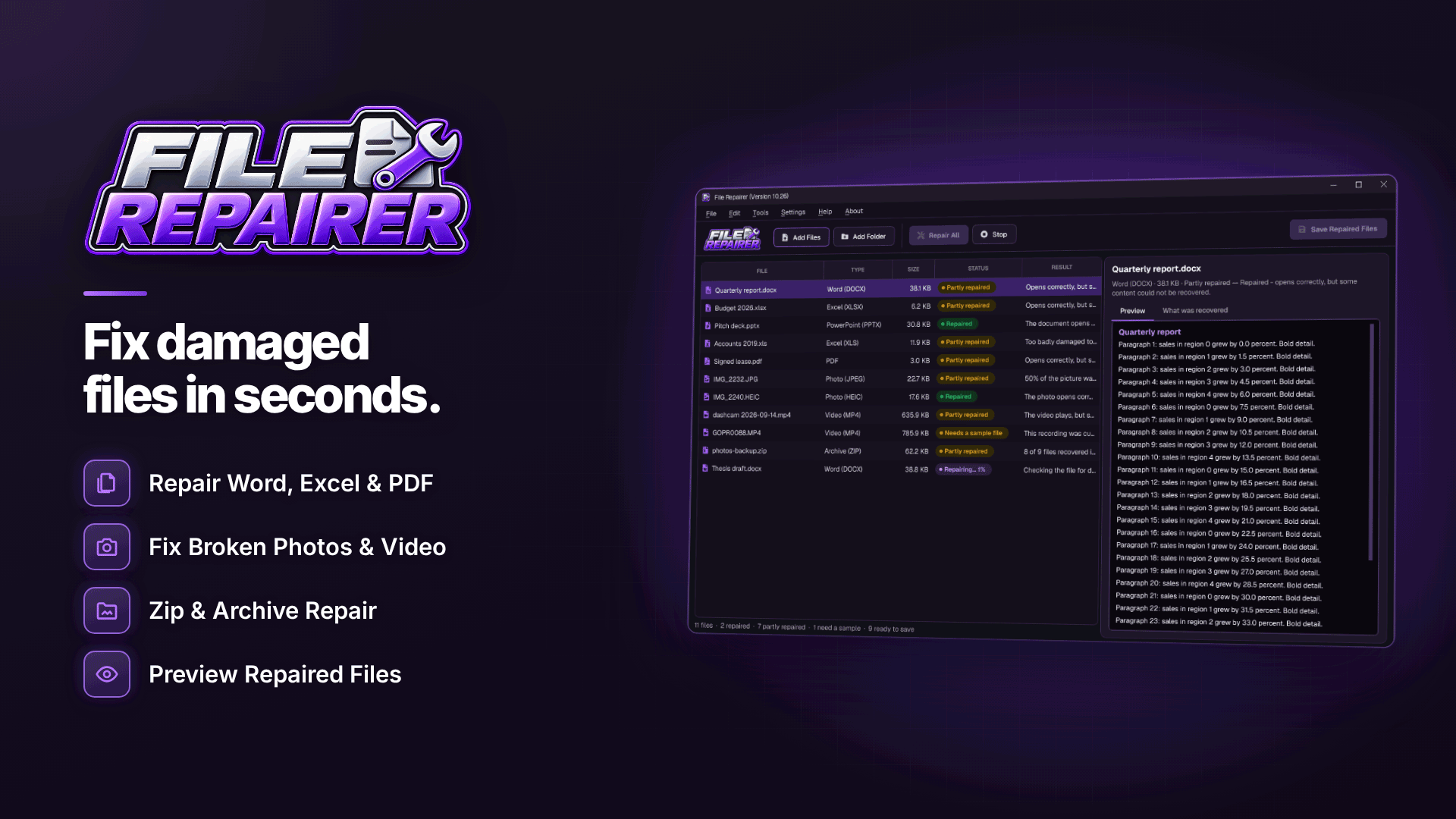
If you edit on a Windows PC, File Repairer is built for exactly this job. It handles MP4, MOV, AVI and MKV, rebuilds broken indexes, drops damaged data and repairs damaged audio. For recordings cut off by a dead battery or full card, it supports sample-file repair for H.264 and H.265/HEVC footage using a working video from the same device. Processing happens on your own computer, so raw footage is not uploaded anywhere.
- Add the broken clip. You can run Check Files for Damage first; it scans files or whole folders without changing anything, which is handy after a long shoot where you are not sure how many clips were affected.
- Supply a sample file if asked. If the result shows "Needs a sample file", add the healthy clip you copied from the same camera or phone.
- Preview the result. File Repairer shows a preview and a plain-language summary of what was wrong and what it recovered before you save anything.
- Save the repaired copy. It works only on copies, saved with "(repaired)" in the name, so your original file is untouched. Statuses such as Repaired, Partly repaired or Failed tell you where you stand.
- Check the end of the clip. Scrub to the last minute and listen for sync problems before you delete anything from the card.
Be realistic: video repair is not guaranteed. The tool recovers what is still readable; anything the camera never wrote, or that has been overwritten, cannot come back, and those results are marked "Partly repaired".
What if the video has no sound after recording?
A clip that plays silently usually has a damaged or incomplete audio track rather than missing video. Try the clip in a second player first, then run an audio repair on a copy. If you recorded audio separately on an external recorder, which is good practice for paid content anyway, sync that file in your editor instead and treat the camera audio as a guide track only.
Action cams, drones and full SD cards
Action cameras and drones are the most common source of cut-off clips because they run hot, drain batteries quickly and often record long takes. A few habits reduce the risk:
- Use cards with a speed rating your camera's manual recommends, and format them in the camera, not on the PC.
- Swap batteries before a long take rather than waiting for the warning.
- Keep at least a few GB free; a card that fills mid-take produces the same broken file as a dead battery.
- Record a short test clip at the start of each session. If a later clip breaks, that test clip is your ready-made sample file.
Our equipment starter kit covers batteries, cards and audio gear worth budgeting for.
When repair won't help
Repair software fixes damaged files that still exist. It is not data recovery software: it cannot find clips you deleted, recover files from a card you have formatted, or read a card that the computer can't see at all. If the file has disappeared from the card or the card shows as unreadable, that is a recovery job, and you should stop writing to the card immediately. In those cases our guide to a backup strategy for content creators is the long-term fix.
Frequently asked questions
Can I fix a video cut off by a full SD card?
Usually, yes. A full card interrupts the recording in the same way as a dead battery, so the index is missing. Sample-file repair using a clip from the same camera normally recovers most of the footage, although the final seconds may be lost.
Will repairing the file reduce its quality?
A good repair rebuilds the file's structure rather than re-encoding the picture, so the frames that survive should look as they did when recorded. Any damaged sections are dropped rather than smoothed over.
Next steps
Once your clip is playable, build the habits that stop it happening again: test clips at the start of each shoot, spare batteries and an automatic backup of every card you offload. Plan reshoot slots into your content calendar so a lost clip never derails a release, and browse our webmaster software and services directory for other tools that protect your workflow.
If you shoot on several devices, keep one short healthy clip from each in a "samples" folder on your PC so it is ready the next time a recording breaks, and keep File Repairer installed on your editing machine for the day you need it.



