
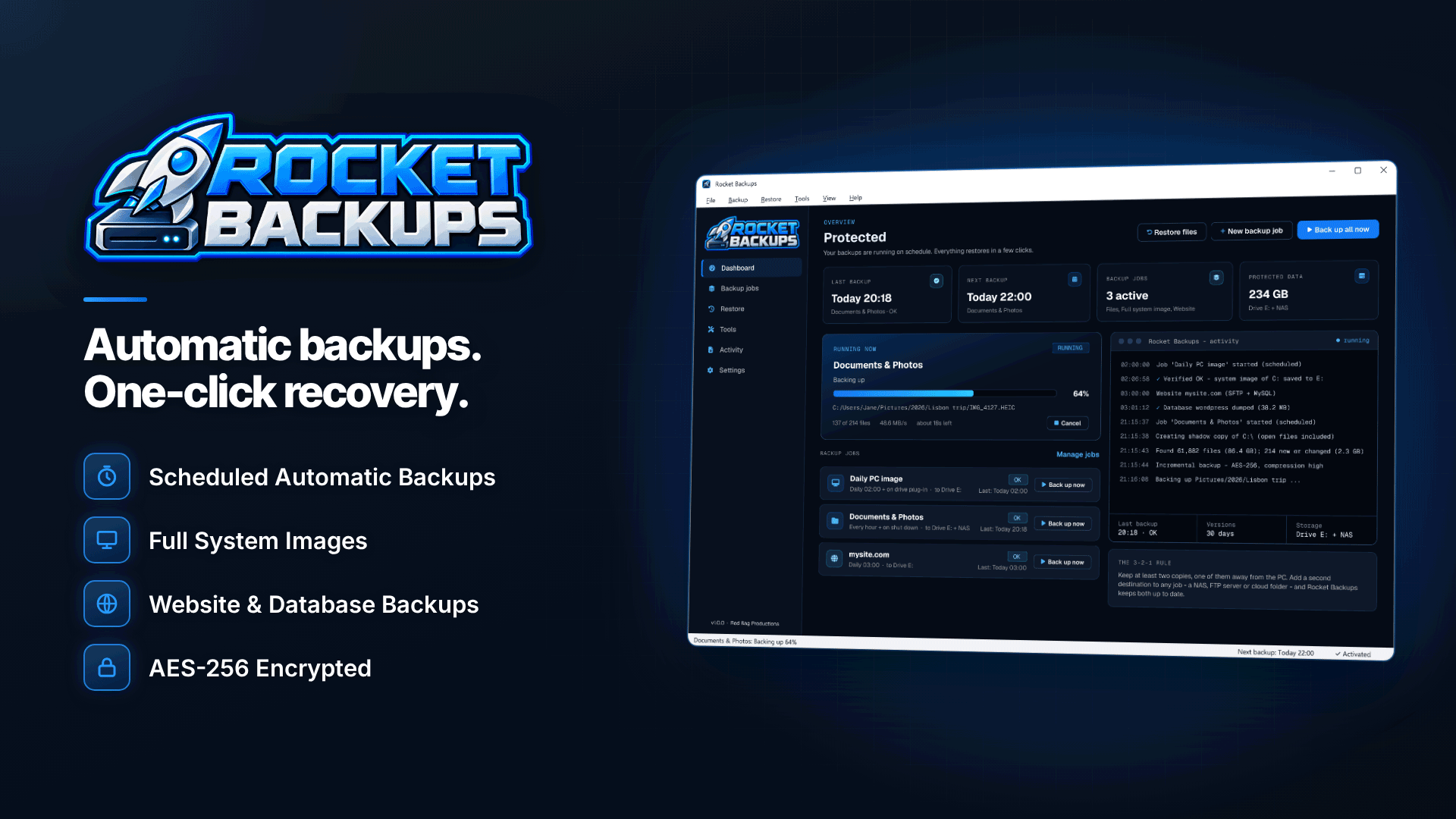
The best way for content creators to back up their files is the 3-2-1 rule: keep three copies of everything that matters, on two different types of storage, with one copy somewhere other than your home or studio. Make the backups automatic so they happen without you remembering, encrypt them because your content is private, and keep older versions so a mistake or ransomware attack cannot overwrite your only good copy.
Platforms are not your archive. Accounts get suspended, content gets removed, and downloading your own library back is slow if it is possible at all. This guide sets out a practical plan for a creator working from a Windows PC, explains why cloud sync on its own is not enough, and shows how to automate it.
What should a content creator back up?
- Original shoots: RAW photos and full-quality video straight from the camera. These cannot be recreated.
- Edited masters and project files from your editing software.
- Unreleased content scheduled for future posts or paid messages.
- Business records: release forms, collaboration agreements, invoices and tax records.
- Identity documents used for platform verification, which need extra protection; see how to store creator ID documents securely.
- Your website, if you run one; see our guide to a self-hosted creator website.
Exports and watermarked versions can usually be regenerated from masters, so they are lower priority if space is tight.
How does the 3-2-1 backup rule work for creators?
| Copy | Where it lives | What it protects against |
|---|---|---|
| 1. Working copy | Your editing PC or laptop | Nothing on its own |
| 2. Local backup | External USB drive, unplugged when not in use | Drive failure, accidental deletion, ransomware |
| 3. Off-site backup | A NAS at another location, an SFTP server, or an encrypted cloud folder | Theft, fire, flood, losing the PC and drive together |
"Two types of storage" simply means not relying on one kind of device, for example an internal SSD plus an external hard drive plus cloud storage. The off-site copy is the one most creators skip, and the one that saves them after a burglary.
Is OneDrive a backup?
Not on its own. OneDrive, Dropbox, Google Drive and iCloud are sync services: they keep the same files on every device. That is convenient, but it means a deletion, an accidental overwrite or ransomware encryption syncs to every copy too. These services do keep deleted files and some earlier versions for a limited period, which helps, but that is a safety net, not a backup plan you control. Sync folders are also limited by your plan's storage, and an unencrypted cloud folder full of private content is a privacy risk if the account is ever compromised.
Cloud folders work well as one part of a backup plan, as the destination for an encrypted copy, rather than as the plan itself.
How do you schedule automatic backups on Windows?
Backups that depend on you remembering stop happening during busy weeks. On a Windows 10 or 11 PC (64-bit, Windows 10 version 1809 or later), Rocket Backups can run the whole 3-2-1 plan automatically. Here is a set-up that suits most creators:
- Choose your folders. Select your shoots, edits and business folders, or back up whole drives. Files that are open, such as a project in your editor, are backed up via Volume Shadow Copy.
- Back up when the USB drive is plugged in. Set the job to trigger on backup drive plug-in. Your routine becomes: plug the drive in after a shoot, let it run, unplug it. Keeping the drive disconnected between runs protects it from ransomware.
- Add a second location. Send each backup to a second destination as well: a NAS or network share, an SFTP server, or a cloud folder such as OneDrive, Dropbox, Google Drive, iCloud or Box.
- Turn on encryption. Use AES-256 with a strong password you store safely somewhere else, such as a password manager. Without the password, nobody can open the backup, including you.
- Let it work incrementally. After the first full backup, only changes are copied, with de-duplication and compression, so later backups are much quicker than the first.
- Set a schedule as well. A daily backup to the second location catches anything you forget to back up manually. Missed backups run when the PC is next switched on.
- Turn on alerts. Email alerts tell you when a job fails, a drive is missing or space is low, and every run is verified.
Video libraries are big. Size your USB drive for at least your current library plus a year of growth, and set retention rules (daily, weekly, monthly or a fixed count) so old versions are pruned automatically rather than filling the drive.
Why does version history matter?
A backup that only holds today's copy cannot help if today's copy is the problem: an edit saved over the original, a corrupted project file or ransomware-encrypted photos. Keeping dated versions lets you go back. With timeline restore you can browse or search your backups, view every version of a single file and restore it to its original or a new location. You can also mount a backup as a drive letter to copy out a few clips without a full restore.
What if your PC will not start?
File backups protect your content, but getting back to work quickly after a dead drive also means restoring Windows, your editing software and settings. A full system image plus a rescue USB, which Rocket Backups can create, allows a bare-metal restore when Windows will not start. Make the rescue USB now, label it and keep it with your backup drive. Do a test boot from it once so you know it works.
Common mistakes creators make
- Formatting a camera card before it is backed up. Offload to the PC and the backup drive first. If it has already happened, see how to recover deleted videos from an SD card.
- Keeping the backup drive permanently plugged in. Ransomware and power surges can reach it.
- Storing the backup drive next to the PC. A burglar takes both.
- Never testing a restore. Restore a folder every few months to prove it works.
- Relying on the platform. Plan for losing access to your account; our platform backup plan covers the business side.
Frequently asked questions
How often should creators back up?
After every shoot for the local USB backup, and at least daily for the off-site copy. Automatic triggers and schedules mean you do not have to remember.
Is an external hard drive enough?
It is a good start but only one copy. Drives fail, get dropped and get stolen, so add a second copy somewhere else.
Should I encrypt my backups?
Yes, for private or unreleased content and anything with personal details. Encryption protects you if a drive is lost or a cloud account is compromised, as long as you keep the password safe.
Next steps
Backups are part of running your content as a business; our guide to starting a content creator business covers the rest. Then set up an automatic plug-in backup, a second off-site location and encryption in Rocket Backups, and test your first restore this week.



