
To store ID scans securely on your computer, keep them in one encrypted location rather than scattered across downloads, desktop and chat apps: encrypt them with AES-256 behind a strong password, set the folder to lock automatically when you step away, securely delete the unencrypted originals and keep a recovery key somewhere offline. That way a lost laptop, a nosy housemate or a hacked cloud account does not expose your legal identity.
For creators, these are not just admin files. They are the link between your stage name and your real name, address and face, so they deserve better protection than anything else on your PC.
Why ID scans and contracts are a doxxing risk
Most creators guard their location and legal name carefully online, then leave a passport scan in the downloads folder. Think about what you probably hold:
- passport or driving licence scans used for platform verification;
- verification selfies holding your ID;
- proof of address such as bank statements or utility bills;
- signed releases and collab agreements showing legal names;
- agency contracts, tax documents and earnings statements.
Any one of these in the wrong hands can undo every privacy step you have taken. Our guides on how to avoid getting doxxed and staying anonymous as a creator cover the online side; this guide covers the files on your own devices.
Find every copy first
Before encrypting anything, hunt down the copies. ID images tend to multiply:
- Check Downloads, Desktop and Documents for scans and PDFs.
- Search your PC for "passport", "licence", "ID", "release" and "contract".
- Look in messaging apps' saved-files folders and your email attachments.
- Check your phone's camera roll and its cloud photo backup.
- Look in synced folders such as OneDrive, Dropbox or Google Drive.
Gather everything into one working folder. Delete duplicates you do not need, and keep the records you may need to produce later. If you work with other performers, our guide to performer age and consent records in Europe explains why some paperwork should be kept, not deleted.
A simple folder structure
Once everything is in one place, organise it so you can find documents quickly without opening everything at once:
| Folder | What goes in it | Keep or review |
|---|---|---|
| Identity | Passport, licence, verification selfies | Replace when documents expire |
| Releases | Signed collab and model releases | Keep for as long as the content is published, and check platform rules |
| Contracts | Agency, brand and platform agreements | Keep while active and for a period afterwards |
| Money | Earnings statements, invoices, tax records | Keep for the period your tax authority requires |
Use neutral file names. "doc-2026-03.pdf" gives away far less than a file named with your legal name and "passport".
How to password-protect a folder in Windows 11
Windows 11 does not offer a simple "put a password on this folder" option, and Home editions lack the full BitLocker tools found in Pro. Device Encryption, where your hardware supports it, protects the drive if the laptop is switched off and stolen, but not once you are logged in or after files are copied elsewhere. For ID documents you want file-level encryption on top.
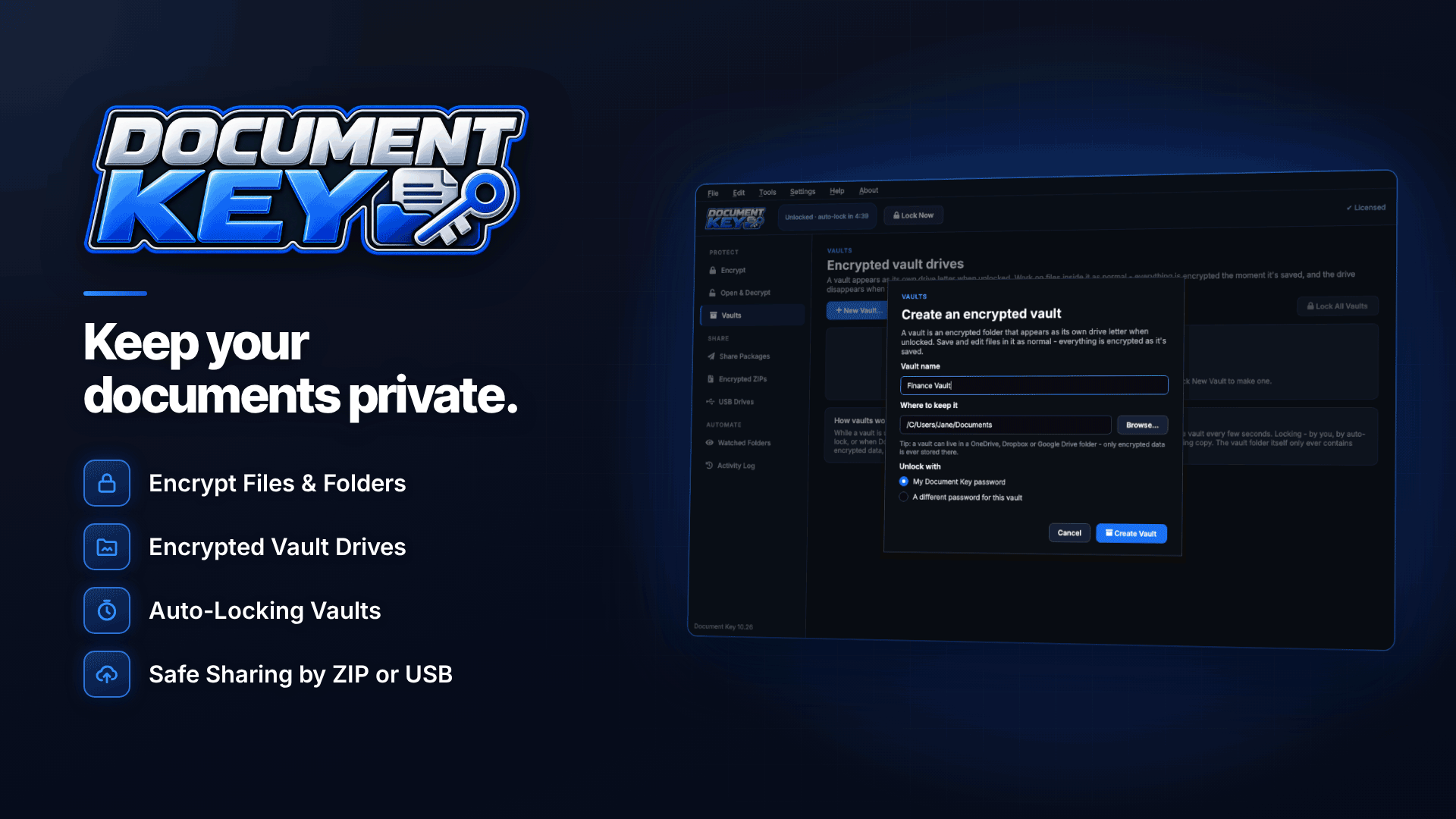
A dedicated tool such as Document Key fills that gap on Windows 10 and 11, including Home editions. It needs no account and no cloud service; everything happens on your PC. Here is how a creator might set it up:
- Create a strong password using the built-in generator, and watch the strength meter. Wrong guesses are slowed down, which makes brute-force attempts harder.
- Save the recovery key when offered during setup. Print it or keep it in a password manager, never in the same folder as your documents.
- Encrypt your ID folder from the File Explorer right-click menu or by dragging it onto the app. AES-256 encryption applies to any file type.
- Securely delete the originals. Secure delete overwrites the unencrypted copies after encryption, so they cannot be undeleted.
- Turn on auto-lock for idle time, sleep and Windows lock.
Using a vault drive for your private paperwork
If you open these documents regularly, for example when re-verifying on a platform or sending a release to a collaborator, a vault drive is more convenient than unlocking files one by one. When unlocked, the vault appears as its own drive letter in File Explorer. When you lock it, or the auto-lock kicks in, the drive letter simply disappears. Anyone glancing at your screen or using your PC sees nothing to click on.
Edits you save are re-encrypted, so you can update a contract or replace an expired passport scan without leaving a plain copy behind. An activity log records locking, opening, decrypting and sharing.
How to keep files private on a shared computer
Many creators share a PC with a partner, family or housemates. Separate Windows accounts help, but administrators can usually access other users' files. Encryption is what actually keeps them private:
- keep sensitive documents only in encrypted files or a vault;
- let auto-lock close the vault whenever you lock Windows or walk away;
- avoid opening ID scans in apps that keep "recent files" previews, or clear those lists;
- never save a copy to a shared folder "just for now".
How to protect files on a laptop when travelling
Laptops get lost in taxis, hotels and airports. Before you travel:
- lock your vault and check the drive letter has gone;
- if you must carry documents on a USB stick, encrypt the files on it, since the tool can encrypt files on USB sticks and external drives;
- keep the recovery key at home, not in your laptop bag;
- remember that files you encrypt before they reach a OneDrive, Dropbox or Google Drive folder stay encrypted there, so a cloud backup does not undo your protection.
For a full approach to backups, see the best way for content creators to back up their files.
Plan for the worst case. If you lose both your password and your recovery key, encrypted files cannot be opened, and nobody, including the vendor, can recover them. Keep the recovery key safe and tell one trusted person where it is.
Frequently asked questions
Should I keep my ID scans at all after verification?
Keep only what you are likely to need again, such as for re-verification or records connected to collaborations. Delete the rest securely. Fewer copies means fewer chances of a leak.
Is cloud storage safe for passport scans?
Cloud providers encrypt data on their servers, but anyone who gets into your account can see it. Encrypt files on your PC before they sync, so the cloud copy stays locked.
What if I need to send my ID to a platform or agency?
Use the platform's own secure upload where possible. If you have to send documents directly, use an encrypted package or ZIP and share the password separately.
Next steps
Spend an hour this week finding every copy of your ID and contracts, then move them into one encrypted, auto-locking vault with a recovery key stored offline. To set that up on a Windows PC without creating an account or using the cloud, try Document Key.



