To replace an old domain name in all website files, download the full site to your PC, run a batch find and replace across every text file with a short, ordered set of rules (old http and https addresses first, then any www or bare variants), preview every match, then re-upload and set up 301 redirects from the old domain. Pay special attention to canonical tags, sitemaps and social sharing tags, because those tell search engines which address is the real one.
On a database-driven site you would usually update the database. On a static HTML site, every absolute URL lives inside the files: navigation, image paths, canonical tags, Open Graph tags, structured data, the XML sitemap and robots.txt. Missing a few is common, and each one leaves search engines and visitors a route back to the old domain.
Where the find and replace fits in a site migration
- Set up the new domain and hosting, with a valid HTTPS certificate.
- Download a fresh copy of the live site and keep an untouched backup.
- Replace the old domain throughout the files (this guide).
- Upload the updated site to the new domain and test it.
- Add page-to-page 301 redirects from the old domain to the new one.
- Tell Google: for a domain change, use the Change of Address tool in Search Console.
- Monitor crawling, indexing and traffic for several months.
Google's Change of Address tool documentation asks you to keep redirects in place for at least 180 days, or longer while the old URLs still receive search traffic. It is not used for an HTTP to HTTPS move on the same domain, which Google detects without it, and each subdomain variant, such as www and non-www, needs its own request. For the wider checks, see our technical SEO checklist.
What exactly needs replacing?
Before writing any rules, search the files for the old domain and note every form it takes:
- https://www.olddomain.example and https://olddomain.example
- The same with http://
- Protocol-relative addresses such as //olddomain.example/ and //www.olddomain.example/
- Escaped forms inside JavaScript or JSON, such as https:\/\/olddomain.example
- Email addresses such as info@olddomain.example (decide whether these should change)
- Plain mentions of the brand domain in copy and page titles
Also check for strings that contain the old domain but are not yours, for example olddomain.example.net belonging to someone else, or a partner URL with your domain in a tracking parameter.
How to replace the old domain in all website files
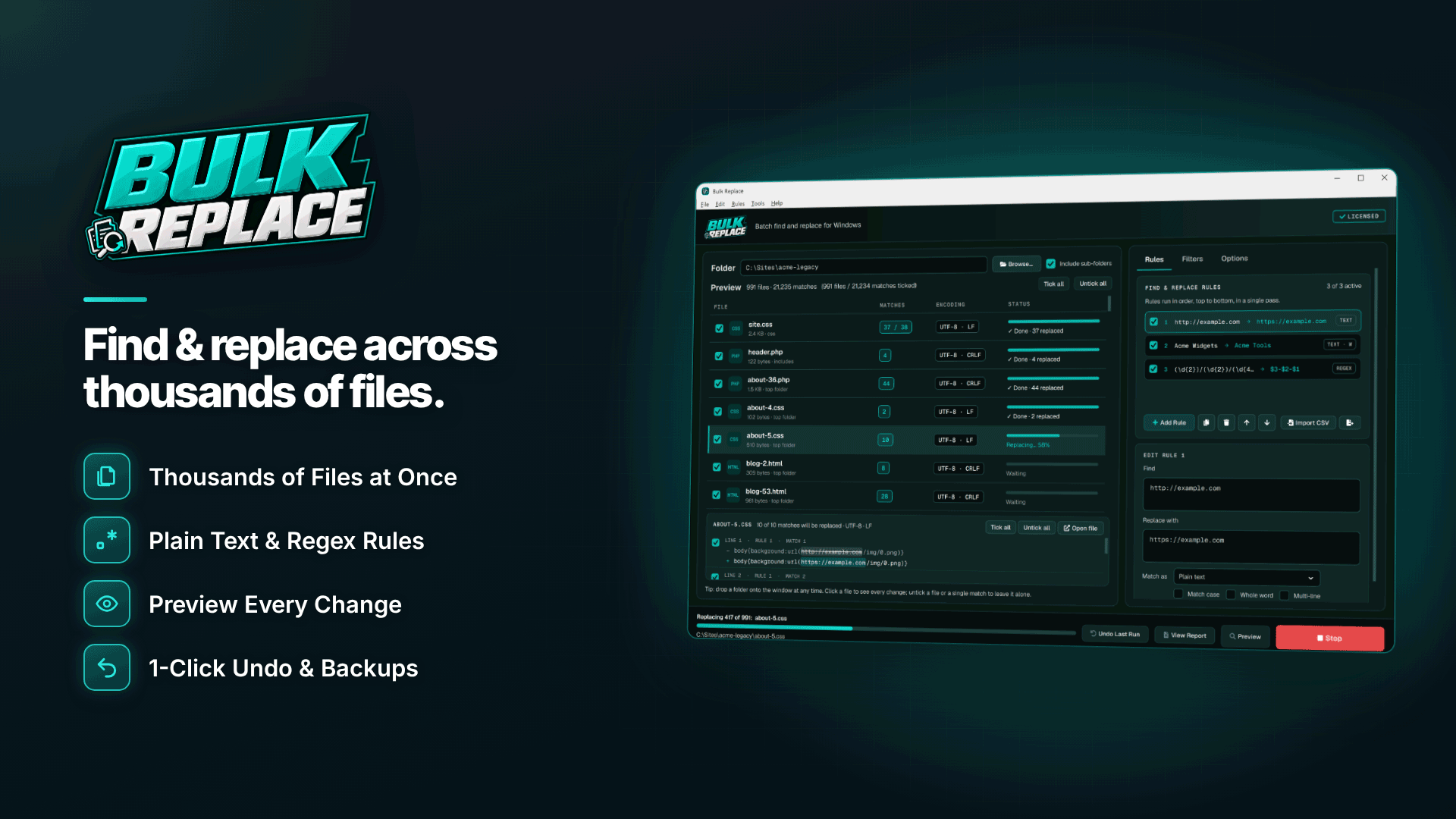
A batch tool saves hours and, more importantly, gives you a preview and a way back. Bulk Replace is a Windows find-and-replace tool that processes a whole folder tree in one run, entirely offline, and lists site migrations, http-to-https changes and replacing an old domain among its intended uses. It needs Windows 10 (version 1809 or later) or Windows 11, 64-bit, and edits files on your PC rather than a live server.
1. Set the file filters
Include the text formats your site uses, such as .html, .htm, .css, .js, .php, .xml, .json and .txt (for robots.txt). Binary files such as images and videos are skipped automatically. Exclude folders you do not publish.
2. Stack the rules in the right order
Rules run in order, in one pass. A sensible order for an old-to-new domain move, also switching to HTTPS, is:
| Order | Find | Replace with |
|---|---|---|
| 1 | http://www.olddomain.example | https://www.newdomain.example |
| 2 | https://www.olddomain.example | https://www.newdomain.example |
| 3 | http://olddomain.example | https://www.newdomain.example |
| 4 | https://olddomain.example | https://www.newdomain.example |
| 5 | //www.olddomain.example | //www.newdomain.example |
| 6 | //olddomain.example | //www.newdomain.example |
Adjust to your chosen canonical host (www or bare). Use match case where it helps and whole-word matching so the rules do not catch longer domains that merely contain yours. For a simple HTTP to HTTPS find and replace on the same domain, the built-in http-to-https example rule is a good starting point. If you have many rules, keep them in a spreadsheet and import them as a CSV.
3. Preview and check the counts
In Bulk Replace, press F5 for the diff preview. Each file shows the before and after with highlights, and the totals tell you how many matches each rule found. Untick any file or match that should stay, such as an archived press page that should keep quoting the old address. Nothing is written until you run the job.
4. Run, then keep the report
Every file is backed up before it changes, and a timestamped CSV change report lists what changed where. If you spot a problem, Undo Last Run restores the whole job. Encodings and line endings are preserved, so you will not get stray character problems from the edit itself.
Canonicals, sitemaps and other SEO tags
After the run, spot-check these by hand on a few page types:
- Canonical tags point to the new domain on every page.
- hreflang annotations, if you have them, use new URLs on every language version.
- XML sitemap lists only new URLs, and robots.txt references the new sitemap address.
- Open Graph and structured data use the new domain in URLs and logos.
- Internal links go straight to new URLs rather than through redirects. Relative links survive domain changes, which is one reason our guide to internal linking for affiliate sites suggests consistent paths.
Do not replace affiliate tracking blindly. If sponsor links include your old domain as a referrer or sub-ID value, changing it may split your reporting. Decide case by case and untick those matches in the preview if needed.
After launch: what to watch
Expect some fluctuation in rankings while search engines process the move. Check Search Console for crawl errors on both properties, look for 404s in your server logs and test a sample of old URLs to confirm each redirects to its exact new equivalent. If traffic drops sharply and does not recover, our guide to diagnosing a traffic drop helps separate migration problems from algorithm changes.
Frequently asked questions
Should I use relative or absolute URLs after the move?
Relative internal links make future moves easier. Canonical tags, sitemaps and social tags should still use full absolute URLs.
Can I edit the files directly on the server?
It is possible, but you lose the preview, backups and undo. Download, edit locally, then upload the changed files.
Does an HTTP to HTTPS move need redirects too?
Yes. Updating the links in your files stops you creating new references to the HTTP version, but old backlinks, bookmarks and search results still point there. Add a site-wide 301 redirect from HTTP to HTTPS on the server, then check that it goes straight to the final URL in one hop.
How long should I keep the old domain?
Google recommends keeping redirects for at least 180 days and keeping the old domain registered for at least a year. Many webmasters keep it indefinitely to protect old backlinks.
Next steps
List every form of your old address, build and preview the rules, and only then upload and redirect. You will find other migration and site maintenance utilities in the webmaster software and services directory. To run ordered, previewed domain rules across every file with backups and one-step undo, see Bulk Replace.