To find large video files on a PC, start with File Explorer: open the drive, search for size:gigantic (files over 4 GB) or size:>1GB, and sort by size. For a full picture of what is filling the drive, use a disk space analyser that maps folders by size, lists huge files with their last-opened dates and finds duplicate videos across your drives. Then move or remove what you no longer need, keeping masters safe.
On a tube or adult site workstation, a full drive is more than an annoyance. Encodes fail halfway, upload queues stall and thumbnail jobs error out. This guide walks through the built-in checks, a faster way to see where space went, and a safe clean-up routine for video-heavy machines and NAS shares.
Why does a video workstation fill up so fast?
- Source scenes from content partners or your own shoots, often in high bitrates.
- Multiple encodes of each scene for different resolutions and players, as described in our guide to encoding videos for a tube site.
- Trailers, previews and clips cut from each scene.
- Test renders and failed exports that were never deleted.
- Duplicate downloads of the same content pack onto different drives or a NAS share.
- Junk: Windows temp files, update leftovers, browser caches and crash dumps.
What is taking up space on my C drive? Start with the built-in tools
Windows Storage settings
In Settings, go to System, then Storage. Windows shows a breakdown by category (apps, temporary files, documents, videos and others) for the system drive, with an option to see other drives. It is a good first look and can clear temporary files, but it does not tell you which folders or files are the problem.
File Explorer size search
Open the drive in File Explorer and search for size:gigantic (over 4 GB), size:huge (1 to 4 GB) or a custom filter such as size:>2GB. Switch to Details view and sort by size. This finds individual monsters quickly, but searching a big drive is slow, it will not show you which folder has grown, and it does not detect duplicates.
"C drive full for no reason"
When the drive is full but your video folders look normal, the space is usually hiding somewhere you do not browse: an encoder's temporary or cache folder, a download manager's incomplete files, old Windows update files, or a video editor's render cache. A storage map is the quickest way to find it.
How do you see exactly where the space went?
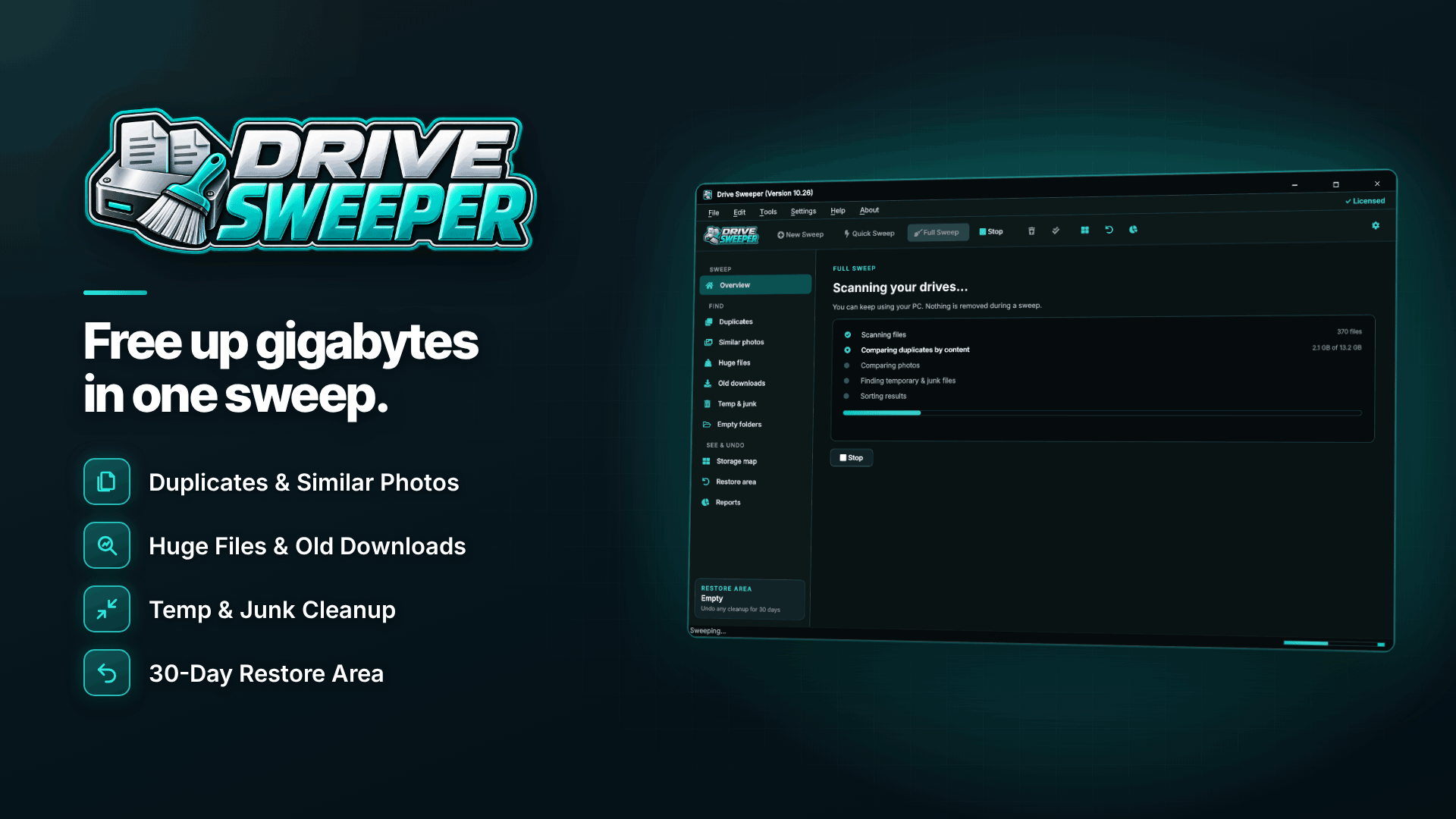
A disk space analyser draws your drive as blocks sized by the space each folder uses, so a bloated render cache stands out immediately. Drive Sweeper is a Windows 10 and 11 cleaner that combines this map with tools to act on what you find.
- Open the storage map. Folders appear as blocks sized by space, with zoom and breadcrumb navigation, so you can drill from the drive into Encodes, then into one site's folder, then into a month.
- Switch to space by file type. See how much is video compared with images, archives and everything else. On a tube workstation you will usually find video dominates, but a surprise share of archives (old content-pack ZIPs and RARs) is common.
- Open the huge files list. It lists large files and installers biggest first, with a size filter and each file's last-opened date. That date is the key to finding stale renders: a 12 GB test export last opened eight months ago is a strong candidate for removal.
- Check old downloads. Installers and downloads not opened in months are listed too, which catches forgotten content packs and tool installers.
- Clear junk and empty folders. Windows temp files, update leftovers, browser caches, crash dumps, old logs and empty folders left by uninstalled programs.
The software never selects Windows or program files, so the map and lists focus on your own data and genuine junk.
How do you find duplicate files across multiple drives?
Tube operations often end up with the same scene on the workstation, an external drive and a NAS share. A duplicate scan that compares file contents, rather than names, catches copies even when they have been renamed for different sites. Drive Sweeper scans internal and external drives, USB sticks and network folders and finds duplicates across them. It also detects identical folders, which is typical when a content pack was extracted twice.
Decide on a rule before you delete: for example, "masters live on the NAS, the workstation keeps only scenes in the current encoding queue." For files you genuinely need in two folders on the same drive, the tool can keep one copy and replace the others with links, and hard links are counted only once so they are not reported as wasted space.
Do not deduplicate your backups. A backup drive is meant to hold a second copy. Add backup drives and archive folders to the exclusion list before you scan.
A safe clean-up routine for a video workstation
- Confirm your masters are backed up to at least one other drive.
- Exclude backup and archive locations.
- Review the Safe, Review and Keep groups. Safe picks are pre-ticked, nothing is removed without your approval, and the tool never removes the last copy of a file.
- Remove stale renders and duplicate encodes first. Re-encodes can be regenerated from masters; masters cannot be regenerated.
- Keep the undo window. Removed files sit in a restore area for 30 days and can be restored in one click, unless you choose to free the space immediately. On a drive that is critically full, freeing space immediately may be necessary, which is another reason to check your backups first.
- Schedule it. Weekly or monthly sweeps and low drive space warnings stop a full drive from breaking an overnight encode.
Files that changed since the scan, or are open in another program such as an encoder, are left alone and listed, so a clean-up will not interfere with a job in progress.
What this kind of tool will not do
A space cleaner removes files; it does not make videos smaller. If your library is bloated because of inefficient encodes, the fix is better encoding settings, not deletion. Drive Sweeper does not re-encode or compress videos, does not clean the registry and makes no speed claims. It frees disk space and shows you where it went. For the export settings side, our video SEO guide for adult sites covers sensible formats for publishing.
Tips for keeping a tube workstation lean
- Keep encodes on a dedicated data drive, not the Windows drive.
- Delete test renders as soon as a preset is approved.
- Archive published masters off the workstation to a NAS or external drive.
- Watch drive usage over time: reports of space freed and drive usage can be exported as HTML or CSV, which helps you plan storage upgrades before they become urgent.
- Plan storage as part of your site's infrastructure, alongside hosting and page speed; see technical SEO for adult sites.
Frequently asked questions
How do I find files I have not opened in months?
File Explorer can sort by date modified, which is not quite the same thing. A cleaner that lists huge files with their last-opened date shows directly which large files have been sitting untouched.
Is it safe to delete files in the Windows temp folder?
Generally yes for files not in use, which is why Windows offers to clear temporary files in Storage settings. A dedicated cleaner leaves files that are open in another program alone.
Can I clean up a NAS share from Windows?
If the share is accessible as a network folder from your PC, it can be scanned for large files and duplicates like any other location. Make sure you have permission to delete on the share and that it is backed up.
Next steps
If you are still planning storage for a new project, read how to start a tube site, and see our overview of safe disk clean-up for laptops and office PCs. For a full drive today, map it, sort the huge files by last-opened date and clear stale renders with Drive Sweeper.