What are the best video encoding settings for a tube site? For most self-hosted libraries the safe default is H.264 video and AAC audio in an MP4 container, encoded with constant-quality rate control (CRF around 20 to 23), a keyframe every two seconds and the index placed at the start of the file so playback begins before the download finishes. Add a resolution ladder (typically 1080p, 720p and 480p) and you cover almost every visitor's device and connection.
The rest of this guide explains why those choices work, when it makes sense to deviate from them, and how to run an entire catalogue through a batch workflow on a Windows PC instead of encoding scene by scene.
Why encoding settings matter for a tube site
On a tube or VOD site, video files are your biggest cost and your biggest conversion lever at the same time. Every extra megabyte is paid for in storage and bandwidth, and every second of buffering pushes visitors back to the search results. Badly encoded files cause three predictable problems:
- Slow starts. If the MP4 index (the "moov atom") sits at the end of the file, many players have to fetch far more data before they can start playing.
- Poor seeking. Long gaps between keyframes make scrubbing jumpy, which matters on long scenes where people skip around.
- Bloated files. Fixed high bitrates waste space on simple shots and still starve complex ones.
If you are still planning the platform itself, our guide on how to start a tube site covers scripts, hosting and content sourcing before you get to encoding.
What is the best codec for streaming video on a website?
The best codec is the one your visitors' browsers can play without a fallback. Compatibility, not compression efficiency, should drive the decision for your main rendition.
| Codec | Strengths | Watch out for |
|---|---|---|
| H.264 (AVC) | Plays virtually everywhere, cheap to decode, mature tooling | Larger files than newer codecs at the same quality |
| HEVC (H.265) | Noticeably smaller files at similar quality | Browser support is still listed as partial for Chrome, Edge and Firefox, and often depends on the device and operating system |
| AV1 | Very efficient, royalty-free, supported by current Chrome, Edge and Firefox | Safari support is partial; slow to encode on the CPU unless your graphics card has a hardware AV1 encoder |
| VP9 | Good efficiency in WebM | Mostly useful as an alternative rendition, not a sole format |
H.264 vs HEVC for web video
For a single-format library, H.264 is still the pragmatic choice. HEVC makes sense as an additional, smaller rendition served only to devices that report support, while AV1 is worth testing if your player can offer it with an H.264 fallback. Browser support changes regularly, so check a current compatibility table such as Can I use: HEVC before you commit.
CRF, bitrate and how to reduce video file size for streaming
Rate control decides how bits are spent. For a library that you host yourself, constant quality (CRF, or CQ on graphics-card encoders) is usually the best fit: you set a quality level and the encoder uses whatever bitrate each scene needs. Lower numbers mean higher quality and bigger files; with x264, values around 18 to 23 cover most web use.
- CRF/CQ for stored libraries: predictable quality, variable size.
- Capped VBR (CRF with a maximum bitrate) if your hosting or CDN plan punishes spikes.
- Two-pass or target size when a file must hit a specific size, such as a partner's upload cap.
- CBR only for live streaming, where steady bandwidth matters more than efficiency.
The fastest way to reduce video file size for streaming without visible damage is usually not a lower bitrate but better choices elsewhere: a sensible resolution for each rendition, a slower encoder preset, removing black borders, and not re-encoding already compressed footage more than once.
Recommended tube site settings at a glance
Treat these as a starting point to test against your own content, not as fixed rules.
| Setting | Starting point |
|---|---|
| Container | MP4, index moved to the start (often called "faststart") |
| Video codec | H.264, High profile, 8-bit 4:2:0 pixel format |
| Quality | CRF 20–23 (CPU) or an equivalent CQ value on the GPU, tested per resolution |
| Keyframes (GOP) | Every 2 seconds, which is also what segment-based streaming expects |
| Frame rate | Keep the source frame rate; do not convert 25 fps European footage to 30 fps |
| Audio | AAC stereo, 128–192 kbps, loudness normalised across the library |
| Renditions | 1080p, 720p and 480p from the same master |
Tip: always encode from the best master you have. Re-encoding an already compressed 480p file to "1080p" only makes a bigger file, not a better picture.
GPU video encoding (NVENC, Quick Sync, AMD) or CPU?
Hardware encoders on NVIDIA (NVENC), Intel (Quick Sync) and AMD graphics cards are dramatically faster than software encoding, which matters when you have a backlog of hundreds of scenes. The trade-off is efficiency: CPU encoding usually produces slightly smaller files at the same visual quality. A practical split is to use the GPU for bulk renditions and previews, and the CPU for your flagship 1080p files where every megabyte of bandwidth counts.
How do I batch encode videos for a website?
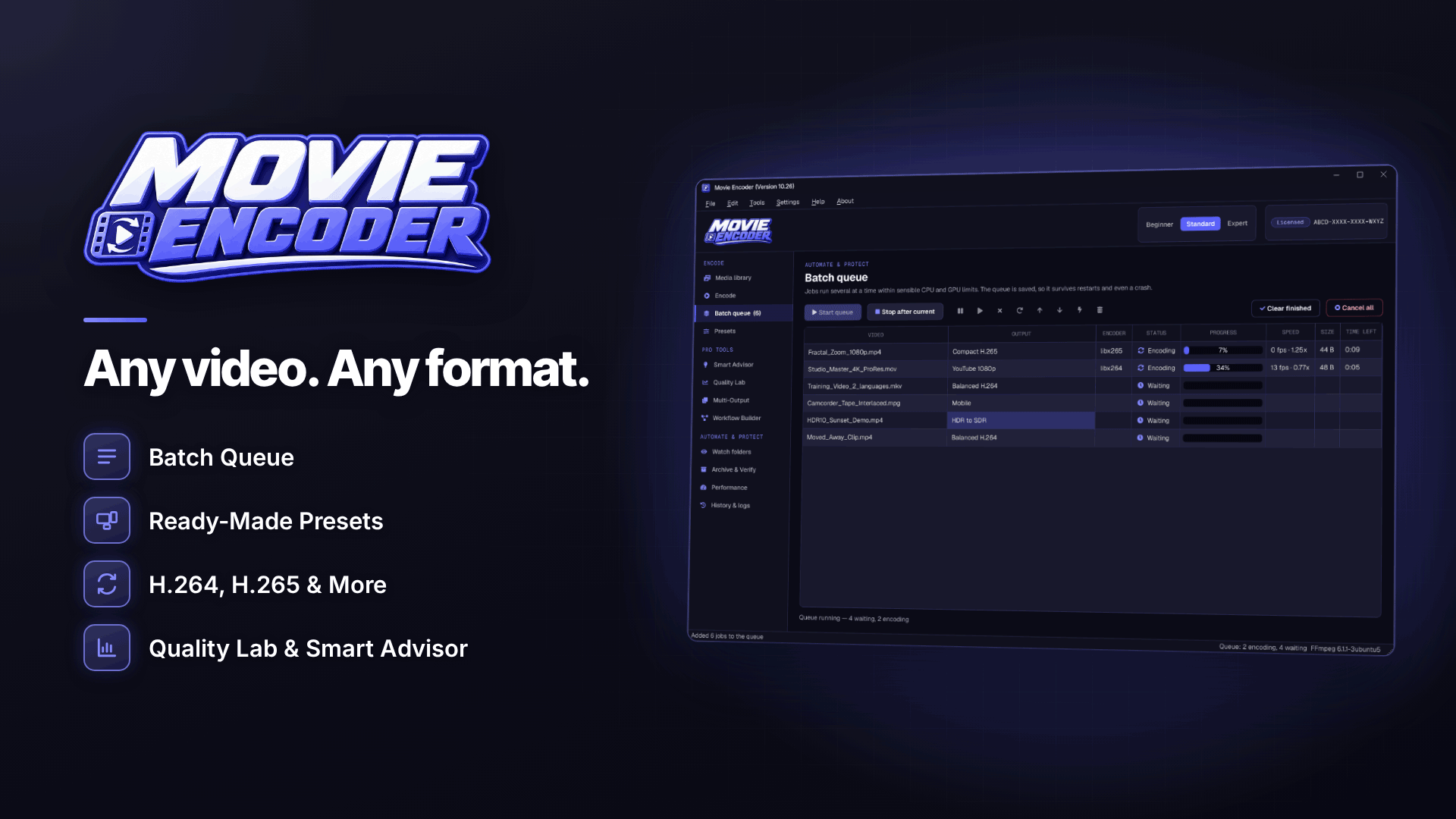
Once you have settings you trust, the job becomes repetition, and that is where a batch tool pays for itself. On Windows, Movie Encoder is built for exactly this: it is an FFmpeg-based encoder for 64-bit Windows 10 and 11 that processes everything locally on your PC, so your content is never uploaded to a third-party service. A typical tube workflow looks like this:
- Inspect the masters. Open a few source files and check the stream info (resolution, codec, bit depth, frame rate, audio tracks) so you know what you are starting from.
- Build one source, several outputs. Multi-Output turns one master into several encodes with their own settings, for example 1080p, 720p and 480p H.264. If one output fails, the others still finish.
- Pick a hardware encoder. The tool supports NVENC, Quick Sync and AMD encoders, shows only the options your hardware actually has, benchmarks them and falls back to the CPU automatically.
- Test before committing. Run short sample encodes and compare them in the before/after split view rather than encoding a whole scene to judge quality.
- Queue the library. The batch queue is saved between sessions and supports priorities, concurrent jobs, pause, retry and naming templates, so filenames can match what your CMS import expects.
- Automate new uploads. Watch folders pick up files dropped into a folder and encode them on a schedule, with an automation log and Windows notifications when jobs finish.
Two safety details matter on a production library: output is written to a temporary file and only moved into place after a basic check, and originals are never overwritten or deleted by default. Watch folders only move source files if you enable that option.
How do I find the smallest acceptable file?
Guessing CRF values by eye is slow and inconsistent. A more reliable approach is to encode a representative two-minute section at three or four settings and compare objective quality scores alongside file size.
Movie Encoder's Quality Lab does this with test encodes compared by size, encoding time, PSNR, SSIM and VMAF, with charts and A/B playback. VMAF is only available when the FFmpeg build includes libvmaf, so check that before relying on it. As a hypothetical example: if CRF 21 and CRF 23 score almost identically on VMAF for your typical scene but CRF 23 is noticeably smaller, CRF 23 becomes your house setting and you keep the saving on every file you serve.
If you are unsure where to start, the Smart Encoding Advisor recommends settings for goals such as smallest file, streaming or best quality, with estimated size ranges. Treat those estimates as ranges, not guarantees, and confirm with a sample encode.
Common encoding mistakes on tube sites
- Upscaling small sources to fill a 1080p slot. Serve the source resolution as the top rendition instead.
- Mismatched loudness between scenes, which makes visitors reach for the volume button. EBU R128 loudness normalisation fixes this in the same pass.
- 10-bit or 4:2:2 output for web delivery. Many browsers and phones expect 8-bit 4:2:0 H.264.
- Forgetting the index position in MP4 files, which delays playback start.
- Encoding interlaced footage without deinterlacing, which leaves comb artefacts on older studio material.
Encoding is only one part of performance. Where you host the files matters as much as how you encode them, so compare options in our adult web hosting directory and read our guide to adult-friendly web hosting.
Frequently asked questions
What resolution should a tube site serve by default?
Most players start with a mid rendition such as 720p and switch up or down based on connection speed. Offer 1080p for viewers on fast connections and 480p for mobile users on weak signals.
Should I use HEVC to save bandwidth?
Only as an extra rendition with an H.264 fallback. Browser support for HEVC is still partial on major desktop browsers, so serving HEVC alone risks playback failures.
Does encoding affect video SEO?
Indirectly, yes. Faster starts and fewer playback errors improve engagement, and fast pages help crawling. Our guide to video SEO for adult sites covers sitemaps, schema and thumbnails.
How often should I re-encode my library?
Rarely. Keep high-quality masters and re-encode only when you add a new codec or rendition, rather than re-compressing your existing web files.
Next steps
Settle your house settings on a handful of representative scenes, write them into a preset, then let the queue and watch folders do the repetitive work. When your library is encoded efficiently, it is easier to see where the revenue comes from; our breakdown of how tube sites make money is a good next read. To try the batch workflow on your own catalogue, visit Movie Encoder.