Your external hard drive is usually not showing up because Windows can see the hardware but can't use it: the drive has no drive letter, is set to offline, isn't initialised, has a RAW (unreadable) file system or is write-protected. Less often it's a cable, port, power or driver problem, or a failing drive. Check Disk Management first, and don't initialise or format a drive that holds data until you know which of these you're dealing with.
If that drive holds your tube site's source videos and archives, the wrong "fix" can wipe years of content. This guide shows you how to diagnose the cause safely, which fixes are harmless and which are destructive, and how to check the drive's health before you trust it again.
Quick physical checks before anything else
Start with the boring causes, because they're common:
- Try another cable and port. USB cables fail, and front-panel ports on desktops are often underpowered. Plug directly into a rear port, not a hub.
- Check power. Larger 3.5-inch external drives need their own power adapter. Listen for the drive spinning up.
- Try another PC. If it appears there, the problem is on your machine (drivers, drive letters, policies), not the drive.
- Listen for trouble. Repeated clicking or beeping suggests a mechanical fault. Stop and protect the data rather than troubleshooting further.
What if the drive isn't in Disk Management at all?
If Disk Management doesn't list the drive, Windows isn't detecting it as a disk. Open Device Manager and look under Disk drives and Universal Serial Bus controllers for entries with a warning symbol. A driver problem can often be cleared by uninstalling the device entry and unplugging and reconnecting the drive so Windows sets it up again.
If the drive doesn't appear in Device Manager either, on any PC or port, the fault is most likely physical: the enclosure's USB bridge board, the power supply or the drive itself. At that point, stop powering it on repeatedly. If the content is irreplaceable, a professional data recovery service is safer than further experiments.
Drive shows in Disk Management but not File Explorer
Press Windows + X and open Disk Management. If your drive is listed there but not in File Explorer, Windows can talk to it and the problem is configuration. Microsoft's own Disk Management troubleshooting guide describes the statuses you're likely to see:
| What you see | What it means | Safe first step | Risk |
|---|---|---|---|
| Healthy volume, no letter | The partition is fine but has no drive letter | Assign a drive letter | Low |
| Offline | Disk isn't active | Right-click and choose Online | Low |
| Not Initialized ("disk unknown") | No valid disk signature: new disk, corrupted formatting or hardware fault | Diagnose first if it holds data | High if you initialise |
| Unallocated | Space isn't part of any partition | Don't create a volume if you need the old files | High |
| RAW | No recognised file system | Don't format; check and recover first | High if you format |
Warning: Microsoft's guidance is explicit that formatting a disk erases all data on it. If Windows offers to format or initialise a drive that should contain your video archive, click Cancel.
What does "disk unknown, not initialized" mean?
It means Windows can't read the disk's partition information. On a brand-new drive, initialising is normal. On a drive full of videos, it's a symptom: the partition table may be damaged, the USB enclosure's controller may be faulty, or the drive itself may be failing. Initialising writes a new partition table, which makes your existing data much harder to get back. Diagnose before you click anything.
How to fix a RAW drive without formatting
A RAW partition has a file system Windows doesn't recognise, often after the drive was unplugged during a write, a power cut or corruption. The safe order is:
- Don't format, even though Windows suggests it.
- Check the drive's health. If it's failing, copy what you can before stressing it further.
- Run a read-only file system check to see what's damaged.
- Only then consider repair, and if the files are irreplaceable, consider recovery first. Our guide on whether you can recover files from a formatted external drive covers what's possible if things have already gone wrong.
Using a missing-drive finder to diagnose safely
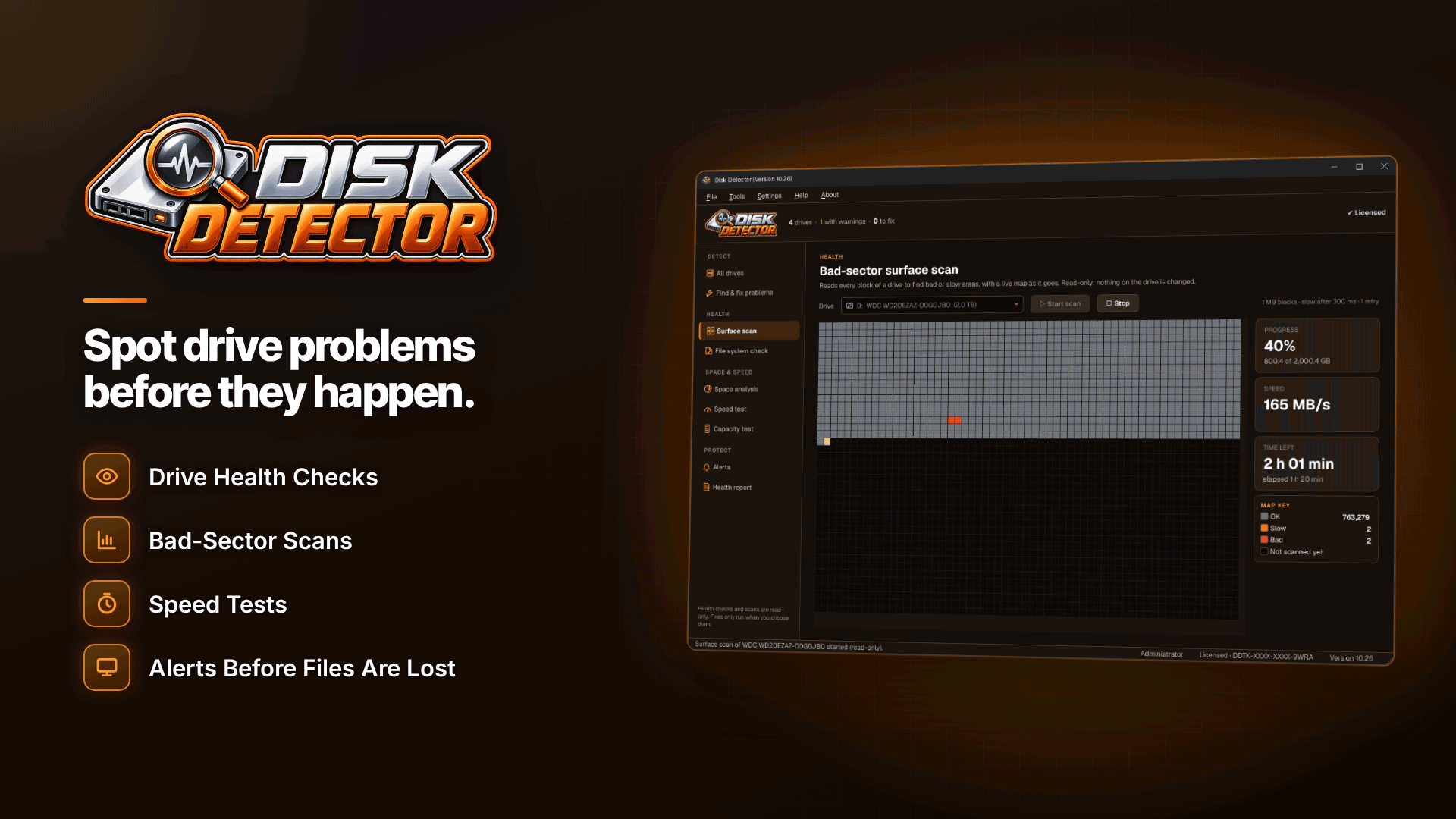
Working through Disk Management, Device Manager and command-line tools is slow when you just want to know whether your archive is safe. Disk Detector is a Windows 10 and 11 diagnostics tool built for this situation. Its missing-drive finder identifies why a drive isn't appearing: no drive letter, offline, not initialised, unallocated, RAW file system, write protection or driver problems.
What makes it suitable for a drive full of content:
- Risk-labelled fixes. Most causes can be fixed in one click, and each fix is labelled with its risk.
- Confirmation before erasing. Anything that would erase a drive asks you to confirm first, so you can't wipe an archive by accident.
- Plain-language explanations with next steps.
- Every partition shown, including hidden EFI and recovery partitions, so you can see what's really on the disk.
- A read-only file system check with optional repair, so you can look before you change anything.
- Write-protection checks for USB sticks, SD cards and external drives, plus an explanation of why a device isn't recognised.
It diagnoses and fixes configuration problems, but it doesn't recover deleted files. If files are already gone, you need a recovery tool.
Why does my external hard drive keep disconnecting?
A drive that appears and vanishes is usually one of three things: a poor cable or port, not enough power, or a drive that's starting to fail. USB power-saving settings can also switch the port off. Replace the cable, use a rear port or a powered hub, and then check the drive's health. If disconnections happen during long copies of large video files, take that seriously; it's a common early sign of trouble.
Check the drive's health before you trust it again
Getting the drive back in File Explorer isn't the end of the job. Before you put new uploads on it, check whether it's healthy:
- Read the SMART rating. The tool rates HDDs, SATA SSDs and NVMe drives as Good, Caution or Bad, with reasons and a full SMART table. Some USB enclosures don't pass SMART data through; the app tells you when this happens.
- Run a surface scan. The read-only bad-sector scan shows a live block map and stops cleanly if the drive disconnects, which matters on a flaky enclosure.
- Act on Caution. A drive rated Caution or Bad may still work, but the advice is to back up first, then replace it.
For a tube site, a sensible rule is that no archive drive is the only copy of anything. Our guide to starting a tube site covers content storage as part of the wider setup, and choosing adult-friendly web hosting with proper storage and backups gives you a second line of defence.
Frequently asked questions
Why is my external hard drive not showing up in Windows 11?
The causes are the same as in Windows 10: missing drive letter, offline status, an uninitialised or RAW disk, write protection, a driver issue or a hardware fault. Check Disk Management first to see whether Windows detects the disk at all.
Will assigning a drive letter delete my files?
No. Assigning or changing a drive letter doesn't touch the data. Initialising, formatting or creating a new volume can, which is why those steps need care.
Should I initialise a disk that says "not initialized"?
Only if it's new or you don't need its contents. If it held data, diagnose the cause and consider recovery first.
Next steps
Once your archive is safe, review how your video workflow depends on it; our guide to video SEO for adult sites is a good place to pick up where you left off. If the drive is still missing or you want to know whether it's safe to keep using, run Disk Detector and check its health rating before you copy anything new to it.