
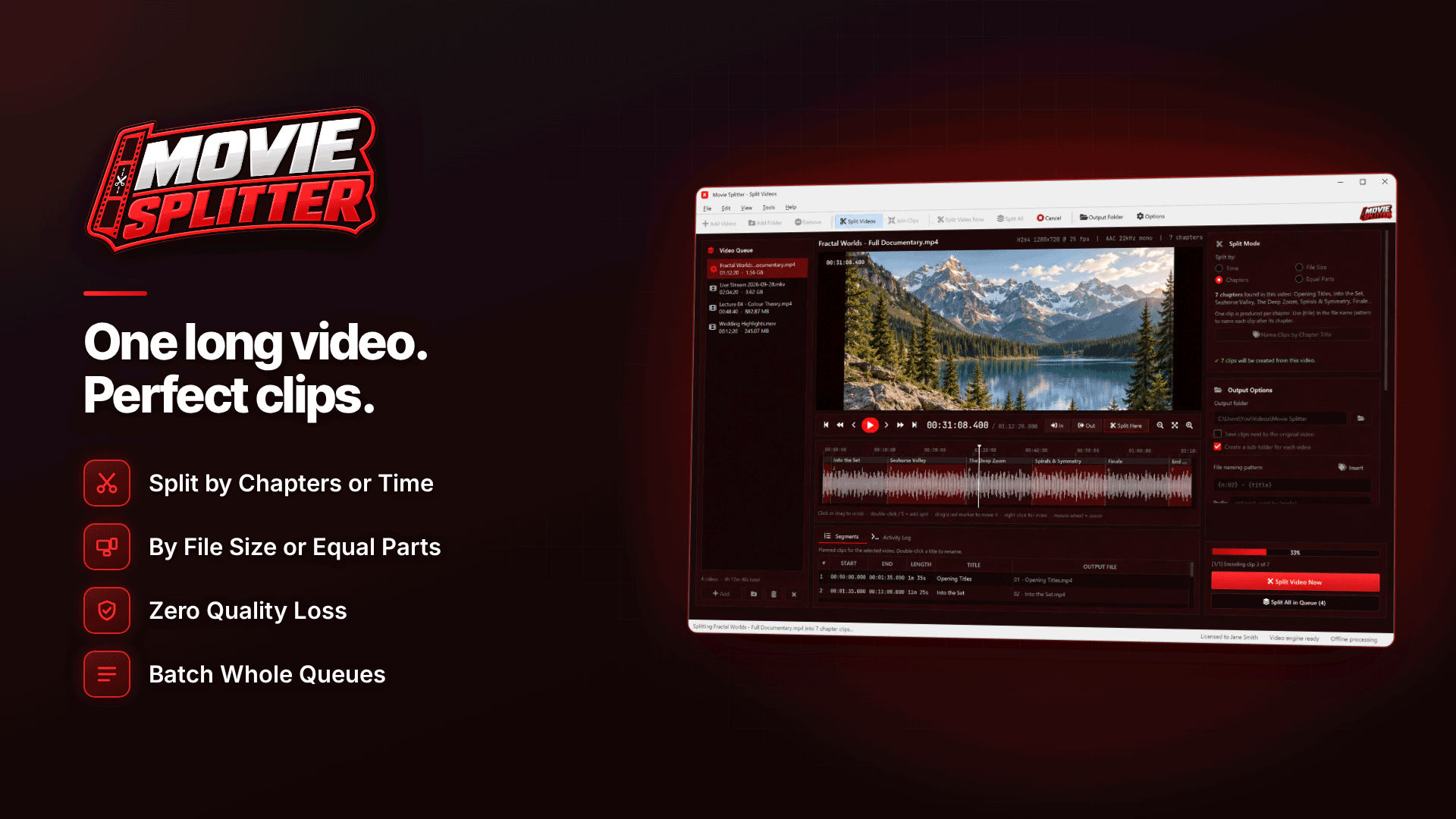
How do I split a long video into short clips for social media? Load the recording into a video splitter, choose a fixed clip length such as 30 or 60 seconds (or mark the best moments by hand), and export the parts with stream copy so they keep the original quality. Name the clips with numbers and dates, and one long shoot becomes a ready-made queue of teasers for TikTok, X and other platforms.
This guide is for creators who promote a fan page with short, safe-for-work teasers. It covers choosing clip lengths, finding the right moments, keeping clips organised and the limits to watch on each platform.
Why repurpose one long video into many short clips?
Posting consistently is the hardest part of social promotion. Filming something new every day is not realistic for most creators, but a single long shoot, a behind-the-scenes session or a livestream often contains dozens of usable moments. Splitting it gives you:
- A content backlog you can schedule weeks ahead.
- Consistent quality, because every clip comes from the same well-lit, well-recorded session.
- Room to test which moments drive profile visits and link clicks.
Pair your clips with a posting plan; our creator content calendar guide shows how to schedule them so you never run dry.
Clip lengths and platform rules to check first
Platforms change their limits often, so confirm them in each app before you export. At the time of writing, X's help centre lists a maximum of 2 minutes 20 seconds and 512 MB for videos from non-Premium accounts, while TikTok accepts far longer uploads than it once did. Being allowed to post a long video does not mean it suits a teaser, though: short clips that get to the point are easier to watch to the end.
Content rules matter even more than length. Teasers for social platforms must follow each platform's adult content policy, and TikTok and Instagram are much stricter than X. Keep every clip safe for work and read our platform guides on promoting OnlyFans on TikTok and promoting OnlyFans on X before posting.
How do I split a video into 30-second clips?
Fixed-length splitting is the quickest way to turn a long recording into usable parts. Set the length, for example 30 seconds, and the splitter cuts the video into consecutive clips of that length. A hypothetical 45-minute livestream becomes 90 clips of 30 seconds; you then review them and keep the best.
On Windows, Movie Splitter handles this with its fixed clip length mode, and it uses lossless stream copy by default so clips are not re-compressed and are written very quickly. Because lossless cuts land on the nearest keyframe, each clip may start a second or two away from the exact mark; switch to re-encoding for frame-exact cuts.
How to make teaser clips from a long video
Fixed lengths are efficient, but the strongest teasers usually come from hand-picked moments. A good routine:
- Scan the timeline. The tool's visual timeline shows frame previews and an audio waveform; peaks in the waveform often point to laughter, reactions or a change of scene.
- Drop markers at the moments you want and drag them to adjust. Each pair of in/out points becomes a clip in the Segments list.
- Check every segment by previewing it before export.
- Export losslessly, or re-encode clips that need an exact start or a smaller file.
Cutting a livestream into clips
Livestreams are long and uneven, so markers work better than fixed lengths. Note timestamps while you stream (or ask a moderator to), then jump straight to those points on the timeline afterwards.
Splitting a video by chapters
If your recording or edit already has chapters, for example a tutorial or a vlog exported from an editor, the tool detects chapters in MP4 and MKV files automatically and can use the chapter titles to name the clips. Chapter splitting does not work for other formats.
Do the clips come out vertical?
No. A splitter cuts video in time; it does not reframe it. If you filmed in landscape and want 9:16 clips for TikTok, Reels or Shorts, you will need to reframe them in an editor afterwards. The simplest fix is to film your promo sessions vertically in the first place, or to frame landscape shots with the subject centred so a vertical crop is easy.
Tip: keep your original long recording untouched. Splitting creates new files, so you can always go back and cut different moments later.
Name clips so your posting schedule stays organised
Ninety files called "clip (1)" to "clip (90)" are a nightmare to schedule. The tool's naming tokens include the original file name, a prefix, clip number, total number of clips, chapter title, time range and date, and a live example shows the result before you split. A pattern such as beachshoot_teaser_014-of-090_12m30s tells you at a glance where the clip came from and where it sits in the recording.
Save the pattern as a preset so every session is named the same way, and log which clip numbers you have posted on which platform. Batch splitting will also process a whole folder of recordings with the same settings, putting each video's clips into their own sub-folder.
Common mistakes
- Posting raw parts without review. Fixed-length cuts can start mid-sentence; pick the clips that stand on their own.
- Breaking platform rules. One unsuitable clip can restrict an account that took months to grow.
- Reusing the same clip everywhere on the same day. Stagger posts across platforms.
- Losing track of what you posted. Clip numbers in the file name solve this.
Frequently asked questions
How do I split a video into parts for TikTok?
Choose a fixed clip length that suits your teaser style, split the recording, then review the parts and reframe the best ones to vertical in an editor if you filmed in landscape.
Does splitting reduce quality?
Not with stream copy, which writes the original data into new files without re-encoding. Re-encoding a clip, for example to resize it, does involve a small quality trade-off.
Can I add captions or text when splitting?
No. Splitting only cuts the video. Add text, captions or reframing in your editor after you have chosen the clips.
Next steps
Batch your next shoot into clips, pick the best ten and schedule them across the week. If you also want to reach tube audiences with SFW teasers, read how to post teaser clips on tube sites. To split your own long recordings losslessly on Windows, try Movie Splitter.



