To reduce a PDF's file size for email, compress the photos inside it, since they are almost always what makes a media kit heavy. Start with lossless re-packing, which shrinks the file without touching image quality, then, if it is still too big, re-compress the embedded photos at a quality that still looks sharp on screen. Aim for comfortably under your email provider's attachment limit, and keep the full-quality original for print.
A media kit that bounces, or lands as a "download link expired" message, is a pitch that never gets read. Getting the file size right is a small job that makes a real difference to your brand outreach.
Why creator media kits balloon in size
A typical creator media kit is a handful of pages: a cover photo, an about section, audience stats, past collaborations, rate card and contact details. The text weighs almost nothing. The weight comes from:
- Full-resolution photos straight from a camera or phone, often several megabytes each.
- Exporting at print quality from design apps, which keeps every pixel even for on-screen viewing.
- Screenshots of analytics saved as large PNGs.
- Duplicate images and hidden layers left over from the design file.
A kit with eight phone photos exported at print quality can easily reach tens of megabytes, far more than a brand manager scrolling on a laptop will ever see.
When is a PDF too large to email?
Gmail's attachment limit for personal accounts is 25 MB; larger files are turned into a Google Drive link instead. Other providers and company mail servers set their own limits, and the brand's server may accept less than yours sends. Attachments also grow by roughly a third when they are encoded for sending, so a file that looks under the limit on disk can still be rejected.
A practical target for a media kit is a few megabytes, ideally under 5 MB. It downloads quickly on mobile, will not clog an agency's inbox and is far less likely to be stripped by a mail filter.
How to compress a PDF without losing quality
There are two kinds of PDF compression, and the order matters:
| Method | What it does | Quality impact |
|---|---|---|
| Lossless re-packing | Rewrites the PDF's internal structure more efficiently | None |
| Photo re-compression | Re-saves embedded photos at a lower quality setting | Some, controlled by the setting you choose |
| Downsizing images before export | Uses smaller images in the design file in the first place | None visible on screen if sized sensibly |
Always try lossless first. If that does not get you under your target, re-compress the photos and check the result at full screen, paying attention to skin tones, gradients and any text inside images, which show artefacts first.
How to shrink a media kit with File Trimmer
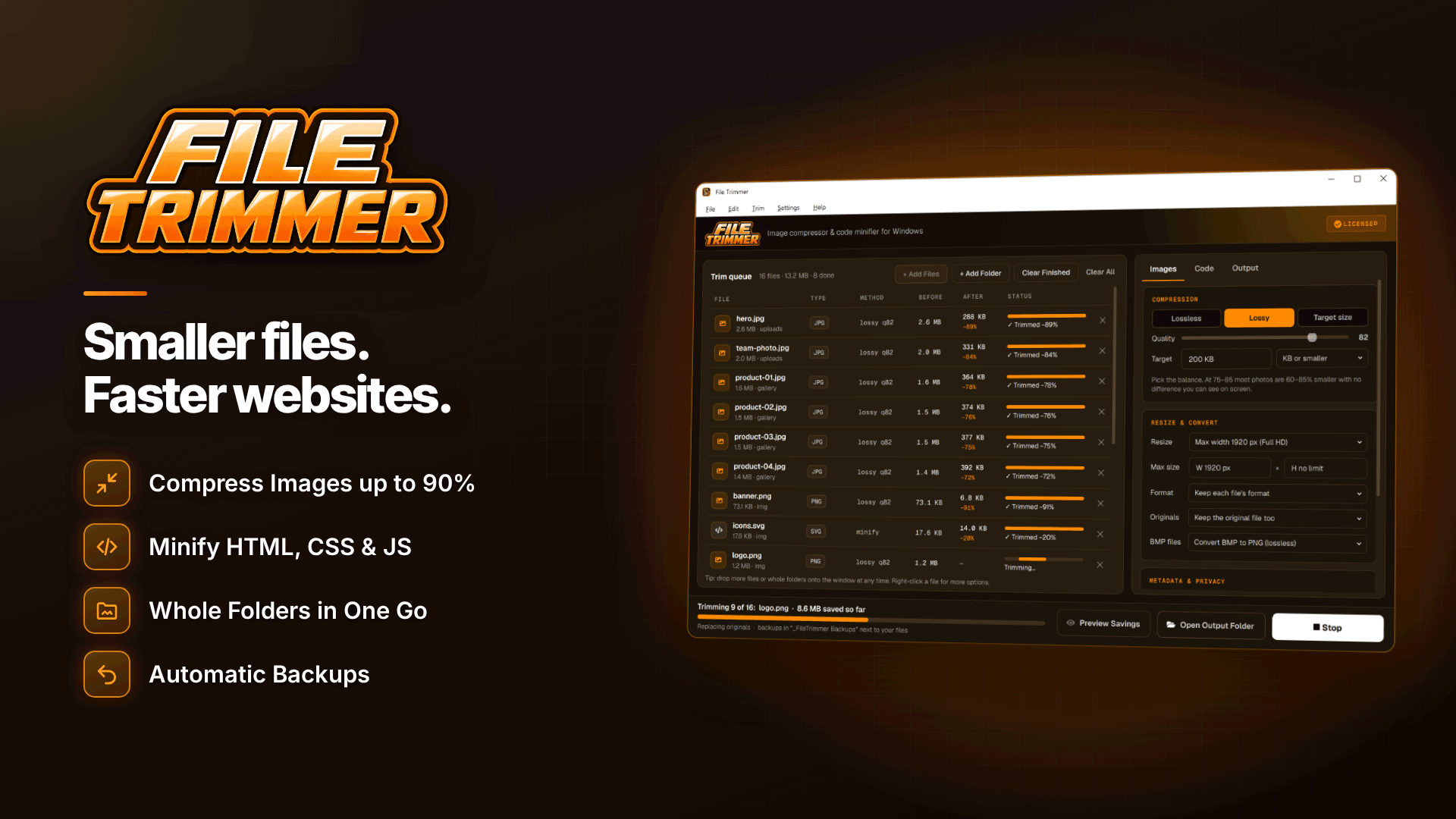
On a Windows PC, File Trimmer compresses PDFs locally, without uploading your kit to an online compressor. That matters if your media kit includes your rate card, contact details or unreleased content you would rather not hand to a third-party website. It runs on 64-bit Windows 10 (version 1809 or later) and Windows 11.
- Add the PDF by dragging it in or using the Explorer right-click menu.
- Run Preview Savings to see the expected reduction before anything changes.
- Choose lossless re-packing first, then add re-compression of embedded photos only if you need a smaller file.
- Trim. The original is backed up to a dated backup folder, or you can write the result to a separate output folder instead.
- Open the result and check every page at full screen before you send it.
The before-and-after report shows exactly how much each file shrank. If you are not happy with the quality, restore the original from the backup and try a gentler setting.
Two limits to note: the tool does not trim password-protected PDFs, so compress before adding a password, and if you turn backups off, there is no original to restore.
Fix it at the source: prepare images before you design
The best results come from feeding your design app sensibly sized images in the first place. Before you build the next version of your kit:
- Resize photos to the size they will appear on the page; the same tool can resize by maximum width or height and never enlarges.
- Strip EXIF and GPS data from photos. Location data in a photo can reveal where you live or shoot, a real risk covered in our guide to avoiding getting doxxed.
- Compress screenshots of analytics, which are often oversized PNGs.
- Export for screen, not print, when the kit is going by email.
Keep a separate print-quality version if you ever need one for events or physical mailouts.
What else to check before you send
- Privacy: no legal name, home address or personal phone number unless you intend it. Our anonymity checklist covers what to leave out.
- Protection: consider a subtle watermark on preview images; see how to watermark content without ruining it.
- File name: something like yourbrand-media-kit-2026.pdf looks professional and is easy to find again.
- Links: test every link in the PDF after compressing.
- Content: keep the kit brand-safe and non-explicit; brands forward these internally.
Frequently asked questions
Should I send a link instead of an attachment?
Links avoid size limits, but some brands distrust unknown links, and links can expire. A small PDF attachment is the most reliable first approach; offer a link for extra assets such as video reels.
Can I reduce PDF size on Windows without software?
You can sometimes re-export from your design app at screen quality, or "print to PDF" again, though results vary and print-to-PDF can break links. A dedicated compressor gives you more control.
Why didn't compression make much difference?
If your photos were already compressed, lossless re-packing has little left to remove. Try re-compressing embedded photos, or resize the images in the design file and export again.
Next steps
Re-export your current media kit at screen quality, compress it, and send a test email to yourself on both desktop and mobile. If you are working on how you present yourself, read our guide to personal branding for content creators. To compress PDFs and prepare photos offline with backups of every original, try File Trimmer.