
To find and delete duplicate photos on a PC, use a duplicate finder that compares file contents rather than names, so renamed copies are caught, plus a similar-photo check for resized exports and burst shots. Review each group, keep the best or original version, and remove the rest with an undo option in place. Windows 10 and 11 have no built-in duplicate finder, so this is a job for a dedicated tool.
For creators, duplicates are not just wasted space. They make it harder to find the right take, they slow down backups, and they increase the chance of posting an unedited version by mistake. This guide covers where duplicates come from, how to find them safely, and the checks that stop you deleting the one copy that mattered.
Where do all the duplicates come from?
- Card offloads done twice. Importing the same card into two folders, or into the same folder with "(1)" added to every name.
- Exports. A full-resolution master, a platform-sized version, a watermarked version and a teaser crop of the same image.
- Burst shots. Twenty near-identical frames for every keeper.
- Re-downloads. Pulling your own content back from a platform or cloud folder because it was quicker than finding the original.
- Copies on several drives. The laptop, an external drive and a NAS share each holding the same shoot.
Some of these are true duplicates (byte-for-byte identical files), and some are similar files that look the same but are not identical. You need to treat them differently.
Exact duplicates or similar photos: what is the difference?
| Type | Example | How it is found | Safe to delete? |
|---|---|---|---|
| Exact duplicate | IMG_2041.jpg and shoot-beach-041.jpg with identical contents | Comparing file contents, not names | Yes, as long as one copy is kept |
| Resized or converted copy | A 6000px RAW-derived JPEG and a 1080px platform export | Comparing what the image looks like | Only if you have the master |
| Burst shot | Twelve frames a fraction of a second apart | Comparing near-identical images | Keep the best, review the rest |
Name-based checks miss most of these. Two files called IMG_2041.jpg on different cards can be completely different photos, and a renamed copy can look unique. Content comparison is what lets you find duplicate files with different names.
Is it safe to delete duplicate files?
Yes, if you follow a few rules:
- Back up first. Clear duplicates after a backup has run, not before. If you do not have a routine yet, see our backup strategy for content creators.
- Always keep the original. Keep the highest-resolution, unedited file, usually from your master shoot folder.
- Do not delete copies that exist on purpose. A backup drive is supposed to duplicate your editing drive. Exclude backup folders from the scan.
- Review similar photos by eye. Never bulk-delete near-duplicates without looking.
- Keep an undo. Use a tool that lets you restore what you removed for a while afterwards.
How do I find and delete duplicate photos on my PC step by step?
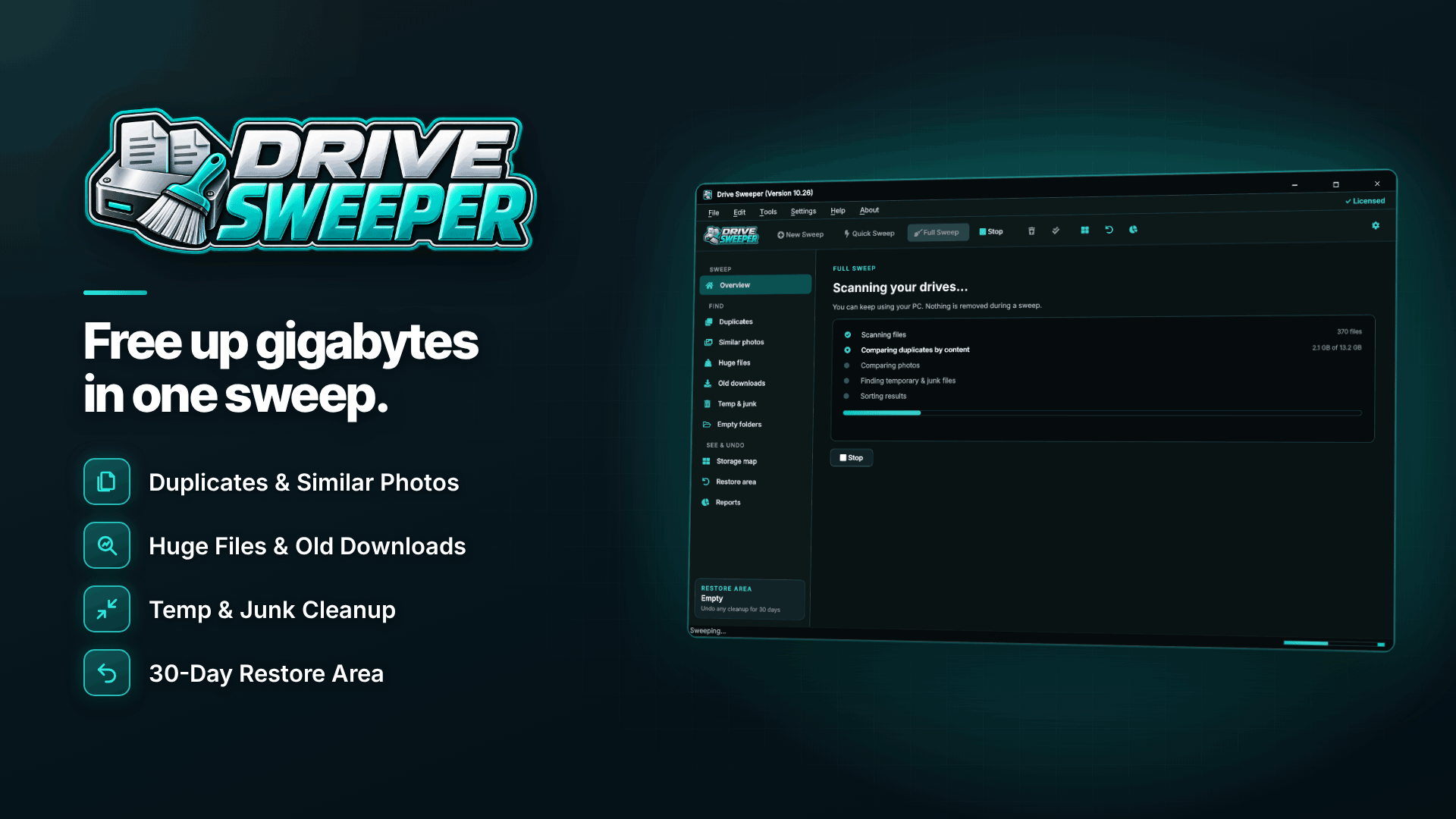
This is how the job looks in Drive Sweeper, a disk space cleaner for Windows 10 and 11 with both exact-duplicate and similar-photo detection.
- Choose where to look. Select your shoot and export folders. The software scans internal and external drives, USB sticks and network folders, and can find duplicates across them, so you can compare a laptop library against an external archive in one pass.
- Exclude what should stay duplicated. Add your backup drive or archive folder to the exclusion list.
- Run the duplicate scan. It compares contents rather than names, so renamed copies are found. It also spots identical folders, which is common when a whole shoot was imported twice.
- Check the groups. Results are sorted into Safe, Review and Keep groups. Safe picks are pre-ticked, and nothing is removed until you approve it. The tool never removes the last copy of a file.
- Run the similar photos check. Resized copies, other formats and near-identical burst shots are shown side by side with a suggested best shot. Use the suggestion as a starting point and confirm it yourself, particularly for frames where expression or focus matters.
- Decide how to handle the extras. You can remove them, or for exact duplicates you need in more than one folder, keep one copy and replace the others with links so each folder still "has" the file without using the space twice.
- Clean up with an undo. Removed files go to a restore area for 30 days and can be restored in one click, or you can choose to free the space immediately once you are confident.
Cloud folders: if you use OneDrive or Dropbox, files that are online-only are never downloaded during a scan, so the tool will not fill your drive by pulling down your whole cloud library. Files that are open in an editor, or changed since the scan, are left alone and listed.
How do you remove burst shot duplicates quickly?
Burst sets are where most space goes in a photo-heavy library. A practical approach:
- Work one shoot at a time rather than across the whole drive.
- Accept the suggested best shot where it is clearly right, and flag any burst where two frames are both usable.
- Keep at least one alternative for anything you might use as a cover image or thumbnail.
- Delete rejected frames only from your working library, not from a dated archive you keep for reference.
How do you keep the library tidy afterwards?
Deduplicating is far easier when files follow a clear structure. A simple pattern is one folder per shoot (date plus short description), with subfolders for originals, edits and exports. Consistent names help too; see our guide to batch renaming content files by date. Tie the clean-up to your publishing rhythm by adding a monthly tidy to your content calendar. Drive Sweeper can also run scheduled weekly or monthly sweeps and warn you when drive space is low.
Keep watermarked exports separate from originals, too. If you add marks to public previews, as covered in how to watermark content without ruining it, a dedicated exports folder makes it obvious which files are safe to delete and regenerate.
Frequently asked questions
Does Windows 11 have a duplicate file finder?
No. File Explorer can sort by name, size and date, which helps you spot some duplicates by hand, but it does not compare file contents or find similar photos. A dedicated tool is much faster and safer.
Can I find duplicate videos as well as photos?
Exact duplicate videos, including renamed copies, are found by comparing contents. Re-encoded versions of the same clip are different files, so treat them as you would a resized photo: keep the master and delete exports you can recreate.
What if I delete the wrong photo?
Use a clean-up tool with an undo. With a 30-day restore area you can bring a file back in one click, as long as you did not choose to free the space immediately.
Next steps
If you are short of storage generally, our equipment starter kit covers sensible drive choices. Then run a contents-based duplicate scan with Drive Sweeper on your shoot folders, review the similar photos by eye, and keep the undo window open until you are sure.



