
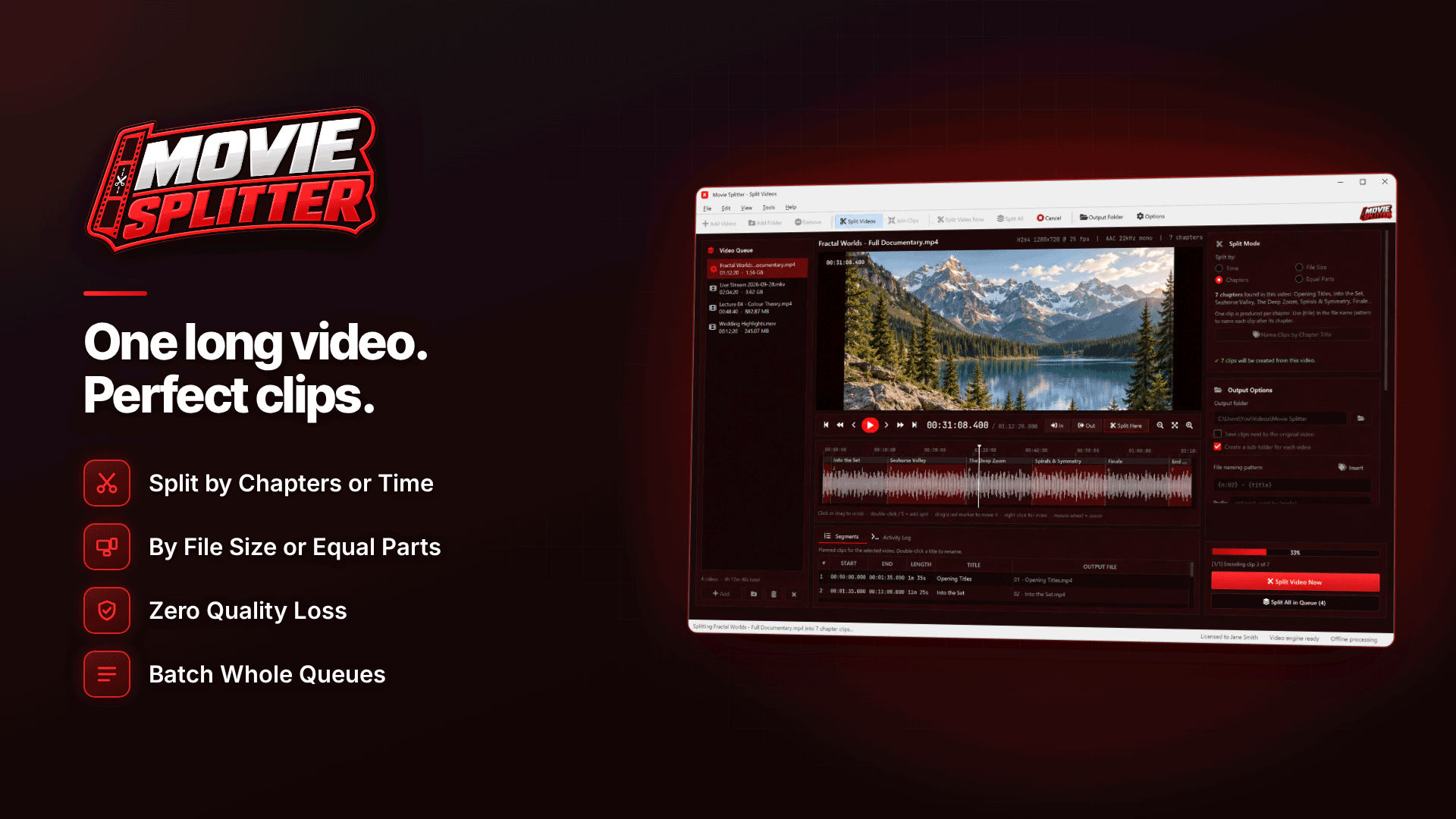
How do I split a large video file into smaller files? Use a video splitter's "split by file size" mode: you enter the maximum size per part, and the tool cuts the video into consecutive pieces that each fit under it. With lossless stream copy, nothing is re-encoded, so every part keeps the original quality and the job takes moments rather than hours.
Splitting is the right fix when a platform, email service or drive rejects a file because of its size and you do not want to reduce quality. If you would rather keep one file and make it smaller, compression is the alternative, and we compare the two below.
Why "video too large to upload" happens
Upload caps come from several places:
- Platforms and clip stores set per-file limits, and they differ. JustFor.Fans, for example, states a maximum upload size of 10 GB. Others do not publish a clear figure, so check the upload screen or help centre of each platform you use.
- Messaging and email. Gmail attachments are limited to 25 MB, and Discord's free upload limit was raised to 20 MB in August 2026.
- Storage formats. USB sticks and SD cards formatted as FAT32 cannot hold a single file larger than 4 GB, however much free space they have.
- Unreliable connections. Even where a large upload is allowed, a single very large file is more likely to fail part-way on a weak connection.
If you sell on several stores, our ManyVids vs Clips4Sale comparison and guide to running multiple fan platforms cover how their upload processes differ.
Split or compress: which should you do?
| Split | Compress | |
|---|---|---|
| Quality | Unchanged (with stream copy) | Slightly reduced, ideally invisibly |
| Speed | Very fast | Slower; a full re-encode |
| Result | Several files | One smaller file |
| Best for | Hard caps, multi-part releases, USB transfers | Platforms that need a single file |
If the platform needs one file per release, compress instead; our guide on how to compress a video for OnlyFans without losing quality explains the settings.
How to split a video by file size
Movie Splitter is a Windows 10 and 11 tool that does this offline on your PC. Its split-by-size mode takes a maximum size in MB or GB, and includes presets of 10 MB, 25 MB, 700 MB, 4 GB, 4.7 GB and 25 GB for common situations such as email, Discord, USB sticks and DVDs. You can also type your own limit, which is useful because the presets were designed around common limits and some services have since changed theirs.
- Open the video and check its length and size.
- Choose split by size and enter the limit, leaving a little headroom below the platform's cap.
- Keep lossless stream copy switched on (it is the default).
- Set file names with tokens such as original name, clip number and total, so parts read "part 1 of 3".
- Split. If any clip comes out too large, the tool automatically re-cuts it to fit.
Tip: set your limit slightly below the published cap, for example 9.5 GB for a 10 GB limit. Some services count sizes differently, and a small margin avoids last-second rejections.
How do I split an MP4 into multiple files of equal length?
When you want parts of the same duration rather than the same size, for example a long clip sold as a two-part release, use equal parts. The tool splits a video into anywhere from 2 to 999 equal-length parts. Lossless splitting supports MP4/M4V, MKV, MOV, AVI, WMV, TS/M2TS, MPG, FLV, WebM and other common formats.
Why parts are not exactly equal
Lossless cuts can only start on a keyframe, so each cut usually lands within one to three seconds of the target point. That is fine for upload limits. If you need frame-exact cuts, a different format or smaller parts, switch to the optional re-encoding mode, which has quality presets, custom bitrate, scaling down to 360p and audio from 96 to 320 kbps.
Splitting many files at once
If you have a folder of long recordings to prepare, batch mode applies the same settings to every video in a queue. Each video's parts go into their own sub-folder, and existing files are not overwritten because overwrite is off by default, so rerunning a batch will not clobber earlier work.
Publishing a split video as a multi-part release
When a split video goes out to fans, how you present the parts matters as much as the split itself:
- Title every part clearly, for example "Part 1 of 3", and keep the same base title so the parts sit together in search and on your profile.
- Cut at natural breaks if you can. For a two or three-part release, set the split points by hand at a scene change rather than relying on an exact size split.
- Upload in order and link each part to the next in its description where the platform allows it.
- Use consistent thumbnails with the part number visible, so fans can tell the parts apart at a glance.
For clip stores that let you set your own release structure, a multi-part release can also be planned on purpose rather than as a workaround for a size cap.
Join video clips without re-encoding
Splitting is reversible. The tool can join clips in any order with three modes: Automatic (lossless when possible), Lossless only, or Always re-encode. Lossless joins need at least two clips with matching codec and resolution; parts you split from the same source meet that condition. That makes splitting useful for moving big files between machines too: split to fit a FAT32 USB stick, copy, then rejoin on the other PC.
Common mistakes
- Splitting your only copy. Keep the original; splitting creates new files, but backups still matter. See our OnlyFans backup plan.
- Using a cap from an old guide. Limits change; check the platform today.
- Uploading parts without clear titles. Fans should know which part comes first.
- Joining clips from different sources losslessly. Mismatched codecs or resolutions need re-encoding.
Frequently asked questions
Can I split a video without losing quality?
Yes. Stream copy writes the existing video and audio into new files without re-encoding, so quality is identical to the source.
Why can't I copy a large video to my USB stick?
The stick is probably formatted as FAT32, which cannot store files over 4 GB. Split the file into parts below that size, or reformat the drive with a file system that supports larger files after backing it up.
Do I need to be online to split videos?
No. Processing happens offline on the PC. An internet connection is needed for activation and updates, and the software works for seven days offline between checks.
Next steps
Check the current limits of the platforms you post to, save a split-by-size preset for each, and keep your originals safely backed up. To split oversized files losslessly and rejoin them whenever you need to, take a look at Movie Splitter.



