
How do I compress a video for OnlyFans without losing quality? Re-encode it with constant-quality rate control (CRF) in H.264 or HEVC, scale 4K footage down to 1080p, and keep the original frame rate. Done well, the file shrinks dramatically while the difference stays invisible on a phone or laptop screen, and uploads finish instead of timing out.
Strictly speaking, any compression that shrinks a file discards some data. The goal is "visually lossless": no difference that a fan would notice. This guide explains the settings that get you there and how to check the result before you post.
Why phone and camera videos are so large
Modern phones and cameras record at high bitrates so they have headroom for editing. A few minutes of 4K at 60 frames per second can run to several gigabytes. That is ideal for a master copy but unnecessary for streaming to fans, because fan platforms re-process uploads for playback anyway. Uploading a giant file mostly means a slower upload and more chances for it to fail on an unstable connection.
If you are still choosing kit, our OnlyFans equipment starter kit explains which camera settings give you good masters without wasting storage.
What are the upload limits on fan platforms?
Limits differ by platform and change over time, so check each platform's own help pages or upload screen rather than trusting a figure you read elsewhere. OnlyFans does not publish a clear size limit in its public help pages, and third-party guides quote very different numbers. Some platforms are explicit: JustFor.Fans, for example, states a maximum upload size of 10 GB and advises against uploading above 1080p because that is the highest resolution it streams.
That last point applies broadly: if a platform streams at 1080p, uploading 4K costs you upload time without improving what fans see. If you post the same clip to several sites, our guide to running multiple fan platforms covers the wider workflow.
Best export settings for OnlyFans videos
These settings are a sensible baseline for fan platforms and clip stores. Test them on your own footage, since grainy low-light clips need more bits than bright, static ones.
| Setting | Recommended starting point |
|---|---|
| Container | MP4 |
| Video codec | H.264 for maximum compatibility; HEVC for smaller files if the platform accepts it |
| Resolution | 1080p (1920×1080 landscape or 1080×1920 vertical) |
| Frame rate | Same as the source (do not convert) |
| Quality | CRF around 20–23 for H.264; HEVC can usually go a few points higher for a similar look |
| Audio | AAC stereo, 128–192 kbps |
CRF vs bitrate: which should you use?
CRF (constant rate factor) tells the encoder "keep this level of quality and use whatever bitrate each scene needs". Calm scenes get small, busy scenes get more data. Lower CRF numbers mean higher quality and bigger files.
Bitrate modes tell the encoder how much data to spend per second, regardless of content. That makes the file size predictable but wastes space on simple shots and can starve complex ones.
For uploads, CRF is almost always better. Use a bitrate mode, ideally two-pass, only when you must land under a hard limit, which is what target file size encoding does for you: you set the size and the encoder calculates the bitrate.
HEVC or H.264?
HEVC (H.265) usually produces noticeably smaller files than H.264 at similar quality, which is ideal for long clips. H.264 is the safer choice when you are unsure what a platform or a fan's device will accept. If an HEVC upload is rejected or plays back oddly, re-export in H.264.
How to compress 4K video for upload
- Keep your master. Never compress your only copy. Work from a duplicate and archive the original.
- Scale to 1080p. This alone usually makes the biggest difference, because 1080p has a quarter of the pixels of 4K.
- Set CRF. Start around 21 for H.264 and adjust after checking a sample.
- Normalise audio. Phone audio varies wildly between clips; loudness normalisation evens it out.
- Check a sample at full screen before encoding the whole video.
A local compression workflow that keeps your videos private
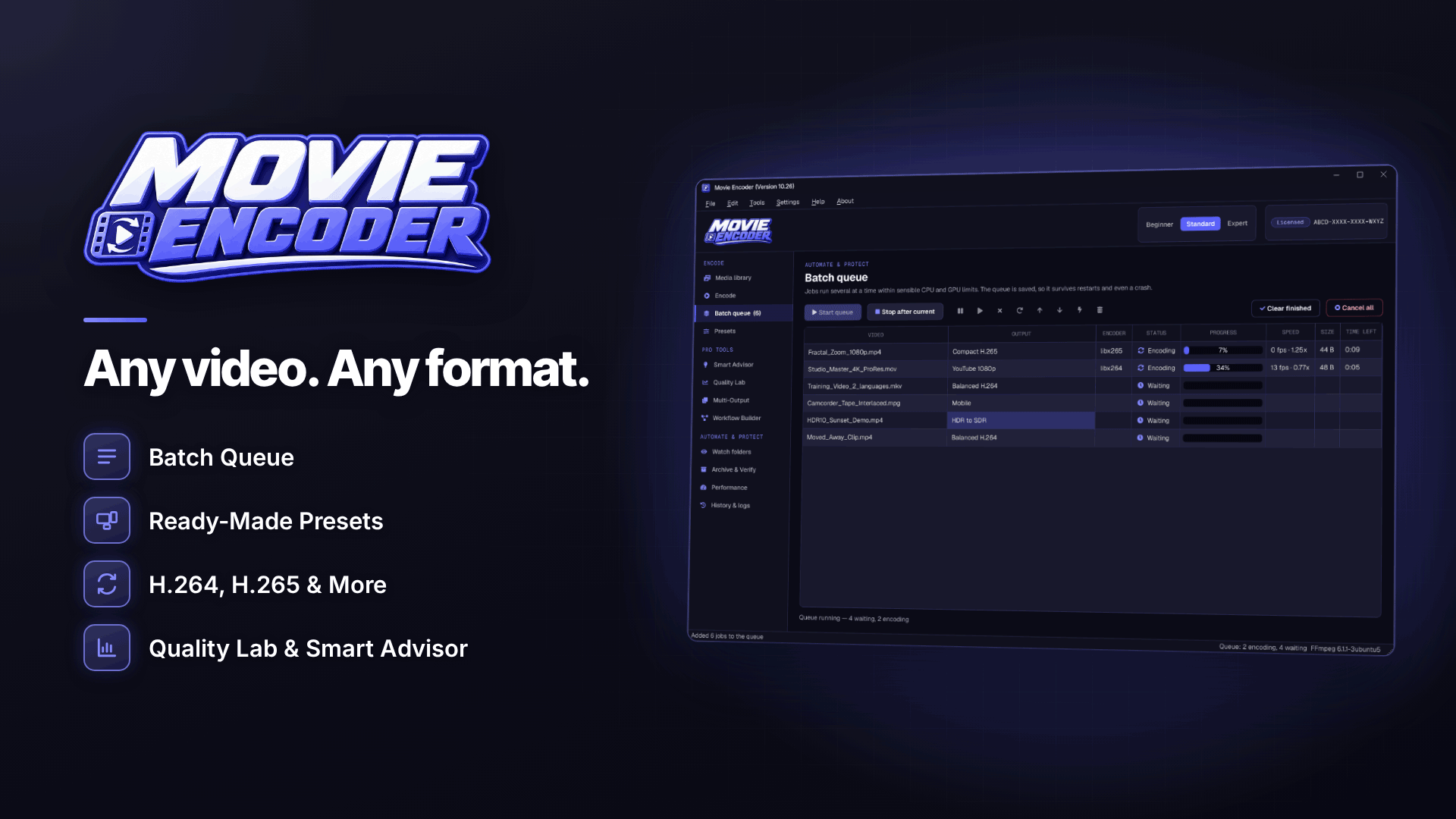
Online compressors are convenient, but they mean uploading private, unreleased content to a stranger's server. Desktop software avoids that. Movie Encoder runs on 64-bit Windows 10 and 11 and encodes everything on your own PC; videos are not uploaded, and the internet is only used for activation and update checks.
A practical routine with the tool looks like this:
- Ask the Smart Encoding Advisor. Choose a goal such as "smallest file" or "balanced" and it recommends settings with an estimated size range. Treat the estimate as a guide rather than a promise.
- Run a short sample encode of the hardest part of the clip, for example a dimly lit or fast-moving section.
- Compare in split view. The before/after split view shows the original and the compressed version side by side, so you can spot softness or blockiness before committing.
- Use target size if you must. If a platform rejects the file, switch to target-size or two-pass encoding to land under the limit.
- Fix the sound. EBU R128 loudness normalisation can be applied in the same pass.
Output is written to a temporary file and only moved into place after a basic check, and originals are never overwritten or deleted by default, so a failed encode cannot damage your source footage.
Compress or split? If a file is still too large after compression, or you need it untouched, splitting it into parts is the alternative. See how to split a large video file to fit an upload limit.
Common compression mistakes
- Compressing twice. Each lossy pass loses detail. Always go back to the master.
- Changing frame rate without a reason, which causes stutter.
- Over-sharpening to compensate for compression, which exaggerates artefacts.
- Judging on a tiny preview. Check at full screen on the device your fans actually use.
Frequently asked questions
How do I make a video file smaller without losing quality?
Lower the resolution to what the platform actually streams, use CRF rather than a fixed bitrate and pick an efficient codec such as HEVC. Then compare a sample against the original before encoding the full clip.
Will OnlyFans compress my video anyway?
Fan platforms generally process uploads for streaming, so uploading an enormous master rarely improves what fans see. A well-encoded 1080p file is a good balance.
Is it safe to use an online video compressor?
It means uploading your content to someone else's server, which may conflict with your privacy and content protection plans. Local software keeps the files on your own machine.
Next steps
Build one preset you trust, test it on your hardest footage and reuse it for every upload. If you are just getting started on the platform, our step-by-step guide to setting up an OnlyFans account covers the rest of the launch checklist. To compress your own clips locally with sample encodes and split-view checks, take a look at Movie Encoder.



