
What size is an OnlyFans banner? The most commonly recommended size is 1797 × 540 pixels, a wide ratio of roughly 3.3:1, uploaded as a JPG or PNG. For the profile photo use a square image of at least 400 × 400 pixels (1080 × 1080 is a good target), and for portrait post images 1080 × 1350 pixels (4:5) works well.
OnlyFans does not publish a detailed image specification in its public help pages, so these figures come from widely used creator guidance and from what displays cleanly on desktop and mobile. Treat them as a reliable starting point and always preview your page on a phone after uploading.
OnlyFans image sizes at a glance
| Image | Recommended size | Shape | Notes |
|---|---|---|---|
| Banner (cover photo) | 1797 × 540 px | About 3.3:1 | Displayed much smaller and cropped differently on mobile |
| Profile picture | 1080 × 1080 px (minimum around 400 × 400) | Square | Shown as a circle |
| Post image (portrait) | 1080 × 1350 px | 4:5 | Fills more of the feed on phones than landscape |
OnlyFans cover photo size and safe area
The banner is shown at a much smaller size than you upload, and it is cropped differently on desktop and mobile. Uploading at 1797 × 540 gives you enough resolution to stay sharp on high-density screens. Two practical rules:
- Keep the important part central. Put faces, your name and any text within the middle of the image, because the edges are the first part to be cropped on narrow screens.
- Leave room for the profile photo. The round profile picture overlaps the banner on the left side in some views, so avoid putting key details there.
Keep the file reasonably light, ideally a well-compressed JPG, so your page loads quickly on mobile data.
OnlyFans profile picture size
Upload a square image; OnlyFans displays it as a circle. Centre your face with some headroom so nothing important falls in the corners that the circle cuts off. A 1080 × 1080 image is sharp everywhere, and 400 × 400 pixels is the lowest you should go.
Your profile photo appears in comments, messages and search results at tiny sizes, so a clear, well-lit face shot usually works better than a busy full-body image. It is also the cornerstone of a consistent look, as our guide to creator personal branding explains.
OnlyFans post image size
For feed posts, portrait images at 1080 × 1350 (4:5) take up more of the screen on phones, where most fans browse. Square 1080 × 1080 images also work well, and landscape images are fine for photo sets where the scene matters more than screen space. Whatever you choose, keep the main subject away from the very edges.
Check the rules too: your banner and profile photo are visible to anyone who finds your page, so make sure they follow OnlyFans' current rules on public images. Our guide to OnlyFans terms of service rules covers what to check.
How to make an OnlyFans banner from a video frame
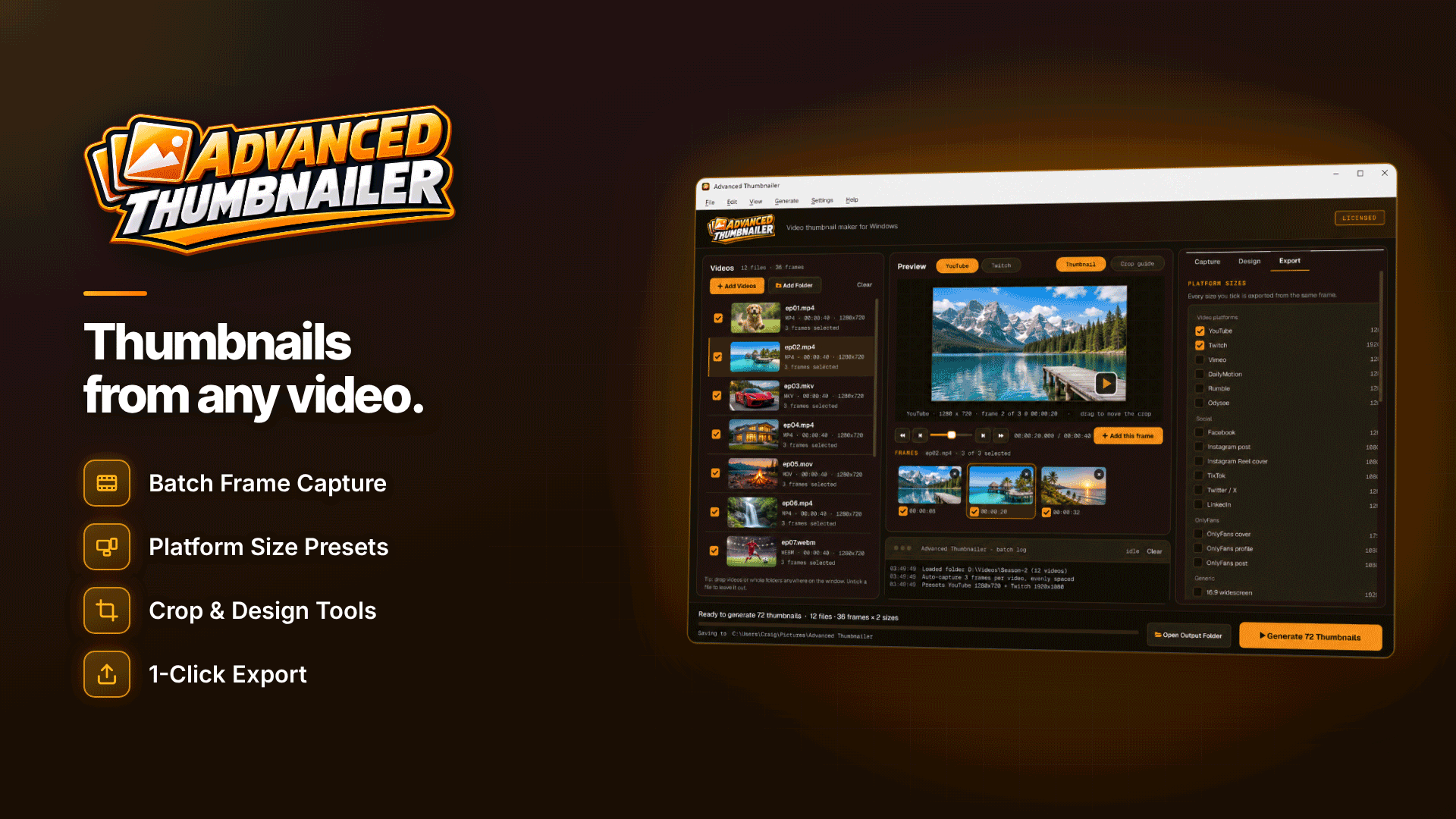
Your best banner image may already be sitting in a video you shot. Pulling a full-resolution frame gives you a consistent look between your page and your content, and saves a separate photo shoot. Advanced Thumbnailer is a Windows 10 and 11 tool that does this offline, and its presets include OnlyFans cover (1797 × 540), profile (1080 × 1080) and post (1080 × 1350) sizes alongside other platforms.
- Open the video (MP4, MOV, MKV and other common formats) or a still photo (JPG, PNG, WebP and others).
- Find the frame by scrubbing, then step frame by frame to the millisecond and capture it at full resolution.
- Position the crop. Crops are centred by default and can be dragged, so you can move the subject into the safe central area of the banner.
- Add text or a logo if you want them. Bold fonts with outline, shadow or a highlight box stay readable at small sizes; a logo can be placed with set size, position and opacity.
- Adjust the image with brightness, contrast, saturation and sharpening so it matches your other photos.
- Export all three sizes at once by selecting several platform presets in one batch.
How to resize an image for OnlyFans without stretching it
Resizing to a different shape always involves a choice. Crop-to-fill trims the edges so the image fills the frame; matching the platform shape with a blurred background keeps the whole picture but fills the gaps with a soft, blurred copy. For a banner, crop-to-fill with careful positioning usually looks best. For a post where nothing can be cut off, the blurred background option is a tidy compromise.
Export matching social sizes in the same batch
If you promote your page elsewhere, export the same frame for other platforms in the same run so everything matches. Presets include Instagram (1080 × 1080), TikTok (1080 × 1920), X (1200 × 675) and others, plus custom sizes. For more on social sizes, see our guide to resizing photos for every social platform.
Frequently asked questions
Why does my OnlyFans banner look cropped on mobile?
The banner is displayed at a different shape on narrow screens, so the sides are trimmed. Keep key details in the centre and test on your phone after uploading.
Should my banner include text?
Short text such as your creator name can help, but keep it large, central and minimal. Your bio is the place for detail; see how to write an OnlyFans bio.
JPG or PNG?
JPG is usually best for photos because the files are smaller. PNG suits graphics with flat colours or sharp text.
Next steps
Create your banner, profile photo and a post template in one sitting so they share the same look, then check your page on desktop and mobile. If you are still setting up, follow our guide to setting up an OnlyFans account. To build all three images from a favourite video frame in one batch, try Advanced Thumbnailer.



