
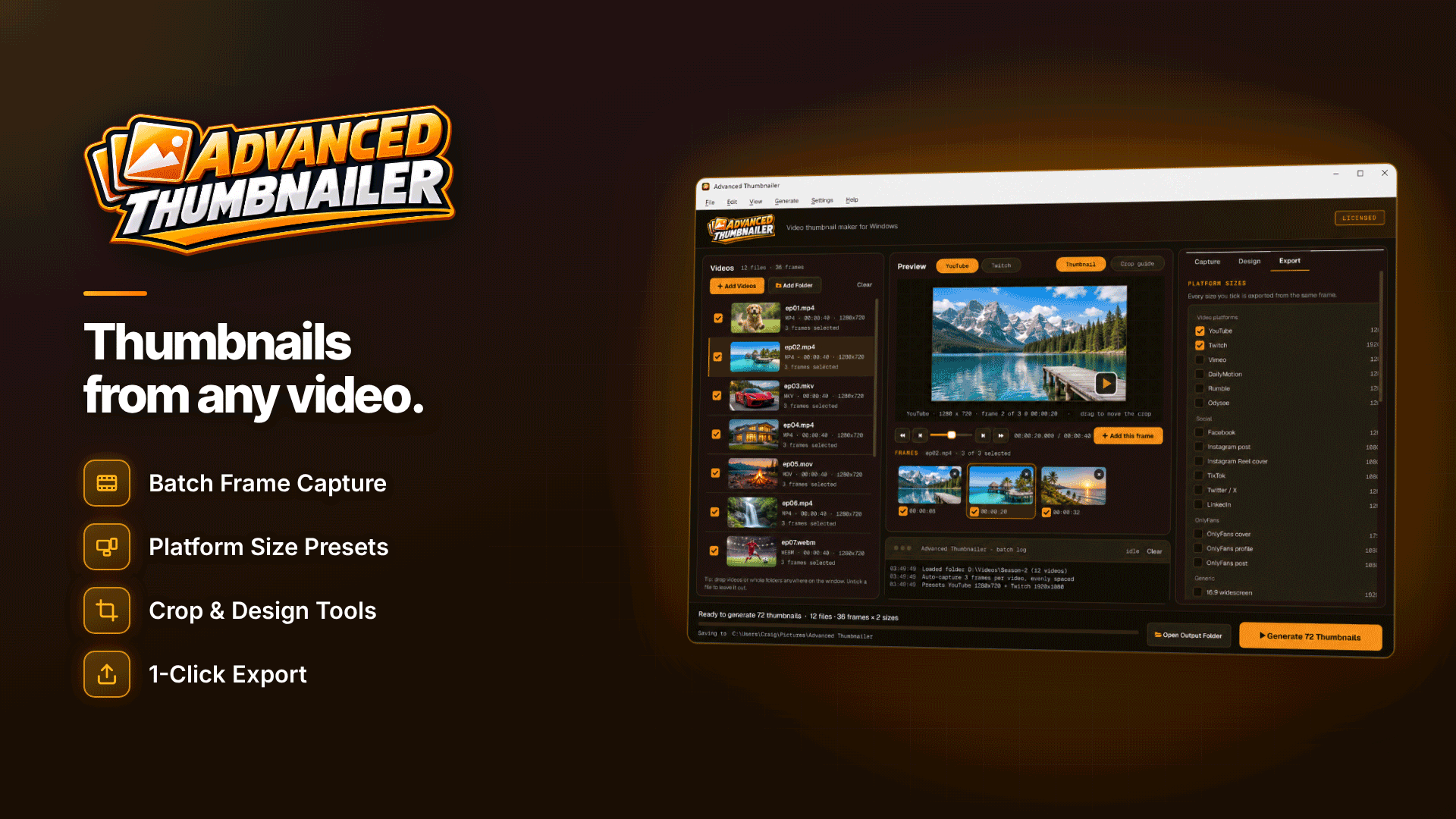
How do I make consistent thumbnails for my videos? Fix your brand rules once (fonts, text style, logo position, colour adjustments and crop) and apply them to every clip from a saved template, changing only the per-video text. Advanced Thumbnailer can do this on Windows: one saved project holds the whole style, and each batch produces thumbnails that look like part of the same series.
This article looks at what a consistent thumbnail system needs, how the tool covers it, where its limits are and how to fit it into a weekly posting routine.
Why consistent thumbnails matter for creators
Fans scroll quickly. When your thumbnails share a look, a regular viewer recognises your clip before reading the title, and a new viewer gets a sense of a professional, reliable creator. Consistency also saves time: once the rules are fixed, you stop redesigning from scratch for every upload.
Thumbnails are one part of a wider identity, alongside your name, colours, bio and banner. Our guide to creator personal branding covers the bigger picture.
What a thumbnail template for a video series needs
- Fixed typography: one or two fonts, set sizes, colours and effects.
- A fixed logo position and size, at a consistent opacity.
- Consistent framing: the same crop shape and subject placement.
- A colour treatment so footage shot in different light still looks related.
- Variable text for the part of each thumbnail that changes, such as a clip title or episode number.
- Repeatable export to every platform size you use.
How Advanced Thumbnailer works as a brand system
The tool is a Windows video thumbnail maker that pulls frames from video files (MP4, MOV, AVI, MKV, WMV, M4V, FLV and WebM) or uses still images, adds title text and a logo, and exports thumbnails at platform sizes in batch, offline. Here is how each part of the template maps to its features.
One saved project file
A whole job, from capture settings to text, logo, adjustments, sizes and naming, can be saved and reopened as an .atproj project file. That file is your brand template: open it, point it at this week's clips and run.
Fonts, outline and shadow
Text overlays offer eight bundled bold fonts plus your system fonts, with size, colour, outline, drop shadow, highlight box and ALL CAPS options, and nine positions. Outline and shadow keep text readable over busy frames, which matters at small feed sizes.
Add a logo to every thumbnail
A logo or watermark is applied to every file with set size, position and opacity. For content protection on the clips themselves, see our separate guide to watermarking OnlyFans content; a thumbnail logo identifies your brand but does not protect the video.
Colour and framing
Brightness, contrast, saturation and sharpening are applied across the batch, so clips filmed on different days look related. Crops to 16:9, 9:16, 1:1 or 4:3 are centred by default and can be dragged; when a platform's shape differs from your frame, you can crop to fill or fit the image with a blurred background.
Per-video text and placeholders
Text can be set per video, and placeholders insert the file name, batch number, frame time or date automatically. If your clip files are named with their titles, the template can write each title onto its own thumbnail without retyping.
Multi-platform export from one design
Advanced Thumbnailer has 18 platform size presets plus custom sizes from 16 to 8,192 pixels, and several sizes can be exported from one batch. Presets include YouTube (1280 × 720), TikTok (1080 × 1920), Instagram (1080 × 1080), X (1200 × 675) and OnlyFans cover, profile and post sizes. For profile images specifically, see what size an OnlyFans banner, profile and post image should be. Automatic file naming can include the platform name, so each size lands with a clear label.
A weekly workflow for a creator team
As a hypothetical example, a creator and an assistant publishing ten clips a week might:
- Name each finished clip with its title, for example poolside-outtakes.mp4.
- Open the saved .atproj brand project and add the week's folder.
- Let auto-capture pick evenly spaced frames while skipping the first and last few seconds and avoiding dark or blurry frames, or capture favourites by hand.
- Check each thumbnail in the live preview at its target size, adjusting the crop where needed.
- Export every platform size in one batch and file them alongside the clips.
Matching thumbnails to a posting plan is easier when both live in the same schedule; see our creator content calendar guide.
Honest limits
| Limit | What it means |
|---|---|
| Windows only | Use Windows 10 or 11; Mac users need another tool |
| JPG or PNG output only | No WebP export; convert separately if a site needs it |
| Not a video editor | It makes still thumbnails; edit and trim clips elsewhere |
| Activation needed to save | You can add videos, capture, design and preview first, but creating and saving thumbnails needs an activated key |
| Set number of PCs per key | Check how many machines your team needs before rolling it out |
It is also deliberately focused: if you want layered, freeform graphic design with cut-outs and complex compositions, a design app is the better fit, and you could use both, with complex hero images designed by hand and routine clip thumbnails produced in batch.
Offline thumbnail maker for Windows
Everything runs on your own PC and nothing is uploaded, which suits creators who prefer to keep unreleased clips off third-party servers. An internet connection is only needed for activation.
Frequently asked questions
Can I change the title text for each clip?
Yes. Text can be set per video, or filled automatically from placeholders such as the file name.
Will it pick good frames automatically?
It can capture evenly spaced frames, a frame every N seconds or a single middle frame, skip the start and end and avoid dark or blurry frames. Hand-picking is still worth it for your most important clips.
Can I use photos instead of video frames?
Yes. It accepts JPG, PNG, GIF, BMP, TIFF and WebP images as input.
Next steps
Write your thumbnail rules down first: fonts, colours, logo position and crop. Then build them into a saved project and run your next week of clips through it. If you are also managing a large back catalogue, our guide to bulk generating video thumbnails shows the batch side in more depth. To try a saved brand template on your own clips, see Advanced Thumbnailer.



