
To migrate an employee to a new computer securely, treat the swap as a personal-data processing event: plan what moves, transfer it directly over your local network or by an encrypted or controlled USB drive rather than through a third-party cloud, verify every file, keep a written record of what was transferred, and only then securely wipe the old PC. Done this way, a routine laptop replacement supports your GDPR security obligations instead of creating a breach risk.
For a small affiliate, agency or adult-site business, staff PCs hold exactly the data regulators care about: customer and subscriber lists, model and performer records, payment correspondence and support emails. This guide sets out a practical, documented process. It is general information, not legal advice; take professional advice for decisions specific to your business.
Why does a PC swap matter under GDPR?
Copying, moving and erasing personal data are all forms of processing. Under the GDPR (and the UK GDPR, which mirrors it on these points), personal data must be processed with "appropriate security", including protection against unauthorised processing and accidental loss (Article 5(1)(f)). Article 32 requires appropriate technical and organisational measures, taking into account the risks and the state of the art. The ICO's guide to data security is a useful plain-English reference for UK businesses.
A PC migration creates several risk points:
- data copied to an unknown cloud service or personal account in the middle of the move;
- files silently failing to copy, which is an integrity and availability problem;
- a loose USB drive full of customer data left in a bag;
- the old PC being reused, sold or recycled with data still on it.
Any of these can become a personal data breach. Our guide to the 72-hour breach notification rule explains what happens if one does.
A PC migration checklist for small businesses
Use this as a template and adapt it to your own policies.
Before the move
- Assign an owner. One person is accountable for the migration and the old device until it is wiped.
- Record the devices. Note the asset tag or serial number of the old and new PCs.
- Scope the data. Which user profiles, shared folders and mailboxes move? Is there data that should be deleted rather than migrated under your retention policy?
- Check encryption. Confirm BitLocker or device encryption is on for the new PC before data lands on it.
- Choose the transfer route. Prefer a direct local transfer. If you must use USB, use a company-owned drive and keep it under control.
During the move
- Transfer only the agreed data.
- Verify that the files arrived intact.
- Keep the transfer record.
After the move
- The employee confirms the new PC works, including email and line-of-business apps.
- Passwords, two-factor apps and accounts are moved over or reset.
- The old PC is securely wiped, and the wipe is recorded, before reuse, resale or recycling.
Data transfer without the cloud
Cloud migration services are convenient, but each one is another party handling your data. If a provider processes personal data on your behalf, it is likely to be your processor, which brings Article 28 contract requirements. Our explainer on controller and processor roles covers the distinction. For a straightforward PC swap, a direct transfer keeps the data inside your own office network and avoids the question entirely.
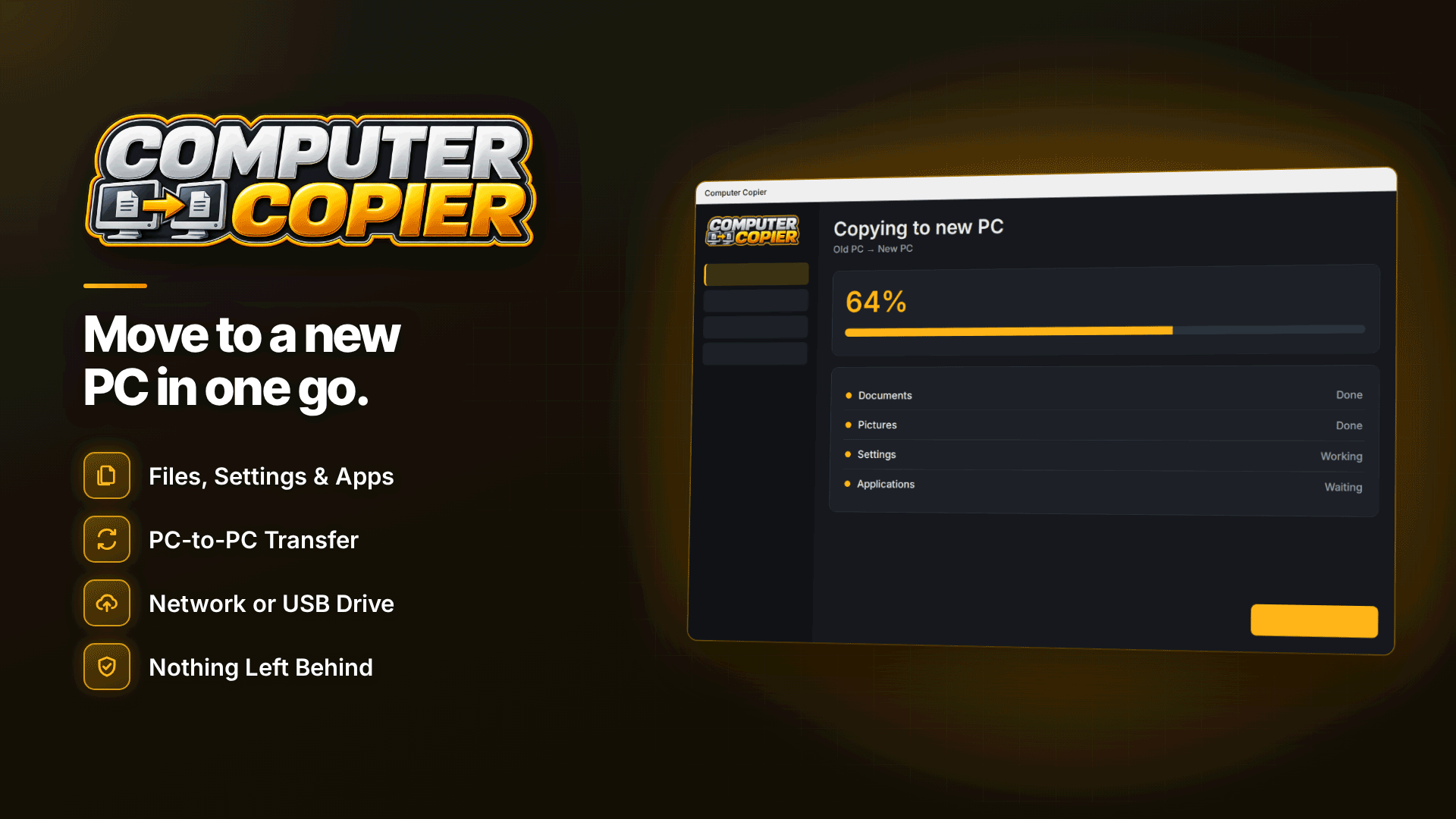
Computer Copier is one tool designed for this. It moves files, every user's folders, browser bookmarks, email and selected settings from an old Windows PC to a new one over Wi-Fi or Ethernet, pairing the two machines with a 6-digit code. There is no cloud or account involved, and the transfer doesn't use the internet. Where the network blocks direct connections, it can transfer by USB or external drive, spanning across several drives if needed, or save to a network location such as a NAS.
How to verify and document the transfer
Accountability under GDPR means being able to show what you did. A good migration leaves an evidence trail:
- Integrity checks. The tool verifies every copied file against the original by checksum by default and lists any failures with reasons.
- A transfer report. It produces a report listing what moved, the settings applied and any failures, which you can save as PDF or print. File it with the device record.
- Read-only source. The old PC is only read, never changed, so the original data stays intact until you've confirmed the new PC is complete.
- Undo. If the wrong data is copied, undo on the receiving PC reverts copied files (unless they have since been changed) and reverses settings.
You can also exclude file patterns, which helps if your retention policy says certain exports or temporary files shouldn't be carried forward.
Transferring the user profile and email
For most staff, the profile is where the personal data lives. The tool moves Documents, Pictures, Music, Videos, Desktop and Downloads for every user account, and finds user folders that were moved to another drive or into OneDrive (online-only files aren't downloaded). Users without an account on the new PC land in a "From OLD-PC" folder, or can be merged into an existing one, which is useful when an employee's new account name differs.
Email is often the biggest store of personal data. Outlook .pst files, Thunderbird mail and profiles, and Windows Contacts can be moved; Microsoft 365, Outlook.com and Gmail accounts re-sync when the user signs in. This is a good moment to ask whether old local .pst archives still need to exist at all.
Installed programs aren't copied, and licence keys aren't transferred. A program checklist lists what was installed on the old PC so you can reinstall only what's needed.
What to do with the old PC before recycling
This is the step businesses most often get wrong. A transfer tool that only reads the old PC leaves all the data on it, by design. Wiping is a separate job:
- Wait until the employee has used the new PC for a week or two and confirmed nothing is missing.
- Sign out and deauthorise the old PC from Microsoft 365, password managers and any software licences.
- Securely erase the drive using a method suitable for the drive type, or use a certified disposal provider. Simply deleting files or a quick format can leave data recoverable, as our article on whether deleted files are really gone explains.
- Record the wipe: date, method, who did it, and the certificate if a provider was used.
The migration checklist inside the software covers this too, alongside passwords, two-factor apps, licence keys, cloud sync, printer drivers and email accounts, and it saves ticks so the process can be completed over several days.
Remember: if you hand old equipment to a disposal or recycling company, it is likely to be acting as your processor. Get a written contract and a certificate of destruction.
Frequently asked questions
Does GDPR say how to set up a new laptop for an employee?
No. GDPR is technology-neutral. It requires appropriate security and accountability, so you need a process you can justify and evidence, such as the checklist above.
Is a USB drive safe for transferring staff data?
It can be, if it is company-owned, kept under control and wiped afterwards. A direct network transfer avoids the risk of a lost drive altogether.
Do I need to keep the transfer report?
There's no rule naming that document, but keeping it helps you demonstrate what was moved and that it was verified, which supports accountability.
Next steps
Make sure your privacy policy and internal records reflect how you handle staff devices, and if you use outside IT or disposal firms, compare options in the compliance and verification services directory. For the transfer itself, install Computer Copier on both PCs, follow its migration checklist and file the PDF report with your device records.


