The best FTP client for Windows, if you manage many sites, is one that keeps every server organised, connects securely by default and uploads only what has changed instead of the whole site. Simpler FTP is a Windows client for SFTP, FTPS and FTP built around that kind of routine: a Site Manager with folders, Compare & Sync, a resumable transfer queue and edit-in-place for quick fixes.
A single site can be managed with almost any tool. The trouble starts at five, ten or thirty: review sites, landing pages, client servers and the odd NAS drive at home. Small inefficiencies multiply, and so do mistakes, such as uploading to the wrong server or overwriting a newer file. This review focuses on the features that matter at that scale.
Platform and set-up
It runs on Windows 10 (version 1809 or later) and Windows 11, 64-bit only. A licence covers one PC, and connecting requires activation. There is no account and no cloud sync; your saved site details stay on your PC.
How do you manage multiple FTP sites in one place?
The Site Manager stores the host, port, protocol, user name and default local and server folders for each connection. For a portfolio, the useful parts are:
- Folders to group sites, for example by niche, by client or by "live" and "staging".
- Duplicate to create a new entry from an existing one when several sites share a host.
- Test to check a connection before you save it.
- Double-click to connect, with bookmarks and recent folders remembered per site.
- Multiple windows, so you can have two sites open at once without disconnecting.
If you are building out a group of sites, our guide to building a portfolio of affiliate websites covers the business side of the same problem.
Secure connections by default
Supported protocols are SFTP (port 22, password or SSH key file), FTPS (explicit on port 21 or implicit on 990, using TLS) and plain FTP (port 21, active or passive, including anonymous login). Automatic mode chooses the most secure option the server offers. Saved passwords are encrypted, stored on your PC and tied to your Windows user account, and you can sign in with a key file, a password or both. Prompts appear for untrusted certificates, unencrypted connections and changed server identities. If you handle personal data on any server, our article on whether plain FTP is safe under GDPR explains why those defaults matter.
How do you upload only changed files?
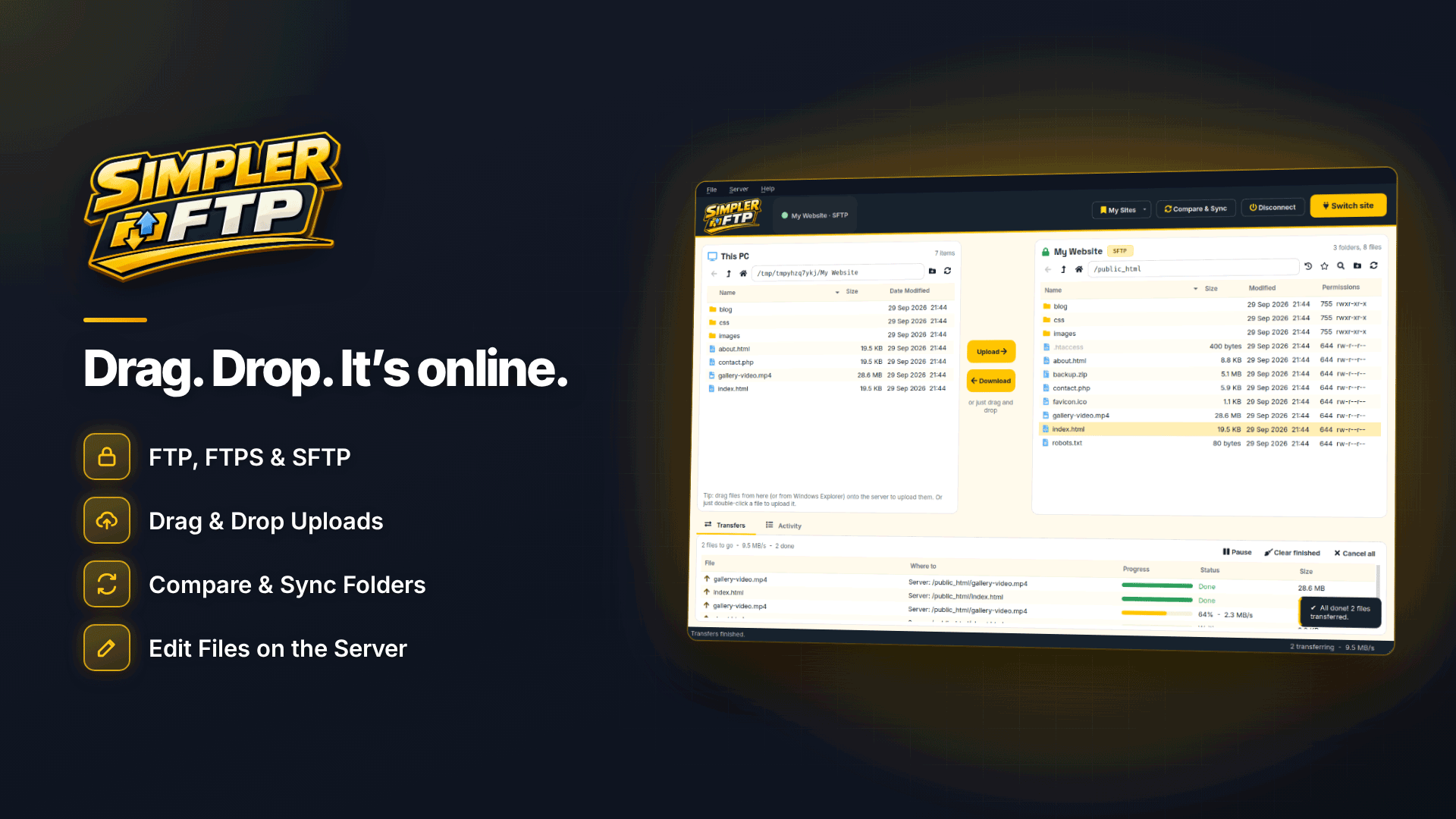
For multi-site webmasters, Simpler FTP's most valuable feature is Compare & Sync. It compares a local folder with the server and shows which files are new, changed or missing on each side, then uploads or downloads only the differences. After editing a template that touches twenty pages, you send twenty files instead of two thousand.
A typical routine looks like this:
- Make and check your changes in the local master copy of the site.
- Connect to the site and run Compare & Sync between the local and server folders.
- Review the list: anything shown as newer on the server deserves a second look before you overwrite it.
- Upload the differences and spot-check the live pages.
For one-off uploads, the overwrite choices (replace, replace only if different, or skip) give you similar control without a full comparison.
Caution: Compare & Sync has an option to delete server files that are not on your PC. It can permanently remove server-only files such as uploads, logs or files another person added. Leave it off unless you are certain your local copy is complete, and remember that deleting a server folder is also permanent. Where a server does not report file dates, comparison may only detect size differences, so a changed file of identical size could be missed.
Transfer queue and resuming
Every transfer goes into a queue with per-file progress and speed. You can pause, resume, retry or cancel, and the Activity history shows what happened afterwards. If a connection drops, Simpler FTP reconnects automatically and resumes large files, which is a relief when you are moving video previews or archive downloads.
Edit in place and everyday file operations
For quick fixes, open a server file in your own editor; when you save, it uploads automatically. That suits a typo on a live page or a one-line change to a configuration file. Keep your local master copy in step afterwards, or the next sync will overwrite the fix.
Other operations cover the usual ground: rename, move, delete, create folders, search the server with wildcards, copy a server path and use keyboard shortcuts. The permissions editor shows owner, group and public read, write and execute as tick boxes, although some Windows servers do not support permission changes.
Example: a weekly update across eight sites
Take a hypothetical affiliate with eight static review sites on three hosts, plus two client servers. Every Monday they update an "offers this week" block and fix anything flagged in last week's checks.
- In Site Manager, the sites sit in folders named after each host, with the client servers in a separate folder so they are never touched by mistake.
- They edit the shared block locally, then open the first site and run Compare & Sync. Only the changed pages and one updated stylesheet are listed.
- They upload the differences, then repeat the routine for the sister sites on the same host, whose entries were created with Duplicate, opening each in its own window.
- A dropped hotel Wi-Fi connection halfway through a large archive upload resumes on its own when the connection returns.
- Finally, they check the Activity history to confirm every site received its update before closing the session.
Nothing here is complicated, which is the point: with many sites, the time saved comes from removing small, repeated decisions.
What to bear in mind
- It is Windows-only and 64-bit only, with one PC per licence.
- PuTTY .ppk keys must be converted to OpenSSH format before use.
- There is no cloud sync of site lists between computers, by design.
- It moves and manages files; it is not a website editor or a backup system.
How to choose an FTP client for many sites
| What to check | Why it matters with many sites |
|---|---|
| Folder-based site list | Find the right server quickly and avoid uploading to the wrong one |
| Secure default protocol | No accidental plain-FTP connections on old entries |
| Changed-files-only uploads | Faster deployments and fewer overwritten files |
| Resumable queue | Large transfers survive dropped connections |
| Local, encrypted password storage | Credentials for every client stay off shared notes and cloud documents |
| Clear delete warnings | One wrong sync can wipe server-only content |
See where an FTP client sits alongside trackers, analytics and SEO software in our overview of essential affiliate marketing tools, and look at which other repetitive jobs are worth handing to software in affiliate marketing automation.
Frequently asked questions
Is it an SFTP client for Windows, or FTP only?
Both. It handles SFTP, FTPS and FTP, and Automatic mode picks the most secure option each server supports.
Can I use it with a NAS or Raspberry Pi?
Yes. Moving files to and from NAS drives, Raspberry Pi devices or media servers over SFTP is one of its listed uses.
Are there file size or file type limits?
The developer lists no file-type restrictions or file size limits. Large files benefit from the automatic resume feature.
Does it work offline?
You obviously need a connection to reach servers, but the licence only needs rechecking after seven days offline.
Verdict
For webmasters juggling many sites or client servers on Windows, the combination of folder-based site management, secure defaults, changed-files-only syncing and a resumable queue covers the daily workload well, as long as you treat the sync delete option with respect. Compare options in the webmaster software and services directory, or try it on your own portfolio with Simpler FTP.