How can I screenshot all pages of a website? The quickest reliable method is to use the site's XML sitemap as your URL list and feed it into a batch screenshot tool that loads each page, scrolls it to trigger lazy-loaded images and saves a full-page capture, ideally at both desktop and phone widths in the same run. Doing it by hand with a browser extension works for ten pages; for a few hundred, you need a batch.
This guide covers why full-site screenshots are worth having, how to prepare the URL list, which settings matter, and a workflow you can repeat before and after migrations, redesigns and algorithm updates.
Why take website screenshots for an SEO audit?
Crawlers tell you about status codes, titles and links. They do not show you that a comparison table collapsed on mobile, an affiliate banner disappeared or a template change pushed your call-to-action below the fold. A dated set of screenshots fills that gap.
- Audits: spot broken layouts, missing images and thin templates at a glance.
- Migrations: capture the old site before switching, then compare page by page afterwards.
- Post-update checks: if traffic falls after a Google update, you can see exactly what each page looked like beforehand.
- Client reporting: agencies can hand over a visual record alongside crawl data.
Screenshots work best alongside the technical checks in our affiliate site audit checklist.
How do you get a list of every page?
The sitemap is the natural starting point because it lists the pages you want indexed. Most CMSs publish one at /sitemap.xml or /sitemap_index.xml, and robots.txt usually points to it. Under the sitemaps protocol a single sitemap file can hold up to 50,000 URLs, so larger sites split them into several files referenced from a sitemap index.
- Find the sitemap or index and note how many child sitemaps it lists (posts, pages, categories, products).
- Decide the scope. For an audit you may only need money pages and templates, not every tag archive.
- Remove noise. Strip out duplicate URLs, parameter variants and pages you know redirect.
- Add missing pages. Landing pages excluded from the sitemap (for example noindexed paid-traffic pages) can be added manually from a text file.
Tip: for very large sites, capture a representative sample of each template first. Fifty well-chosen URLs often reveal more than five thousand near-identical ones.
Which settings matter for full-page screenshots of multiple URLs?
Viewport widths
Capture at least one desktop and one phone width. Most layout problems on affiliate sites show up only on mobile: tables that overflow, sticky bars covering buttons, pop-ups that block content.
Lazy loading and wait time
Modern themes load images only as you scroll. A tool that simply grabs the page as soon as it loads will show grey boxes. You need scrolling to trigger lazy images and a short pause after load for scripts and fonts.
Cookie banners
Consent banners can cover half a mobile screenshot. Hiding common banners gives cleaner captures, but keep one set with the banner visible if you are auditing consent behaviour itself.
File naming and formats
Name files by domain, date and viewport so a before-and-after comparison is easy months later. PNG is the safest format for sharp text; a combined PDF is handy for clients.
Capturing a whole sitemap in one batch
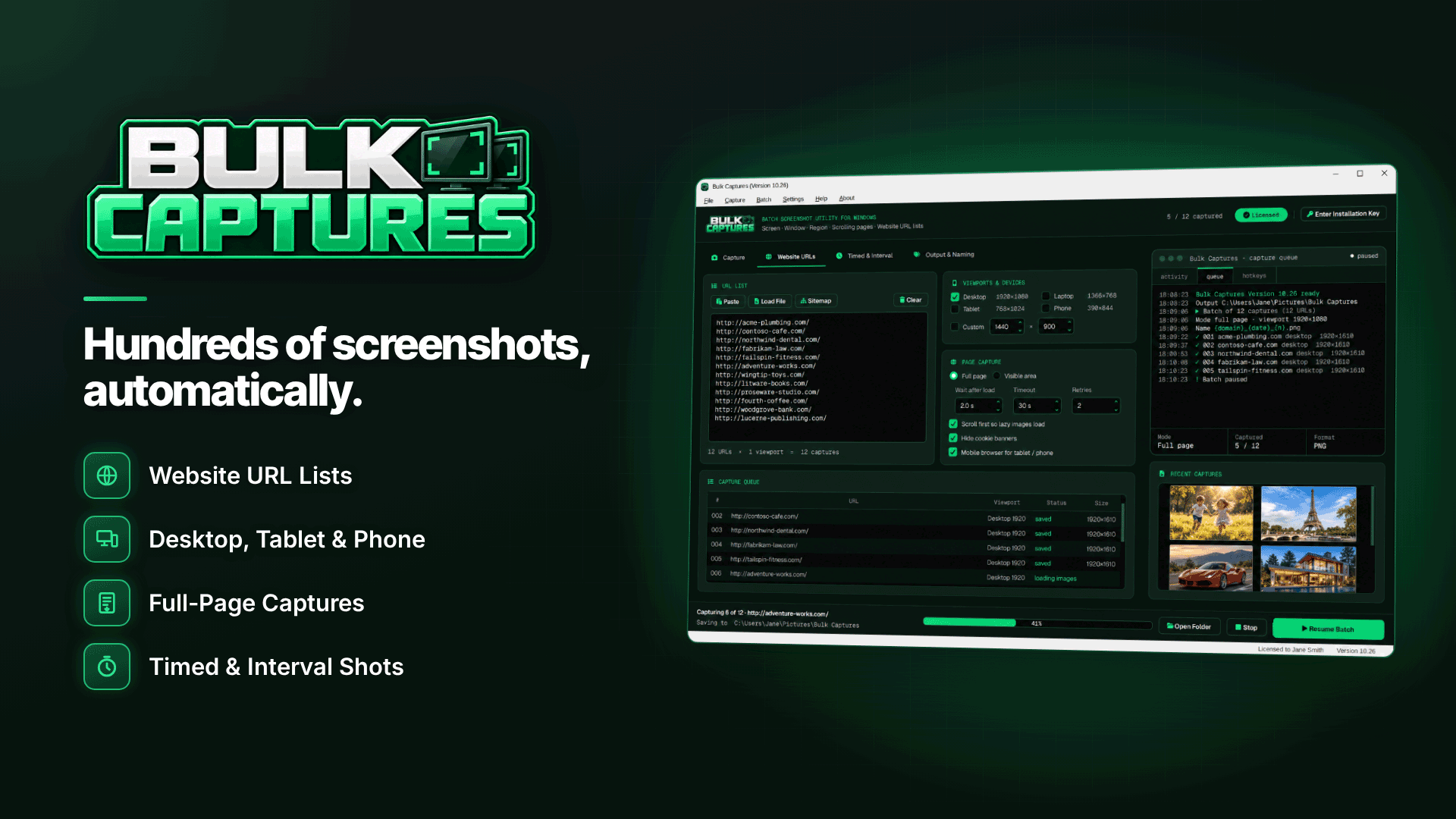
A dedicated Windows batch tool makes this practical. Bulk Captures runs on Windows 10 (1809 or later) and Windows 11, 64-bit, with its own built-in browser engine, so you do not need to drive a separate browser. For website batches it accepts pasted URLs, TXT, CSV or TSV files, drag-and-drop lists, sitemap .xml files, or a sitemap import straight from a site address, and it removes duplicate URLs from the queue.
A typical audit run looks like this:
- Import the sitemap from the site address or a saved .xml file, then trim the list to the sections you need.
- Choose viewports. Desktop, laptop, tablet, phone or custom sizes (from 240 to 7,680 px wide) can all be captured in the same run; there is also a mobile-browser option.
- Set page handling. Choose full-page or visible-area capture, let it scroll to load lazy images, optionally hide common cookie banners, and set a wait after load, timeout and retries.
- Set naming and folders. Tokens for date, time, counter, domain and viewport, plus dated or per-domain sub-folders, keep each audit separate. Existing files can be numbered, overwritten or skipped.
- Run and watch the queue. A live queue shows each page's status, with pause, resume, stop and retry-failed controls.
- Export. Save as PNG, JPG, WebP, BMP or TIFF, or produce one multi-page PDF per batch for a client report.
Batch post-processing can also resize everything to a fixed width or create thumbnails, which keeps report files manageable. There is one important limitation: website batches in Bulk Captures do not use your browser logins, so pages behind a login (member areas, dashboards, affiliate network stats) need the tool's scrolling-window, active-window or region capture instead. Capturing also needs an activated key, although you can build URL lists and settings beforehand.
How do you monitor website changes with screenshots?
Once you have a baseline, repeat the same batch on a schedule that suits the site: monthly for a stable review site, weekly during a redesign, and immediately after any major theme, plugin or hosting change. Keep the same URL list and naming pattern each time so you can open two dated folders side by side.
- Before a migration: capture everything on the old platform the day before switching.
- After launch: capture again and compare templates first, then individual money pages.
- After a ranking drop: compare the last pre-drop set with the current pages. Our guide to recovering from a Google update traffic drop explains what to look for next.
What should you look for when reviewing the screenshots?
A folder of several hundred images is only useful if you review it with a plan. Work template by template rather than page by page, and use a short checklist so nothing is missed:
| Check | What good looks like | Typical problem |
|---|---|---|
| Above the fold (phone) | Headline, short answer and first call-to-action visible | Cookie bar, sticky header and ad push everything down |
| Comparison tables | Readable or scrollable on narrow screens | Columns squashed or cut off |
| Affiliate disclosure | Visible near the top, before the first link | Moved to the footer by a template change |
| Images | All product images loaded and consistent | Grey placeholders or broken image icons |
| Navigation and footer | Same menu and legal links on every template | Old menu still showing on archive pages |
Log each issue with the file name of the screenshot that shows it. Because the file names already include the domain, date and viewport, anyone fixing the issue can find the exact view you saw, and you can attach the same image to the ticket or the client report.
Common mistakes
- Only capturing desktop. Most problems hide on phones.
- Too little wait time. Half-loaded pages make comparisons useless.
- Overwriting last month's set. Always use dated folders.
- Hammering your own server. Large batches on weak hosting can slow the live site; run them off-peak.
- Forgetting staging sites behind logins. These need a different capture method.
Frequently asked questions
Is it OK to screenshot competitors' sites?
Capturing public pages for internal research is common practice, but do not republish competitors' screenshots in ways that infringe copyright or mislead readers. Keep them as private reference material.
How long does a full-site capture take?
It depends on page weight, wait settings, server speed and how many viewports you choose. Test with a small batch, then estimate from that before queuing thousands of URLs.
Can screenshots replace a crawler?
No. They complement crawl data by showing what users see. Use both, and fix technical issues with our technical SEO checklist.
Next steps
Take a baseline of your money pages this week, before you need it, and browse more tools in our webmaster software and services directory. If you want sitemap import, multiple viewports and per-batch PDFs in one Windows tool, have a look at Bulk Captures.