
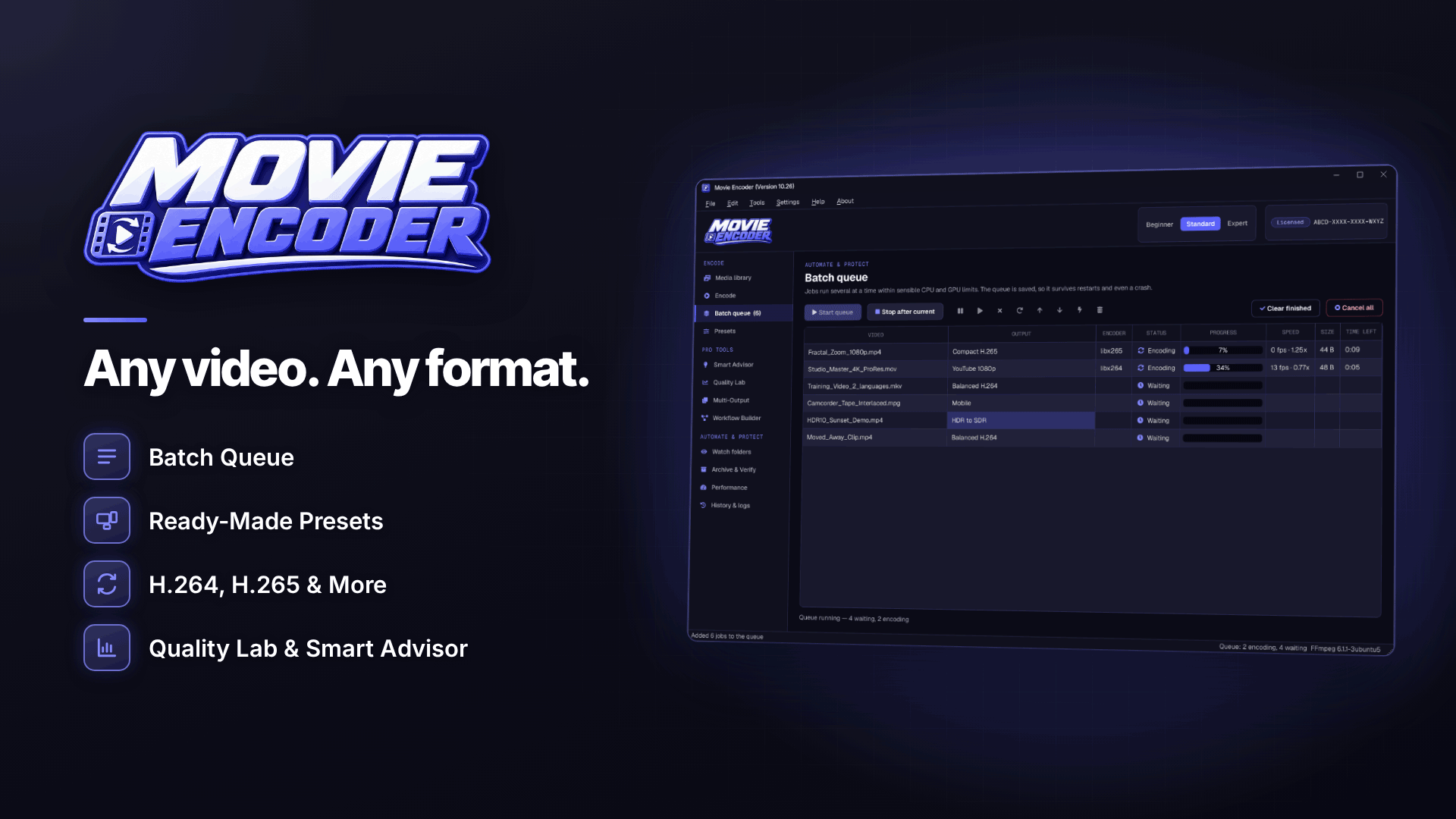
What is a good HandBrake alternative for Windows? If you need more than one-off conversions, such as batch queues that survive a restart, watch folders, several outputs from one master and measurable quality testing, Movie Encoder is a strong option for webmasters on Windows 10 or 11. If you only convert the occasional file, HandBrake may already be all you need.
This is not a "which is better" contest. Both tools are front ends that turn video settings into encodes; they suit different workflows. Below we set out what each kind of user needs, then look at what it does, where it goes further and where its limits are.
Where HandBrake fits
HandBrake is a well-known free, open-source video transcoder available for Windows, macOS and Linux. It is a sensible default for many people: it is widely documented, has presets for common devices and works across operating systems. If your team uses a mix of Macs and PCs, or you encode a few videos a month, there is little reason to change.
The question for webmasters is different. Once video becomes part of a production process, such as encoding a tube catalogue, preparing review videos or archiving masters, you start needing automation, logging and verification more than you need another preset.
What webmasters need from a video converter
Before comparing tools, list the jobs. For most affiliate and adult site owners, the checklist looks like this:
- Batch work that keeps going while you do something else, and picks up where it left off after a crash.
- Automation for new files, so a folder of fresh content gets processed without manual steps.
- Several deliverables from one master: different resolutions for your player, a partner's format, an archive copy.
- Hardware acceleration to get through backlogs quickly.
- Evidence of quality, so you can choose the smallest file that still looks right rather than guessing.
- Local processing, so unreleased or licensed content is never uploaded to a web service.
If those points sound familiar, our wider guide to affiliate marketing automation shows how video processing fits into the rest of a site's workflow.
What is Movie Encoder?
It is a Windows video encoder, converter and compressor built on FFmpeg. It runs on 64-bit Windows 10 and 11 and processes video locally; the internet is used only for activation and update checks, and the user guide states there is no telemetry. It opens a wide range of formats (MP4, MOV, MKV, AVI, WMV, WebM, MPEG-TS, MXF and more, plus headerless raw video and image sequences) and encodes to H.264, HEVC, AV1, VP9, ProRes, DNxHR, FFV1 and others.
It offers Beginner, Standard and Expert modes. Expert mode shows the exact FFmpeg command behind your settings, and an FFmpeg console with logs can export a .bat file, which is useful if you, or a developer you work with, want to reproduce a job elsewhere.
Where it goes further for webmaster workflows
A HandBrake alternative with GPU encoding and benchmarking
The software supports NVIDIA NVENC, Intel Quick Sync and AMD hardware encoders, shows only the options your machine actually has, falls back to the CPU automatically and includes encoder benchmarking, so you can see what your hardware does with your own footage. The user guide is candid that GPU encoding is much faster while CPU encoding usually gives slightly smaller files at the same quality.
A video converter with batch queue and watch folders
The batch queue is saved between sessions and supports priorities, concurrent jobs, pause, cancel and retry, naming templates and crash recovery. Watch folders add scheduling, an automation log and Windows notifications. Originals are only moved by a watch folder if you switch that on.
Multi-Output and the Workflow Builder
Multi-Output produces several encodes from one source, each with its own settings, and a failed output does not stop the others. For more complex jobs, the node-based Workflow Builder lets you design a pipeline with connection validation and templates.
Quality Lab
Quality Lab runs test encodes and compares them by size, time, PSNR, SSIM and VMAF, with charts and A/B playback. That turns "does CRF 23 look fine?" into a measurable decision you can repeat across a library.
Archive & Verify
For masters you need to keep, Archive & Verify creates lossless FFV1 files in MKV, generates SHA-256 checksums, compares streams and writes JSON, CSV or text manifests. That gives you proof that an archive copy matches its source, which plain conversion does not.
For a hands-on example of these features applied to a real catalogue, see our guide to the best video encoding settings for a tube site, which walks through a full batch setup with Movie Encoder.
Other useful details
- Preview tools: playback, frame stepping, screenshots, trim points, interactive crop, a before/after split view and short sample encodes.
- Filters: resize, crop, deinterlace, denoise, sharpen, frame rate conversion, HDR-to-SDR tone mapping, watermarks, text and image overlays, fades and subtitle burn-in.
- Audio: conversion, downmixing, EBU R128 loudness normalisation and audio delay fixes.
- Subtitles and metadata: SRT, ASS and WebVTT, chapters and metadata editing.
- Smart Encoding Advisor: recommends settings for six goals (best quality, smallest file, fastest, balanced, archival, streaming) with estimated size ranges.
- Safe output: encodes go to a temporary file first and are only moved after a basic check; originals are not overwritten or deleted by default.
- Presets: General, Hardware, Professional, Delivery and Specialist categories, and custom presets can be shared with colleagues.
Limits to be aware of
| Limit | What it means in practice |
|---|---|
| Windows only | Mac or Linux team members need a different tool |
| One PC per licence at a time | You deactivate on one machine to move it to another |
| VMAF depends on the FFmpeg build | VMAF scores need a libvmaf-enabled build; PSNR and SSIM are still available |
| Hardware AV1 needs a supporting GPU | Older graphics cards fall back to software encoding for AV1 |
| Not a multi-track editor | Trim, crop and filters only; edit your scenes elsewhere first |
| Advisor estimates are ranges | Confirm file sizes with a sample encode |
Who should use which tool?
- Stay with HandBrake if you convert occasionally, work across operating systems or prefer open-source software.
- Consider Movie Encoder if you run a Windows-based production PC, process videos in volume, want watch folders and resumable queues, or need checksummed archives and measurable quality comparisons.
- Use both if it suits you: many teams keep a familiar free tool for quick jobs and a dedicated encoder on the machine that handles the backlog.
Tip for teams: if a freelancer or virtual assistant handles your encoding, shared custom presets and naming templates keep their output consistent. Our guide to outsourcing affiliate work covers briefing and quality control.
How to trial a new encoder without disrupting your site
- Pick a test set. Choose ten representative videos: a bright studio scene, a dark scene, a fast-moving clip, an older interlaced file and a long one.
- Recreate your current settings. Match codec, resolution and quality settings to your existing output so the comparison is fair.
- Compare outputs. Check file size, encode time and quality scores, then watch the hardest sections in A/B playback.
- Test your pipeline. Upload the new files to a staging copy of your site and confirm the player, CMS import and naming all behave.
- Switch gradually. Point a single watch folder at new content first, and keep your old tool available until the new routine has run cleanly for a few weeks.
Frequently asked questions
Is this encoder just an FFmpeg GUI for Windows?
It is built on FFmpeg, and Expert mode shows the exact command it runs. On top of that it adds a persistent queue, watch folders, Multi-Output, the Workflow Builder, Quality Lab and Archive & Verify.
Does it work as an offline video converter on Windows 11?
Yes. Encoding happens locally on 64-bit Windows 10 and 11, and the internet is only needed for activation and update checks.
Will it make my videos lossless?
Only when you choose a lossless route, such as stream copy (remuxing) or FFV1 archiving. Normal H.264, HEVC or AV1 encodes are lossy, however good they look.
Next steps
Write down the video jobs you repeat every week and check which tool removes the most manual steps. For a wider view of your stack, see our roundup of the best affiliate marketing tools and browse the webmaster software and services directory. If a Windows batch encoder fits your workflow, you can find full details on the Movie Encoder site.



