To transfer everything from an old PC to a new Windows 11 PC, you move your files, bookmarks, email and program settings with a PC-to-PC transfer tool (over your home network or by USB drive), then reinstall your programs on the new machine and work through a checklist for licence keys, passwords and two-factor apps. No method copies installed programs across reliably, so plan for reinstalls from the start.
For an affiliate marketer, "everything" means more than documents. It's the bookmarks to a dozen network dashboards, saved FTP and SSH sessions, years of Outlook mail with program managers and the mapped drive where your creatives live. This guide covers what to move, how to move it and what people usually forget.
What actually needs to move to the new PC?
Make an inventory before you buy cables or start a transfer. A typical affiliate workstation holds:
- Files: Documents, Desktop, Downloads, Pictures and Videos, plus any folders you keep on a second drive (banners, landing page builds, keyword exports).
- Browser data: bookmarks to affiliate network dashboards, trackers, ad platforms and your own site admin panels.
- Email: Outlook .pst data files or Thunderbird profiles with years of affiliate manager correspondence and payment confirmations.
- Program settings: FileZilla site manager entries, PuTTY sessions, code editor settings, Office templates and signatures.
- System settings: saved Wi-Fi networks, mapped network drives and printers.
- Things that can't be copied: installed programs, licence keys, saved browser passwords and authenticator apps.
That last group is where migrations go wrong, and it's covered in the checklist section below.
What are your options on Windows 11?
Windows Easy Transfer, the built-in tool from older versions, is gone: Microsoft confirms it isn't available in Windows 10, and Windows 11 doesn't include it either. Microsoft now points people towards its Windows Backup app and Microsoft account, and its own support page says installed apps, saved passwords and system folders don't transfer that way. Your realistic choices are:
| Method | Good for | Watch out for |
|---|---|---|
| Manual copy via external drive | A few folders of files | Missed hidden settings, no verification, FAT32 drives can't hold files over 4 GB |
| Cloud sync (OneDrive and similar) | Documents you already sync | Slow for large folders, online-only files, settings and mail not covered |
| Dedicated PC-to-PC transfer software | Files plus bookmarks, mail and settings in one pass | Programs still need reinstalling |
What to do before the transfer
- Check your password manager is synced and you can sign in on another device.
- Export two-factor backup codes for affiliate networks, payment providers, your registrar and hosting control panel.
- Write down licence keys for paid software, or find them in your email receipts.
- Close Outlook and Thunderbird so their data files aren't locked.
- Set up the new PC with your user account, Windows updates and enough free space.
- Connect both PCs to the same network, ideally by Ethernet for large transfers.
Should you transfer over the network or by USB?
Both work, and the right choice depends on your setup rather than on the software:
- Wired Ethernet is usually the most stable choice for large folders of creatives and video, and both PCs can sit side by side on the same router or switch.
- Wi-Fi is convenient for a laptop-to-laptop move, but speeds drop with distance and interference, so expect a long transfer if you hold a lot of media.
- External drives are the fallback when the network blocks direct connections, or when the old PC is in another location. A fast USB 3 drive formatted as NTFS or exFAT avoids the 4 GB file limit of FAT32.
Whichever you pick, verification matters more than raw speed: a fast copy with silent errors is worse than a slower one you can trust.
How to transfer everything with a PC-to-PC tool
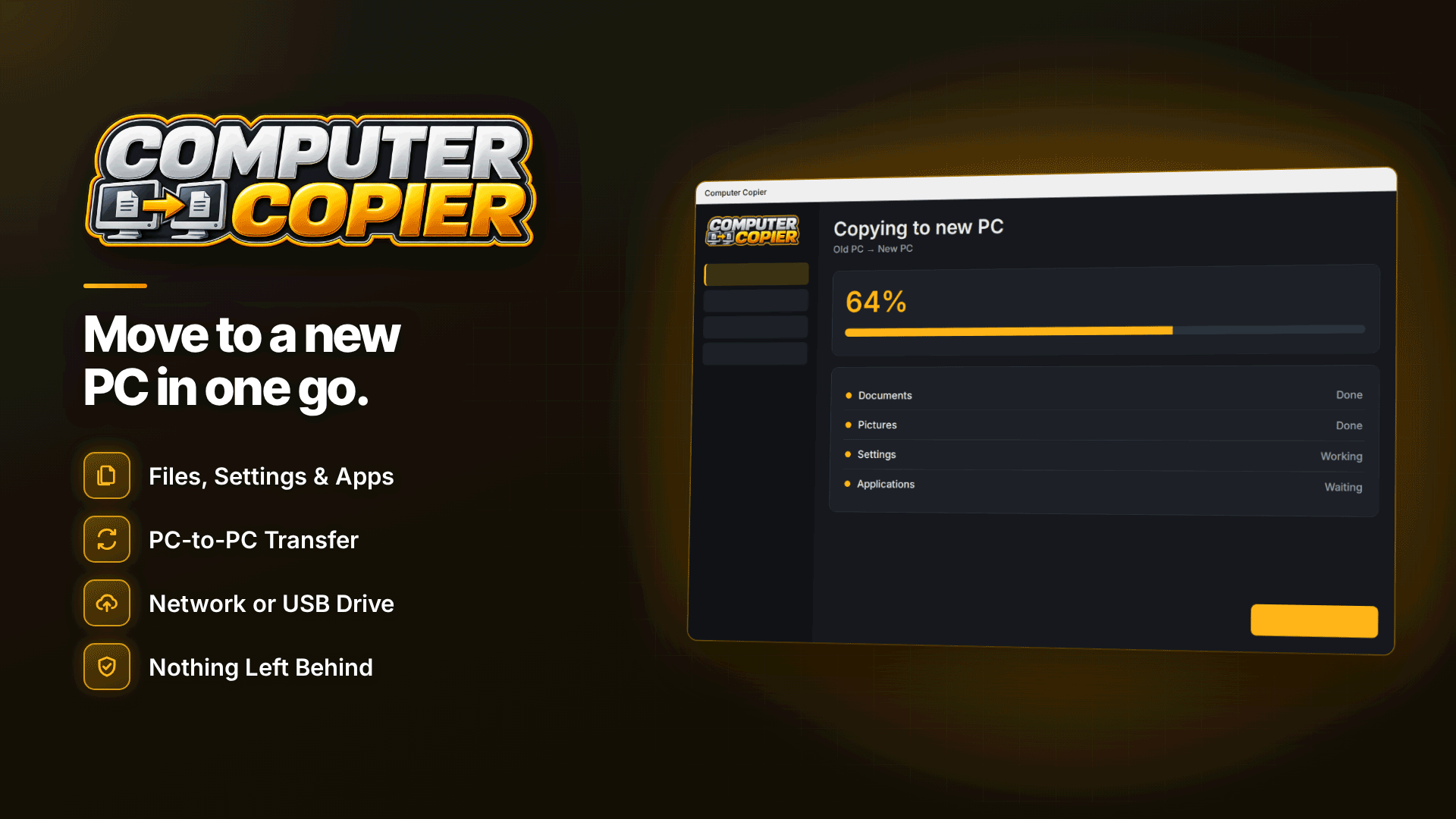
A dedicated transfer tool saves you hunting for hidden settings folders. Computer Copier is built for this job: it moves files, every user's folders, browser bookmarks, email and selected settings from an old Windows PC to a new one, and verifies each copied file. It installs on both PCs and runs on 64-bit Windows 10 and 11, in either direction, including Windows 10 to 11.
Step 1: connect the two PCs
For a direct transfer over Wi-Fi or Ethernet, you pair the two PCs with a 6-digit code. There's no cloud or account involved, and the transfer doesn't use the internet. If your network blocks device-to-device traffic (guest Wi-Fi, some work networks), use an external drive instead: the tool can span the transfer across multiple USB drives, or save the transfer file to a folder such as a NAS.
Step 2: choose what to move
- Folders: Documents, Pictures, Music, Videos, Desktop and Downloads for every user account, plus chosen folders or whole drives. It also finds user folders you've moved to another drive or into OneDrive.
- Bookmarks: Chrome, Edge and Brave bookmarks are merged into an "Imported from" folder. Firefox bookmarks are saved as an HTML file you import manually. Favorites come too.
- Email: Outlook .pst files, Thunderbird mail, profiles and settings, and Windows Contacts. Gmail, Outlook.com and Microsoft 365 accounts simply re-sync when you sign in.
- Settings: optionally, saved Wi-Fi networks and passwords, mapped drives, printers, regional formats, wallpaper and desktop layout, plus settings for programs such as FileZilla, PuTTY, Notepad++, VS Code and VLC, and Office templates and signatures.
Step 3: transfer and verify
By default, every file is checked against the original by checksum, and any failures are listed with reasons. You can pause, resume or stop; it picks up where it left off. The old PC is only read, never changed, so you can keep using it as a fallback until you're confident.
Step 4: review the report
The transfer report lists what moved, which settings were applied and anything that failed, and can be saved as PDF or printed. If something lands wrongly, an undo on the new PC reverts copied files (unless you've changed them since), restores replaced versions and reverses settings.
Programs, licence keys and the migration checklist
Installed programs are reinstalled, not copied. The tool provides a program checklist listing what's installed on the old PC, with download links and licence-key reminders. It doesn't transfer licence keys for you, so that's your job.
Its migration checklist then covers the items people forget: passwords, two-factor apps, licence keys, cloud sync, printer drivers, email accounts and, finally, wiping the old PC. Ticks are saved, so you can work through it over a few days. A practical order for an affiliate:
- Reinstall your browser and sign into its sync, then confirm the merged bookmarks reach every network and tracker you use.
- Reinstall FileZilla and PuTTY and check the migrated sessions connect to your servers.
- Open Outlook and check older folders are present.
- Sign in to each affiliate network and payment provider and confirm two-factor works on your phone.
- Check reporting spreadsheets and any scripts you use to track earnings across multiple networks.
- Only then retire the old PC.
Common mistakes to avoid
- Wiping the old PC too early. Keep it untouched for a week or two.
- Forgetting online-only OneDrive files. Files that exist only in the cloud aren't downloaded and moved; they reappear when you sign into OneDrive on the new PC.
- Mapped drive clashes. A mapped drive is skipped if its letter is already in use on the new PC or the share can't be reached.
- Printer surprises. Some printers need their drivers installed before migrated settings work.
- Missing admin rights. The software needs administrator rights on both machines.
Frequently asked questions
Can I transfer my Wi-Fi passwords to a new computer?
Yes, if you choose that setting. Saved Wi-Fi networks and passwords are among the optional settings it can move.
How do I transfer FileZilla settings to a new PC?
You can copy FileZilla's configuration files by hand, or include FileZilla in the program settings a transfer tool moves. Reinstall FileZilla on the new PC either way.
Does it move installed programs?
No. It doesn't move Windows itself, drivers or installed programs. You reinstall them using the program checklist as your guide.
Can I transfer from two old PCs?
A new PC receives from one old PC at a time, so run the transfers one after another.
Next steps
A new PC is a good moment to review your setup. Our guide to the essential affiliate marketing tool stack can help you decide what's worth reinstalling, and the advice on running a portfolio of affiliate websites is worth rereading if your server list has grown. More utilities are listed in the webmaster software and services directory. When the new machine is unboxed, install Computer Copier on both PCs and start with the migration checklist.