The best hard drive health check software for Windows reads SMART data from every kind of drive you own, turns it into a clear verdict, scans for bad sectors without changing anything, explains why a drive has gone missing and warns you before problems become data loss. Disk Detector covers that list for Windows 10 and 11, with a missing-drive troubleshooter, Good/Caution/Bad health ratings, read-only surface scans, speed tests, scheduled alerts and PDF health reports. It diagnoses drives; it does not recover deleted files.
If you run affiliate sites, you probably have more drives than you think: the laptop SSD, a desktop with a couple of internal disks, external archive drives, a backup drive and a drawer of USB sticks. This review looks at what drive health software should do for a site owner and how this tool handles each job.
What should hard drive diagnostic tools do?
Windows has some built-in tools: Disk Management, CHKDSK and, on Windows 11, basic health information for NVMe SSDs in Settings. They're useful but scattered, and they don't cover SATA drives, external disks or USB sticks in one view. A good diagnostic tool should:
- cover hard drives, SATA SSDs, NVMe SSDs, external drives, USB sticks and SD cards;
- translate SMART data into a verdict, with reasons;
- scan for bad sectors in read-only mode;
- explain why a drive isn't appearing and which fixes are risky;
- run checks in the background and alert you;
- produce a report you can keep or share.
Finding drives Windows can't see
The missing-drive finder identifies the common reasons a drive doesn't show up: no drive letter, offline, not initialised, unallocated, RAW file system, write protection or driver problems. Most can be fixed in one click. Each fix is labelled with its risk, and anything that would erase a drive asks for confirmation first, which matters when the "missing" drive holds three years of keyword research and site backups.
It also shows every partition, including the hidden EFI and recovery partitions, and runs a read-only file system check with optional repair. For USB sticks, SD cards and external drives, it explains why the device isn't recognised and checks for write protection.
SMART health ratings in plain language
Each HDD, SATA SSD and NVMe drive gets a SMART health rating of Good, Caution or Bad, with reasons, advice and a full, explained SMART table for those who want detail. It also shows drive temperature, SSD life used and estimated remaining life.
The vendor's guidance is sensible: a drive rated Caution or Bad may still work, but you should back up first, then replace it. Some USB enclosures don't pass SMART data through, and the app tells you when that happens rather than implying the drive is fine.
Surface scans and how to test hard drive speed on Windows
Read-only bad-sector scan
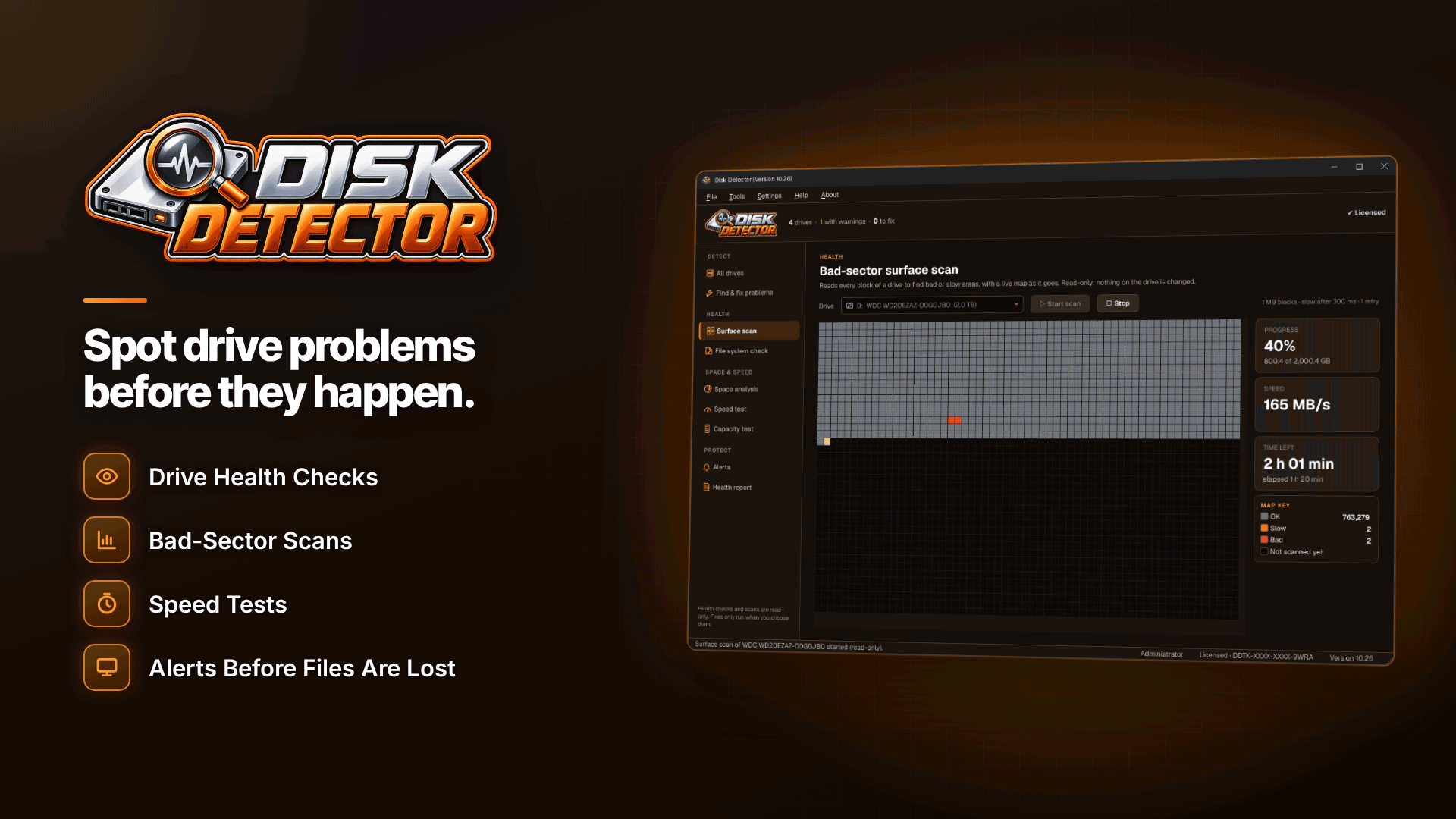
The surface scan reads the whole drive and shows a live block map. It's read-only, so it doesn't alter your data, and it stops cleanly if the drive disconnects.
Speed benchmark
The benchmark compares read and write speeds with expected performance for the drive type. For site owners it often reveals a different problem: an external drive plugged into a slow USB port or using a poor cable, which the benchmark can help identify.
Capacity test
A capacity test finds the real usable size of USB sticks and SD cards, so you can catch fake drives before you trust them with a backup.
Space maps, alerts and automation
The space map gives you a clickable folder map, the largest folders and space used by file type. That's handy on a workstation filling up with exported logs, image libraries or local site copies.
Disk Detector can also run scheduled background checks and show desktop alerts for declining health, overheating or low space. A "New drive found" check runs when you connect a drive, so a backup disk you only plug in monthly still gets looked at. If you're already automating reporting and routine tasks, as covered in our guide to affiliate marketing automation, this is drive monitoring on the same principle: set it once and only hear from it when something changes.
Drive health reports in PDF
The tool produces a printable health report, exported as PDF or text, for warranty claims, your own records or selling a PC. Serial numbers and SMART details are optional, so you can leave identifying information out of a report you share with a buyer.
For a small business, a dated report also fits neatly into an IT asset record: when a drive went into service, its health at each check and why it was retired.
How to check a used hard drive before buying
Second-hand drives and refurbished PCs are a common way to add extra storage. Before you trust one with anything important:
- Read the SMART rating and the reasons behind it, including power-on hours and any error counts.
- Check SSD life used if it's a solid-state drive.
- Run a full read-only surface scan.
- Run the speed benchmark to see whether it performs as expected for its type.
- For USB sticks and SD cards, run the capacity test.
- Save a PDF health report so you have a baseline.
If the rating comes back Caution or Bad, return it if you can.
A drive-health routine for a multi-drive setup
The value of a health tool comes from using it consistently. Here's a simple routine for a hypothetical site owner with a laptop, a desktop with two internal disks and three external drives:
- Always on: background checks and alerts on the laptop and desktop, so declining health, overheating or low space shows up as a desktop notification.
- Whenever a drive is connected: let the new-drive check run on external archive and backup disks.
- Quarterly: a full read-only surface scan of each external drive, and a speed benchmark if copies have felt slow.
- Before any change: a saved PDF report when you retire, sell or buy a drive, filed with your IT records.
- Any Caution rating: copy the data elsewhere that day and order a replacement.
Label each external drive physically and use the same name in your records, so a report about "Archive 2" points to the right box on the shelf.
Limits worth knowing
| It does | It doesn't |
|---|---|
| Find and explain missing drives, with risk-labelled fixes | Recover deleted files |
| Rate SMART health and scan for bad sectors | Repair failing hardware |
| Benchmark speed and test real capacity | Read SMART through every USB enclosure |
| Alert you and produce PDF reports | Replace your backups |
On activation: health checks, partition views, troubleshooter explanations and the space map work before you activate it. Fixes, surface scans, file system checks, speed and capacity tests, alerts and reports need an installation key, and the standard licence covers one PC.
Frequently asked questions
Does it work with NVMe and external drives?
Yes. It covers internal and external hard drives, SATA and NVMe SSDs, USB flash drives and SD cards, though some USB enclosures don't pass SMART data through.
Can it recover deleted files?
No. It's a diagnostics tool. If you've lost files, you need a dedicated recovery tool.
Is a surface scan safe on a drive with important data?
The scan is read-only, so it doesn't change your files. On a drive rated Caution or Bad, copy your most important data off first anyway.
Next steps
Drive health belongs in your regular affiliate site audit checklist, alongside backups and security. You can see where it fits in the wider affiliate marketing tool stack, and compare related utilities in the webmaster software and services directory. To get a baseline for every drive you own, install Disk Detector, check each health rating and save a report for your records.