To fix "boot configuration data is missing", you rebuild the Boot Configuration Data (BCD) store that tells Windows' boot manager where Windows lives. You can do that by hand from the Windows Recovery Environment with the bootrec and bcdboot commands, or with a guided boot repair tool that checks the BCD, EFI files and boot records for you and lets you undo the change. Either way, your videos and documents are not usually affected: this is a startup problem, not a lost-data problem.
If the PC that encodes and uploads your tube site's videos has just shown a blue or black screen with error code 0xc000000f, this guide gives you a calm order of work, explains what each error actually means, and shows where a hardware fault needs a different fix entirely.
What does "boot configuration data is missing" actually mean?
When a Windows PC starts, the firmware (UEFI on most modern machines, legacy BIOS on older ones) hands over to the Windows Boot Manager. The boot manager reads a small database called the BCD to find which Windows installation to load and how. If that database is missing, damaged or pointing at the wrong partition, the boot manager stops with a message such as "Your PC/Device needs to be repaired. The Boot Configuration Data file is missing some required information".
Common causes on a busy webmaster workstation include:
- Cloning Windows to a new SSD without copying or updating the EFI system partition, so the new drive has Windows but no working boot files.
- Power loss during an update, which can leave boot files half-written.
- Adding or removing drives, especially when a second drive held the boot partition without you realising.
- Partition changes made to squeeze in more storage for video archives.
- A failing drive, which is the one cause no software repair can fix.
Related errors you may see instead
The same family of problems shows up under different wording. Knowing which one you have saves time:
| Message | Usual meaning | Likely fix |
|---|---|---|
| Boot configuration data is missing (0xc000000f) | BCD store damaged or missing | Rebuild the BCD |
| No bootable device | Firmware can't find any boot files, or can't see the drive at all | Repair EFI files or MBR; check the drive is detected |
| Operating system not found | Boot record or boot sector damaged, or wrong boot order | Check boot order, rebuild boot records |
| Windows missing from the boot menu | Installation exists but has no BCD entry | Detect Windows and add it back to the menu |
Check this first: go into your UEFI/BIOS setup and confirm the drive holding Windows is listed. If the firmware can't see the drive, no boot repair will help. Reseat cables on a desktop, try another port for an external enclosure and suspect the drive itself.
What should you do before trying any repair?
Two minutes of preparation stops a startup fault turning into a data problem:
- Find your BitLocker recovery key. Many Windows 11 PCs have device encryption switched on. Boot repairs and recovery tools may ask for the key, and without it you can't unlock the drive. It is often stored in the Microsoft account used to set up the PC.
- Note what changed. A new SSD, a cloned drive, a failed update or a power cut each point to a different fix.
- Get your work off if you can. If you have unpublished edits or source files that exist nowhere else, copy them to a USB drive before you change anything.
- Disconnect extra drives. Unplug external archive drives during repair so nothing writes boot files to the wrong disk.
How to rebuild the BCD manually on Windows 11
Windows starts its own Recovery Environment (WinRE) automatically after two consecutive failed attempts to start, according to Microsoft's technical documentation. You can also boot from a Windows installation USB and choose Repair your computer. From there, go to Troubleshoot > Advanced options.
- Try Startup Repair first. It sometimes fixes simple BCD problems on its own.
- If that fails, open Command Prompt.
- On older BIOS PCs, the classic sequence is bootrec /fixmbr, bootrec /fixboot and bootrec /rebuildbcd.
- On UEFI PCs, you usually assign a letter to the EFI system partition with diskpart, then run bcdboot C:\Windows /s followed by that letter and /f UEFI to recreate the boot files. The Windows drive letter in recovery may not be C:, so check with dir first.
This works, but it is easy to get wrong under pressure. Assigning the wrong partition, mixing up drive letters or running /fixboot on a UEFI system (where it often returns "Access is denied") can leave you confused about what has actually changed. There is also no built-in "undo" for these commands.
Windows boot repair without reinstalling: the guided route
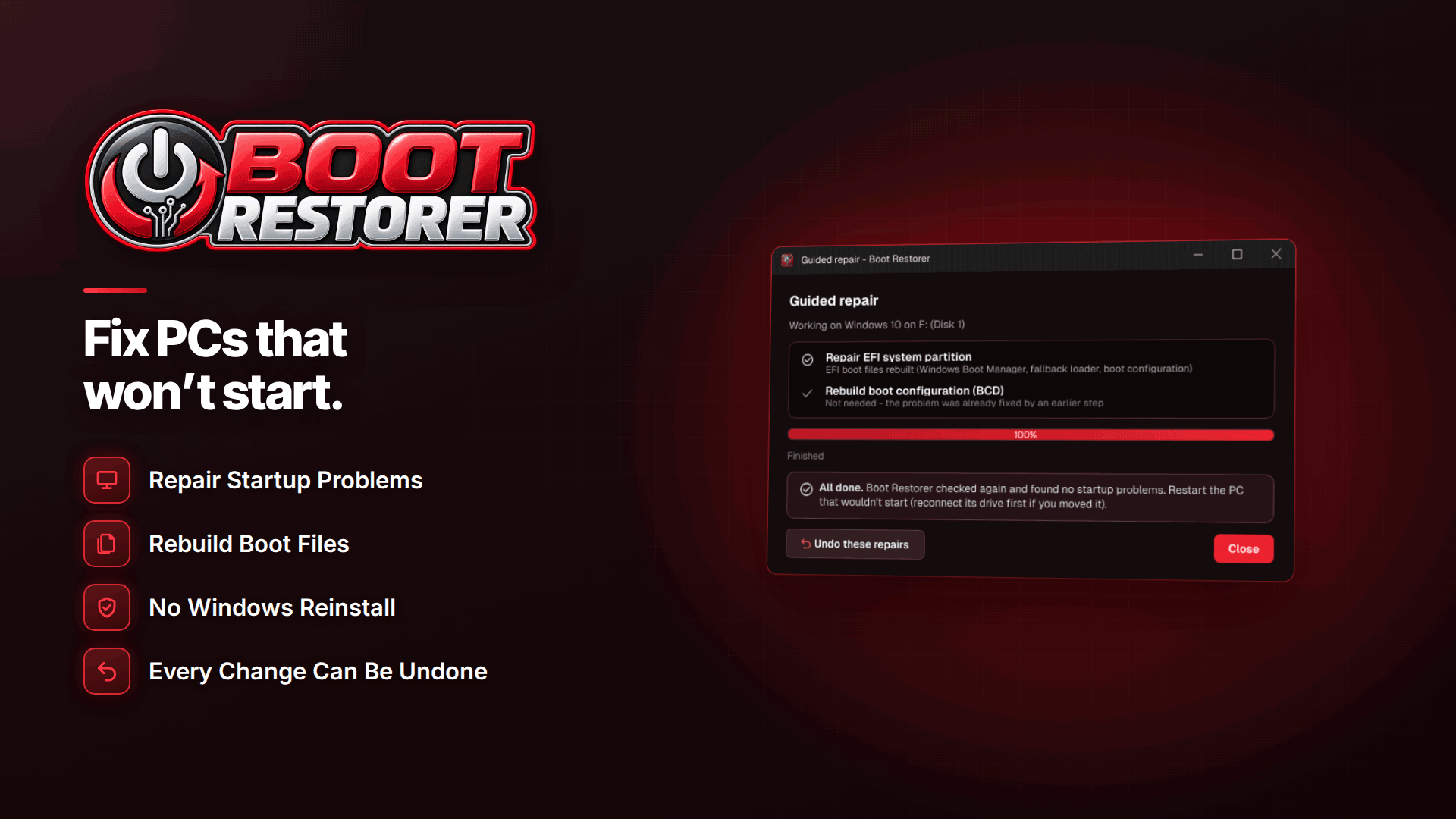
If you'd rather not type partition commands while your upload queue grows, a dedicated tool is the faster path. Boot Restorer has a guided "PC won't start" mode that checks the boot configuration, the EFI and boot manager files, the boot records and the startup files, then explains what it found in plain English before you repair anything.
For this specific error, the relevant capabilities are:
- BCD rebuild and EFI repair. It rebuilds a missing or damaged BCD and repairs the boot files on the EFI system partition, including the classic case of a PC that won't boot after cloning Windows to a new SSD.
- MBR and boot sector rebuild on older BIOS machines.
- Windows detection. It finds each Windows installation on UEFI or BIOS PCs and adds missing ones back to the boot menu.
- A backup before every repair. Each repair saves a backup first, so you can undo it in one click if the result isn't what you expected.
- File copying first. It can copy documents and photos to USB before repairs, from the app or from its rescue menu.
Using the rescue USB on a PC that won't start
If the workstation won't reach the desktop, you run the tool from a recovery USB instead. The USB contains your boot backup, a rescue menu and the software itself, and needs no internet connection. You start it from Windows' recovery Command Prompt or from a Windows installation USB by running BOOTRESTORER.CMD. The rescue menu can repair Windows 7, 8, 8.1, 10 and 11, including PCs where the tool was never installed, so you can make the USB on a working machine and use it on the broken one.
The software installs on 64-bit Windows 10 and 11 and handles both UEFI and legacy BIOS PCs. It saves repair reports, which is handy if you manage several encoding machines and want a record of what was fixed and when.
A realistic recovery order for a tube site workstation
Take a hypothetical example: your encoding PC stops with 0xc000000f the morning after you cloned its system drive to a larger NVMe SSD. A sensible sequence is:
- Check the new SSD appears in the UEFI setup and is first in the boot order.
- Boot the rescue USB and copy tonight's unpublished encodes to a spare USB drive.
- Run the guided diagnosis and read what it reports about the BCD and EFI partition.
- Apply the suggested repair, then restart.
- If Windows starts, check your encoder, FTP client and upload scripts before resuming the queue.
- Once you are back to normal, back up the boot files and keep a recovery USB labelled next to the machine.
The final step matters most. Repairs depend on having a backup or the clean boot files Windows keeps, so making a boot backup and recovery USB on a working PC beforehand is the single best piece of insurance. If you run a site where uploads drive revenue, as covered in our guide to how tube sites make money, a few hours of downtime is a real cost.
When the problem isn't the boot files
Boot repair tools only repair the files Windows uses to start. They don't fix hardware. If the drive isn't detected at all, a good tool will report a likely hardware or connection issue rather than attempting a repair, and you should treat the drive as suspect: replace cables, test it in another machine and restore from backup if needed. Clicking, very slow access or the drive disappearing intermittently all point the same way.
Frequently asked questions
Will rebuilding the BCD delete my files?
No. The BCD is a small configuration store on the boot or EFI partition, separate from your videos and documents. Mistakes with partitioning commands can cause damage, though, which is why copying irreplaceable files first is sensible.
Why does Windows ask for a BitLocker recovery key after a boot repair?
Changes to the boot environment can trigger BitLocker's protection, which then asks for the recovery key to prove you own the drive. Find the key before you start so you aren't locked out.
How do I fix EFI boot files after an SSD clone?
The new drive needs a working EFI system partition with boot files pointing to its own Windows partition. Recreate them with bcdboot from recovery, or use a tool that repairs EFI files and rebuilds the BCD for you.
Next steps
Once the workstation is running again, review how your site's workflow depends on it. Our guides on starting a tube site and video SEO for adult sites cover the wider operation, and you'll find other utilities in the webmaster software and services directory. Before the next crisis, set up Boot Restorer on a working PC, back up its boot files and keep the recovery USB somewhere you can find it.