
How do I remove EXIF data from photos? On Windows you can check and remove it one file at a time through Properties, Details and "Remove Properties and Personal Information", which saves a clean copy. For a whole shoot, it is quicker and safer to run the folder through a batch tool that strips metadata as it converts, so every image you post or send has no GPS location, device details or timestamps attached.
For creators, this is not a technicality. Location data in a single photo taken at home can lead someone to your door. This guide explains what EXIF contains, how to check your files, what platforms do and do not remove, and how to clean a whole folder in one pass.
What does EXIF data contain?
EXIF is information your phone or camera writes into each photo. Depending on the device and settings, it can include:
- GPS coordinates of where the photo was taken, often accurate to a building.
- Date and time, which can reveal routines.
- Device make and model, and sometimes a serial number.
- Camera settings and editing software used.
- Thumbnails of the original image, which can survive some edits.
Put a few photos together and someone can work out where you live, when you are home and which phone you use. That is why metadata belongs on every creator's privacy checklist, alongside the steps in our guide to staying anonymous on OnlyFans.
How do you check a photo for location data in Windows?
- Right-click the photo in File Explorer and choose Properties.
- Open the Details tab and scroll down.
- If you see a GPS section with latitude and longitude, the photo contains location data. No GPS section means none was saved.
To remove it for a single file, click Remove Properties and Personal Information at the bottom of the Details tab. You can remove everything or pick individual properties, and Windows saves a cleaned copy in the same folder. The original still contains the data, so make sure you post the copy, and delete or securely store the original.
Turn it off at source: most phones let you disable location tagging in the camera app's settings. Do it, but still strip metadata before sharing, because settings get reset after updates and other apps can add their own data.
Does Instagram remove EXIF data?
Major social platforms, including Instagram, Facebook, X and TikTok, generally strip GPS and EXIF data from the public copies of images that other people can view or download. But there are important exceptions:
- Direct messages on some platforms can keep metadata when photos are sent in original or high quality.
- Third-party scheduling tools may upload in ways that keep metadata.
- Files sent directly by email, cloud links, chat attachments or file transfer usually keep everything.
- Platforms themselves receive the original file and may keep the metadata internally, even if other users cannot see it.
Subscription platforms and custom-content sales add another route: if you send files directly to buyers, nothing is stripped for you. The safe habit is to remove metadata yourself before any image leaves your device.
How do you strip metadata from images in bulk?
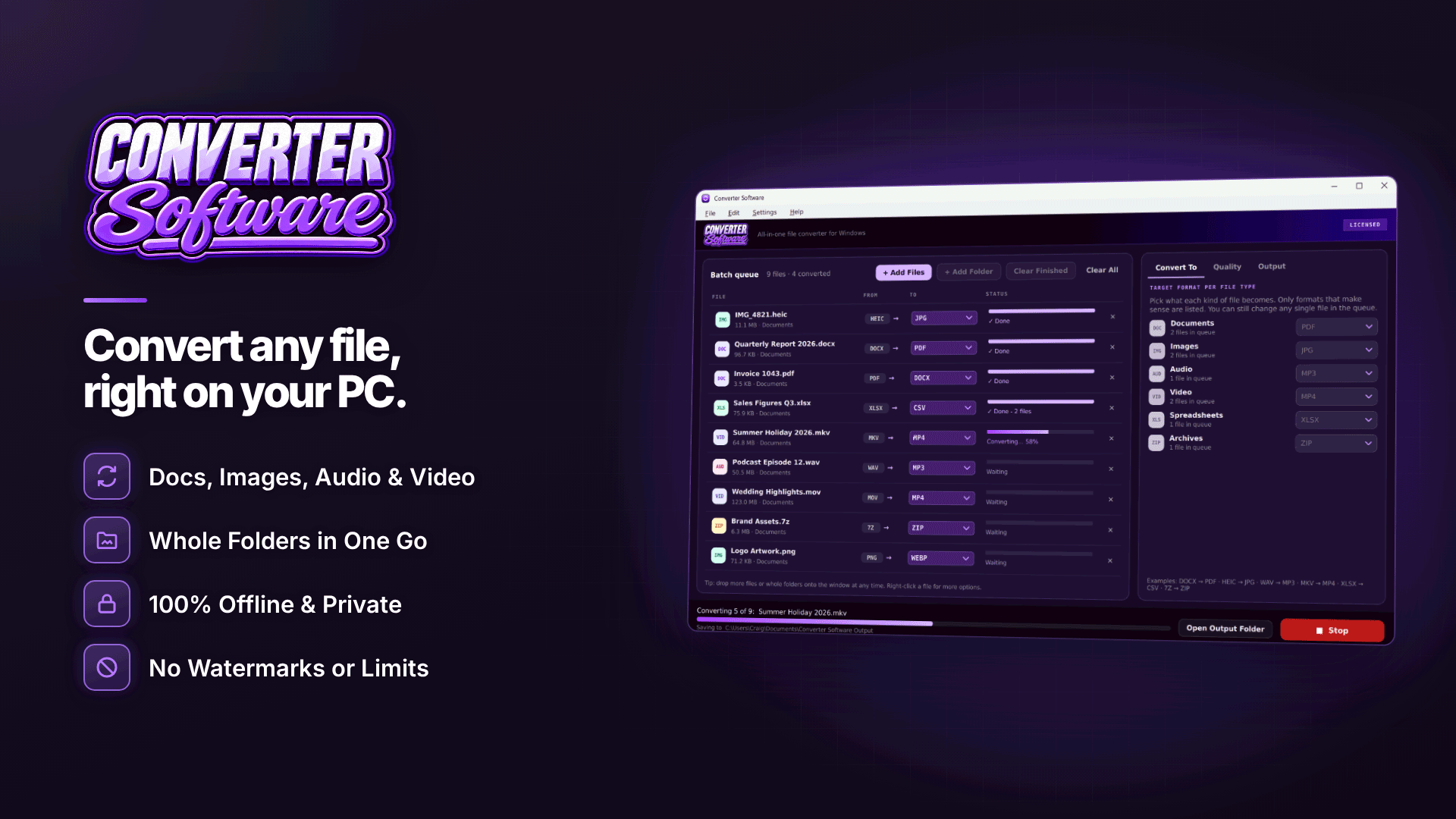
The Windows method is fine for one or two photos, but it is slow and easy to forget for a set of fifty. Doing it as part of your export routine is more reliable. Converter Software is an offline batch converter for Windows 10 and 11 (64-bit) that can strip metadata from images in the same pass as converting and resizing them, without uploading anything.
- Add the folder from your shoot, including sub-folders if you sort by set.
- Choose the target format. Convert HEIC to JPG for maximum compatibility, or to WebP for smaller files.
- Turn on metadata stripping in the image options, and set JPG quality (10 to 100) and a resize if you want smaller upload files.
- Choose an output folder, for example a "ready to post" folder separate from your originals, and add a suffix or date stamp to the names if you like.
- Convert, then spot-check a few outputs using the Properties, Details method above to confirm there is no GPS section.
Converter Software never changes or deletes your originals, so keep your camera-roll folder private and only ever post from the clean output folder. Converting requires an activated key.
Convert HEIC to JPG and remove metadata at the same time
iPhones save photos as HEIC by default. Windows may need the HEIF Image Extensions from the Microsoft Store just to display them, and many upload forms and older tools reject HEIC altogether. Converting HEIC to JPG or WebP while stripping metadata solves both problems in one step, which is why it makes sense to build it into a single routine.
What about videos?
Videos also carry metadata, including location on some phones. The metadata stripping described here applies to images; do not assume a video conversion removes it. Check your phone's camera settings for video location tagging, and check video files' properties before sending them. For what is visible on screen rather than hidden in the file, see our guide to blurring personal details in screen recordings.
A pre-posting privacy checklist
- Location tagging switched off in your camera app.
- Metadata stripped from every image, including teasers and custom content.
- No windows, post, street signs or distinctive views in the frame.
- No reflections showing your face or surroundings where you do not want them.
- A watermark on content that might be leaked; see how to watermark without ruining it.
Frequently asked questions
Does screenshotting a photo remove EXIF?
A screenshot creates a new image without the original's GPS data, but it adds its own metadata, such as the device and time, and lowers quality. Stripping metadata properly is the better habit.
Can someone find my location from a photo with no EXIF?
Yes, from what is visible: views, landmarks, distinctive interiors or reflections. Removing metadata closes the hidden route; you still need to check the picture itself.
What should I do if I have already posted photos with location data?
Remove or replace the originals where you can, especially anything sent directly to individuals. If you think someone has used the data to find you, read our guide to avoiding and responding to doxxing.
Next steps
Make stripping metadata a fixed step in your workflow: shoot, sort, convert and clean, then post only from the clean folder. To convert HEIC, resize and strip metadata from a whole folder in one offline pass, try Converter Software.



