
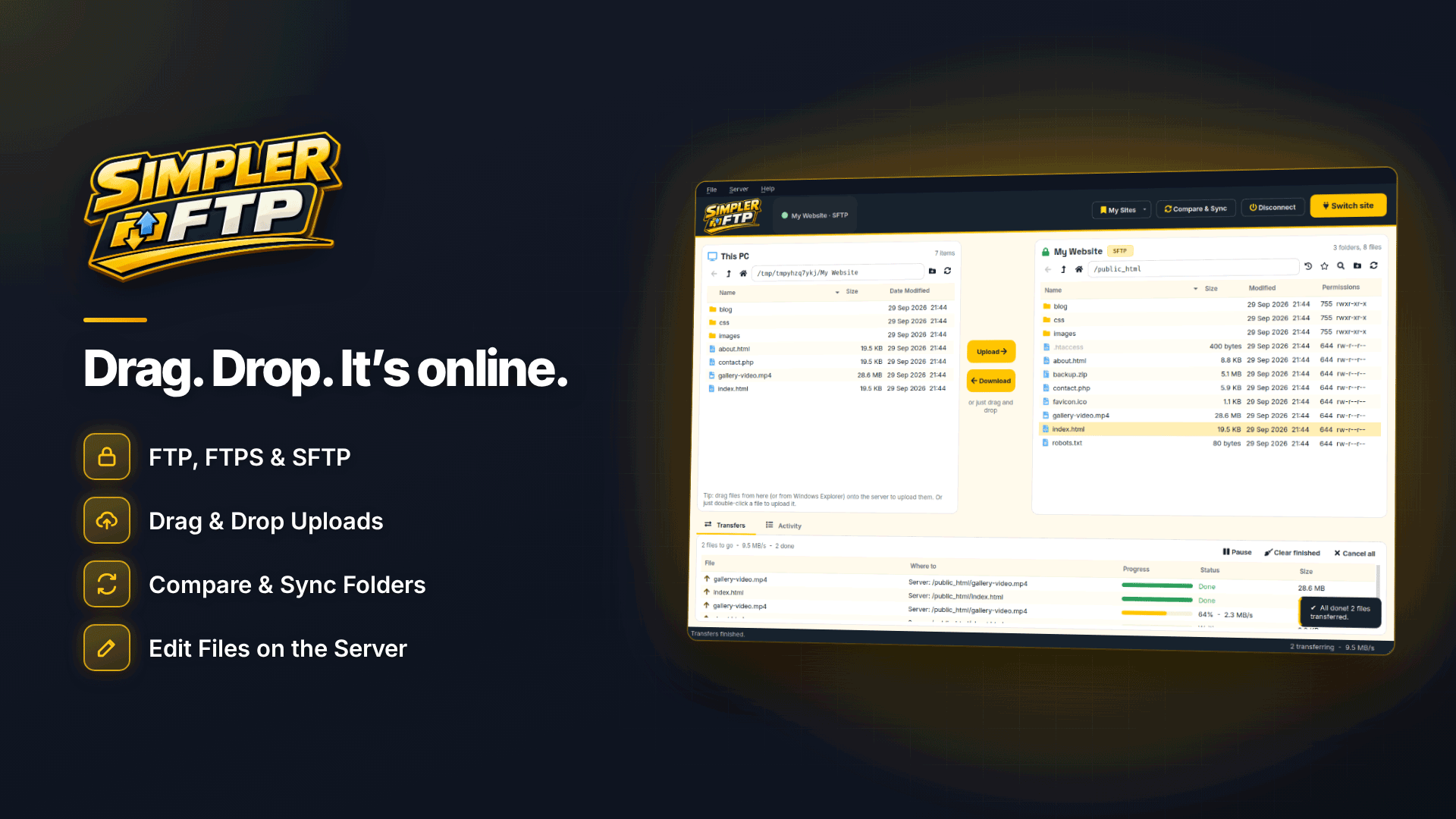
To upload website files with FTP, get your host name, username, password and port from your hosting control panel, connect with an FTP client using SFTP or FTPS rather than plain FTP, open the web root folder on the server (usually public_html, httpdocs or htdocs) and drag your site files into it. Your homepage file, normally index.html, must sit directly in that folder for the site to load at your domain.
That is the whole job in one sentence, but first uploads go wrong in predictable ways: the wrong folder, the wrong protocol or a cached old version that makes it look as though nothing happened. This guide walks through each step for a new affiliate site on Windows.
FTP, SFTP or FTPS: which should you use?
All three move files between your PC and the server, but they differ in security:
| Protocol | Usual port | Encrypted? | Notes |
|---|---|---|---|
| SFTP | 22 | Yes | Runs over SSH; some hosts must enable SSH access first or use a custom port |
| FTPS (explicit) | 21 | Yes (TLS) | Same port as FTP, upgraded to an encrypted connection |
| FTPS (implicit) | 990 | Yes (TLS) | Older style, still offered by some hosts |
| FTP | 21 | No | Password and files travel in plain text |
Use SFTP or FTPS whenever your host offers them. Plain FTP sends your password unencrypted, which is an avoidable risk on public Wi-Fi and a poor habit once your site starts handling any visitor data.
How do you find your FTP host, username and port?
Your host's welcome email normally lists them. If you cannot find it, look in the control panel:
- cPanel: open the FTP Accounts page. Many hosts show the server name, username and port there, often with a client configuration option. Your main cPanel login usually works as the default FTP account, and SFTP typically uses your cPanel or SSH login.
- Plesk: go to Websites and Domains, select the domain and open the hosting or web hosting access settings to see the system username. Additional FTP accounts are created under FTP Access.
- Other panels: search your host's help pages for "FTP details" or "SFTP access".
The host name is often your domain name, a server name such as server12.example-host.com, or an IP address. If your domain is brand new and not yet pointing at the host, use the server name or IP instead.
Which folder do your files go in?
When you connect you may land in your account's home folder, not the folder the web serves. The public web root is usually:
- public_html on cPanel hosting (sometimes shown as www, which points to the same place)
- httpdocs on Plesk hosting
- htdocs or www on some other hosts
Upload the contents of your site folder, not the folder itself. If you drag a folder called mysite into public_html, your homepage ends up at yourdomain.com/mysite/ instead of yourdomain.com. Never place backups, database exports or spreadsheets in the web root, because anything there can be downloaded by anyone who guesses the address.
How to upload website files with SFTP on Windows, step by step
A two-pane FTP client for beginners keeps things simple: your PC on one side, the server on the other. We will use Simpler FTP as the example. It is a Windows client for FTP, FTPS and SFTP that shows your PC on the left and the server on the right.
- Save the site in Simpler FTP's Site Manager. Enter the host, port, protocol, username and, optionally, default local and server folders. Use Test to check the connection before saving. Passwords you save are encrypted and stored on your PC.
- Pick the protocol. Choose SFTP or FTPS if you know which your host uses. Automatic mode selects the most secure option the server offers, which is useful when you are not sure.
- Accept the server identity carefully. On the first SFTP connection you will be asked to trust the server's identity. If you are warned later that it has changed, stop and check with your host before continuing. You will also be warned about untrusted certificates and unencrypted connections.
- Open the web root. On the right, double-click into public_html or httpdocs. Bookmark it so you land there next time.
- Drag your files across. Select everything inside your local site folder and drag it to the server pane, or drop files straight from Windows File Explorer. The transfer queue shows progress and speed for each file.
- Let interrupted transfers resume. If your connection drops, the client reconnects automatically and resumes large files, so you do not need to start again.
- Load your domain. Visit the site in a private browser window to check it.
How do you update the site later?
When you change a few pages, you do not need to upload the whole site again. Choose to overwrite only files that are different, or use Compare and Sync to see which files are new, changed or missing on each side and upload just the differences. Avoid sync options that delete server files missing from your PC unless you are sure, because that removal is permanent.
Why is my site not updating after uploading?
- Wrong folder: the files went into the home folder or a subfolder rather than the web root.
- Browser or CDN cache: force a refresh, try a private window, or purge your CDN cache if you use one.
- A default page is taking priority: many hosts place a placeholder index page in the web root. Delete or replace it so your own index.html loads.
- Case-sensitive file names: most web servers run Linux, where Logo.png and logo.png are different files. Match links to file names exactly.
- DNS not yet pointing at the host: a new domain can take time to resolve to the new server. Check with your registrar and host.
- Permissions: if a page shows a "forbidden" error, file permissions may be too strict. Your host's guidance tells you what to set; a permissions editor lets you tick read and write options rather than typing numbers.
Tip: keep one master copy of the site on your PC and always edit that, then upload. Editing files directly on the server and on your PC at the same time is the quickest way to lose changes.
Frequently asked questions
Can I upload files through my host's file manager instead?
Yes, for a handful of files. For whole sites, folders and repeated updates an FTP client is quicker, can resume interrupted uploads and can send only what has changed.
What if SFTP will not connect?
Check the port (some hosts use a custom one instead of 22), confirm SSH or SFTP access is enabled on your plan, and make sure you are using the right username. If your host only offers FTPS, use that instead.
Do I need SSH keys?
Not to start. A password works, but a key file is stronger and many hosts support it. Keys need to be in OpenSSH format; PuTTY .ppk keys must be converted first.
Next steps
If you are still choosing where to host, read our guide to adult-friendly web hosting and browse the adult web hosting directory; if you have not picked a domain yet, see how to choose a domain name for an affiliate site. For the bigger picture, our guide to starting an affiliate website covers what comes after the first upload. When you are ready to connect, Simpler FTP keeps your host details, secure connection settings and uploads in one place.


