
If you are wondering how do I extract multi part RAR files, put every part of the set in the same folder with its original name, then open only the first part (usually name.part1.rar or name.rar) in an archive tool that supports multi-volume RAR. The tool reads the remaining parts automatically and produces the full content. If any part is missing or renamed, extraction fails.
That is the short version. Below are the naming schemes you will meet, how to unpack many packs in one go, and how to fix the errors Windows throws when something is off.
Which file do I open in a multi-part set?
| You see | Open this | Notes |
|---|---|---|
| pack.part1.rar, pack.part2.rar… | pack.part1.rar | Current RAR naming; all parts end in .rar |
| pack.rar, pack.r00, pack.r01… | pack.rar | Older RAR naming, still common from long-running providers |
| pack.7z.001, pack.7z.002… | pack.7z.001 | Split 7Z archive |
| pack.zip.001, pack.zip.002… or pack.z01, pack.zip | The .001 file, or the .zip file | Split ZIP archive |
Rules that apply to all of them: keep every part in one folder, don't rename any part (download tools sometimes add "(1)" to duplicates), and don't mix parts from two downloads of the same pack unless you are sure they are identical.
Can Windows 11 open RAR files on its own?
Partly. Since a 2023 update, Windows 11's File Explorer can open and extract RAR and 7Z archives natively. It has limits, though: encrypted archives aren't supported, so a password-protected pack typically fails with an error rather than asking for the password, and there is no batch extraction or integrity testing. Windows 10 has no native RAR support. For a steady flow of provider packs, a dedicated archiver saves time.
Extracting a multi-part pack step by step
- Download every part. Check the provider's list of parts and sizes against what you have.
- Put them in one folder with their original names.
- Test the archive before extracting, so you know every part is intact.
- Extract from the first part into a new folder named after the pack.
- Enter the password if the provider gave one; if not, ask before assuming damage.
- Check the result: file counts, a few images and the start and end of a couple of clips.
How do I extract many packs at once?
A monthly content update can mean dozens of archives. Extracting them one by one wastes an afternoon, and extracting them all into one folder makes a mess. What you want is batch extraction where each archive goes into its own sub-folder, named after the archive.
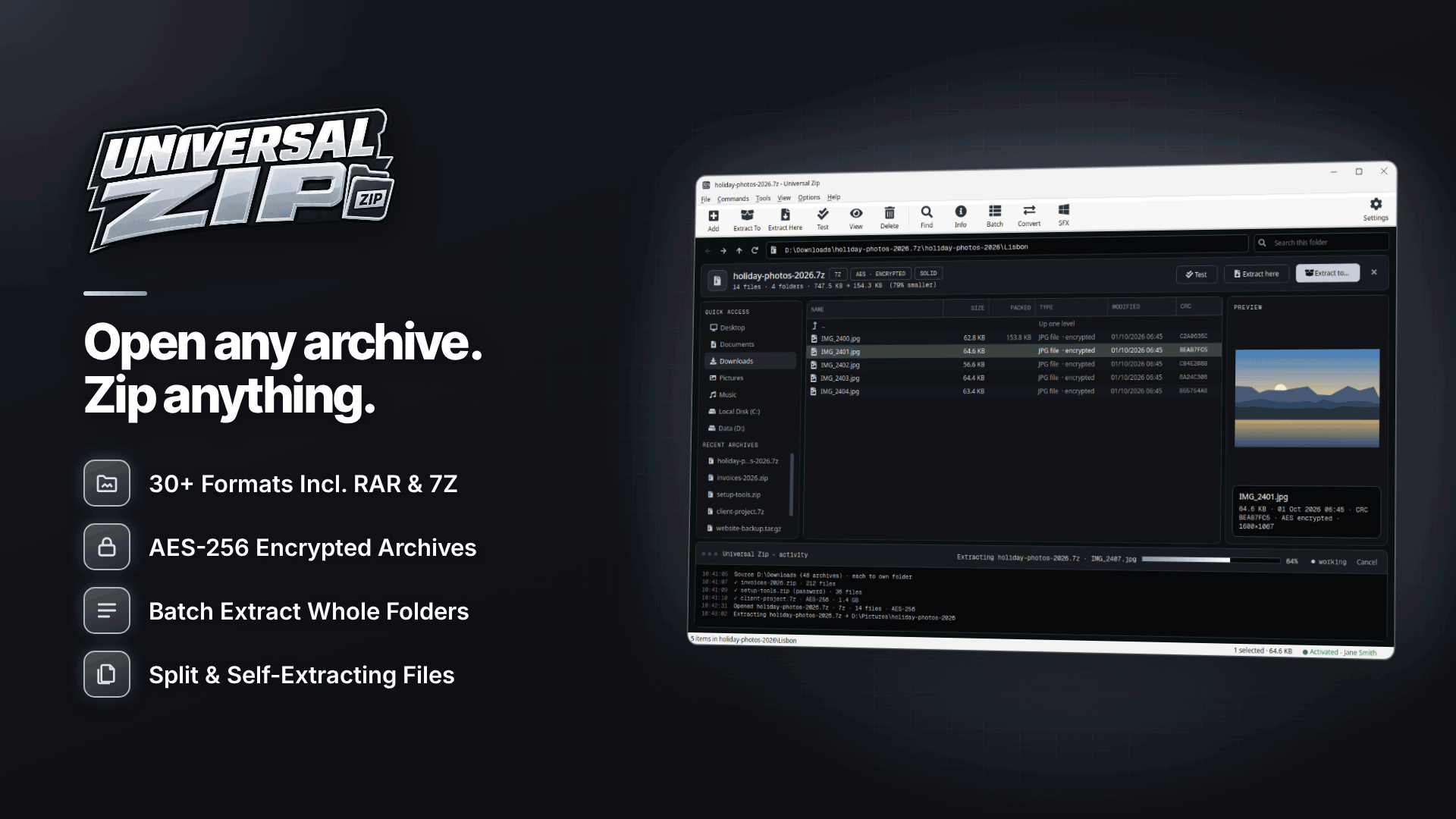
On Windows, Universal Zip does exactly that. It is built on the 7-Zip engine and opens more than 30 formats, including ZIP, RAR and RAR5, 7Z, ISO, TAR, GZ and CAB, plus multi-part sets and password-protected archives. Its batch extraction puts every archive in its own sub-folder, tries your saved passwords automatically, lets you choose overwrite or skip for existing files, and can optionally delete the archives that extracted cleanly so your downloads folder doesn't fill up.
For one-off packs, the Explorer right-click menu offers Extract Here and Extract to folder. The integrity test checks a set before you extract, and an activity panel logs what was extracted, created and tested, which helps when you're working through a large backlog.
Saved passwords: providers often reuse one password for all their packs. The built-in password manager stores frequently used archive passwords encrypted under your Windows account, so batch jobs don't stop at every archive to ask.
Keeping extracted packs organised
Batch extraction only helps if you can find things afterwards. A simple structure that works for most webmasters:
- incoming: raw downloads, untouched, until they have been tested.
- extracted: one sub-folder per pack, named with the provider, the date and the set, for example provider-2026-10-set-name.
- ready: renamed, checked files that are cleared to upload.
- archive: the tested original packs, kept on a backup drive for licensing records.
Keep the provider's licence terms or usage notes in the same folder as the pack they cover. If a rights question comes up months later, you will want to show which pack a file came from and what you were allowed to do with it. Delete the raw archives only once the extracted content is backed up somewhere else.
Should you convert RAR to ZIP?
Sometimes. If you pass packs on to a partner, a VA or a server script that only understands ZIP, converting saves them trouble. The tool converts between formats, RAR to ZIP included. Universal Zip can't create new RAR archives, only open them, so when you repackage content yourself use ZIP for compatibility or 7Z for stronger compression and encryption.
Opening 7Z and other formats
7Z packs are increasingly common because the format compresses well and supports AES-256 with hidden file names. The same steps apply: keep parts together, open the first one, enter the password. ISO files from some providers are disc images; you can extract the contents rather than mounting them.
Fixing "Windows cannot complete the extraction" and other errors
- Missing or renamed part. The most common cause with multi-part sets. Check every number is present and names match exactly.
- Path too long. Deeply nested folders inside a pack can exceed Windows' traditional 260-character path limit. Extract to a short path such as D:\packs\.
- Encrypted archive. Windows' built-in extraction can't handle password-protected archives; use an archiver that can.
- Damaged download. A CRC or "unexpected end of archive" error means a part is corrupt or incomplete. Re-download that part; if you can't, see our guide to fixing a corrupted ZIP or RAR content pack.
- Not enough space. Extracting needs room for the full content as well as the archive parts.
Frequently asked questions
Do I need to open every part?
No. Open only the first part; the archiver reads the rest automatically as long as they are in the same folder.
Can I extract a set if one part is missing?
Not completely. Files stored wholly in the parts you have may be recoverable, but anything spanning the missing part is lost. Ask the provider for the missing part.
Why does the pack ask for a password I wasn't given?
Providers usually publish pack passwords in the members' or affiliates' area, or in the delivery email. Check there before contacting support.
Next steps
Unpacking is the first step in getting provider content live. For what to do with the material once it is extracted, read our guides to adult affiliate promo tools and paysite affiliate programs, see how to start a tube site, and compare suppliers in the content providers directory.
If you unpack more than a handful of packs a month, set up batch extraction with your providers' saved passwords in Universal Zip and let each pack land in its own folder.


